How to Enable and Use Aireal Features in the Tapo App
Recent updates may have expanded access to feature(s) discussed in this FAQ. Visit your product's support page, select the correct hardware version for your device, and check either the Datasheet or the firmware section for the latest improvements added to your product. Please note that product availability varies by region, and certain models may not be available in your region.
Aireal is Tapo's AI-powered platform available through Tapo Care cloud subscriptions. Depending on your plan, you can access features such as AI Chat, Snapshot Notifications, Smart Filters, Weekly Reports, Facial Recognition, Intelligent Summaries, Video Recap, AI Video Search, Intelligent Notifications, Daily Summaries, and Smart Preferences. This guide explains each feature and how to use it in the Tapo app.
Note: Cloud, Cloud Advanced, and Cloud Advanced AI plans are being rolled out gradually. Available plans may vary by region or account—refer to your Tapo app for the most accurate information.
Key Takeaways
- Tapo Care powered by Aireal offers three plans: Cloud, Cloud Advanced, and Cloud Advanced AI, each with different storage and AI capabilities.
- Aireal AI Chat lets you ask questions about your devices and recorded events using natural language.
- Advanced AI features include Facial Recognition, Intelligent Summaries, Video Recap, AI Video Search, and Intelligent Notifications.
- Smart Filters, Snapshot Notifications, Weekly Reports, and Daily Summaries help you review important events more efficiently.
- Smart Preferences personalizes Aireal insights and notifications based on the events that matter most to you.
AI Chat
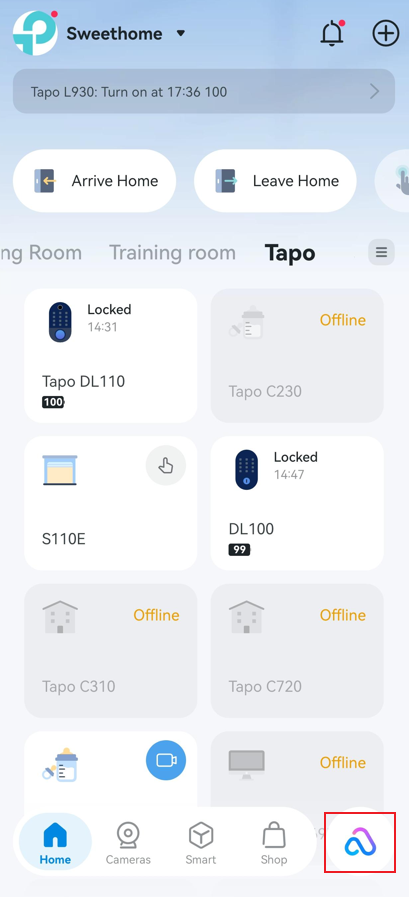
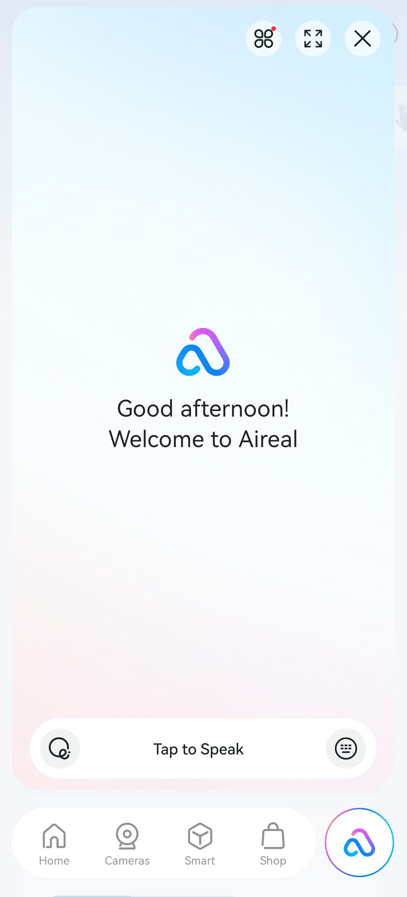
Aireal is Tapo's built-in AI assistant. Open the Tapo app and tap the Aireal icon in the bottom-right corner to start a conversation. You can ask Aireal questions about your devices and get answers in plain language. Examples of what you can ask Aireal:
- "Did anything happen at my front door this morning?"
- "Was the package I ordered delivered today?"
- "Did anyone visit while I was at work?"
- "Show me all the times my dog was in the backyard this week."
Free, Cloud, and Cloud Advanced plans include 50 chats per day through Aireal Free. Cloud Advanced AI unlocks full Aireal access with 250 chats per day plus the complete AI feature suite. For more details about AI Chat limits, refer to Understanding AI Chat Usage Limits in Aireal.
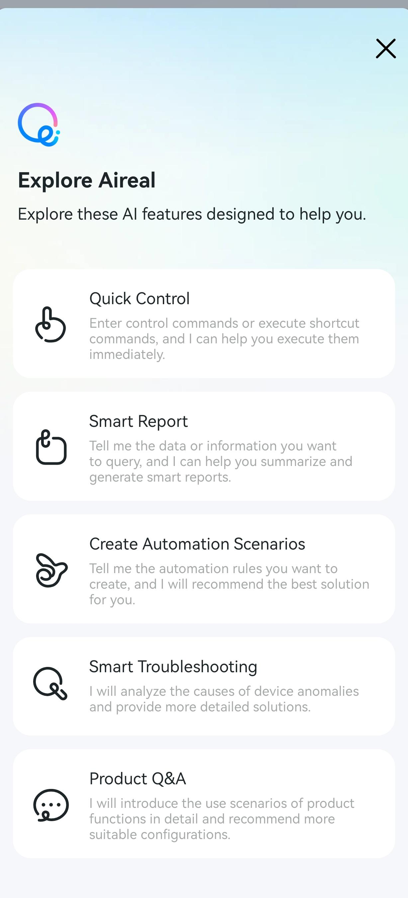
Explore Aireal
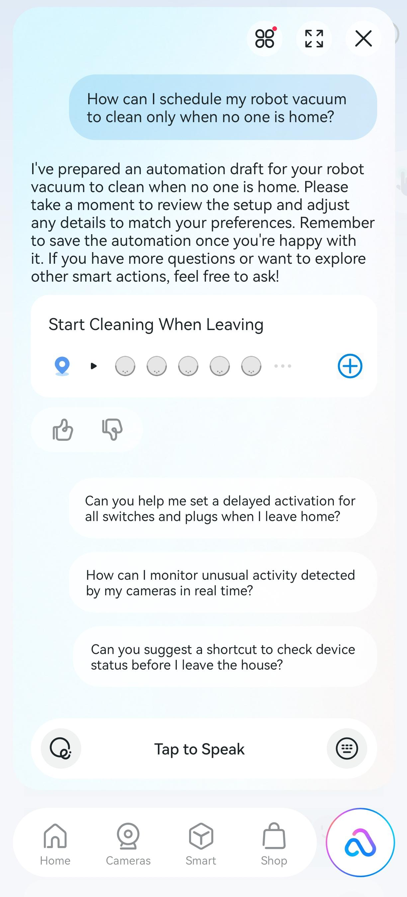
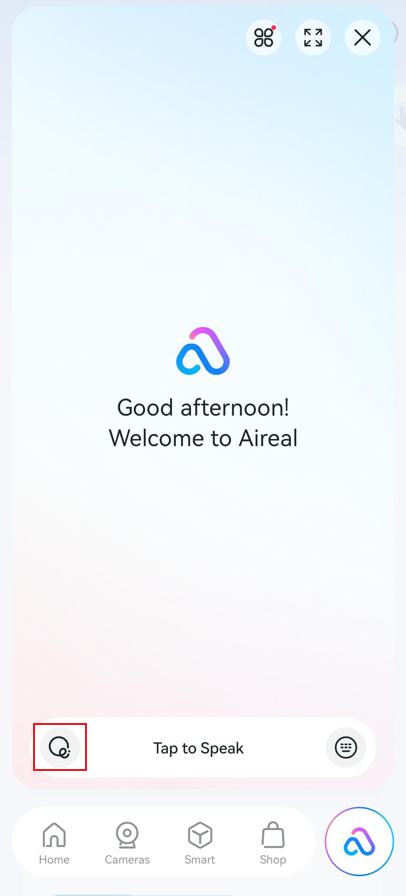
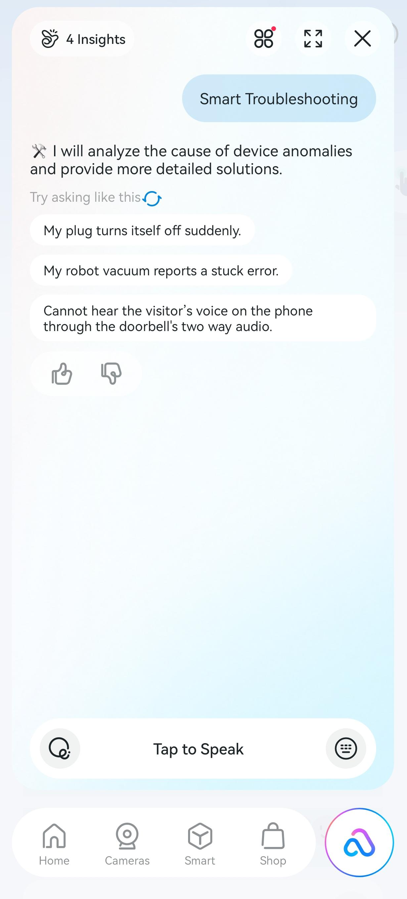
Within Aireal, you’ll find pre-suggested prompts that clearly illustrate what the assistant can do for you. Aireal can provide the following features:
- Quick Control: Enter control commands or execute shortcut commands; Aireal can help you execute them immediately.
- Smart Report: Tell Aireal the data or information you want to query, and Aireal can help you summarize and generate smart reports.
- Create Automation Scenarios: Tell Aireal the automation rules you want to create, and Aireal will recommend the best solution for you.
- Smart Troubleshooting: Aireal will analyze the causes of device anomalies and provide more detailed solutions.
- Product Q & A: Aireal will introduce the use scenarios of product functions in detail and recommend a more suitable configuration.
Snapshot Notifications
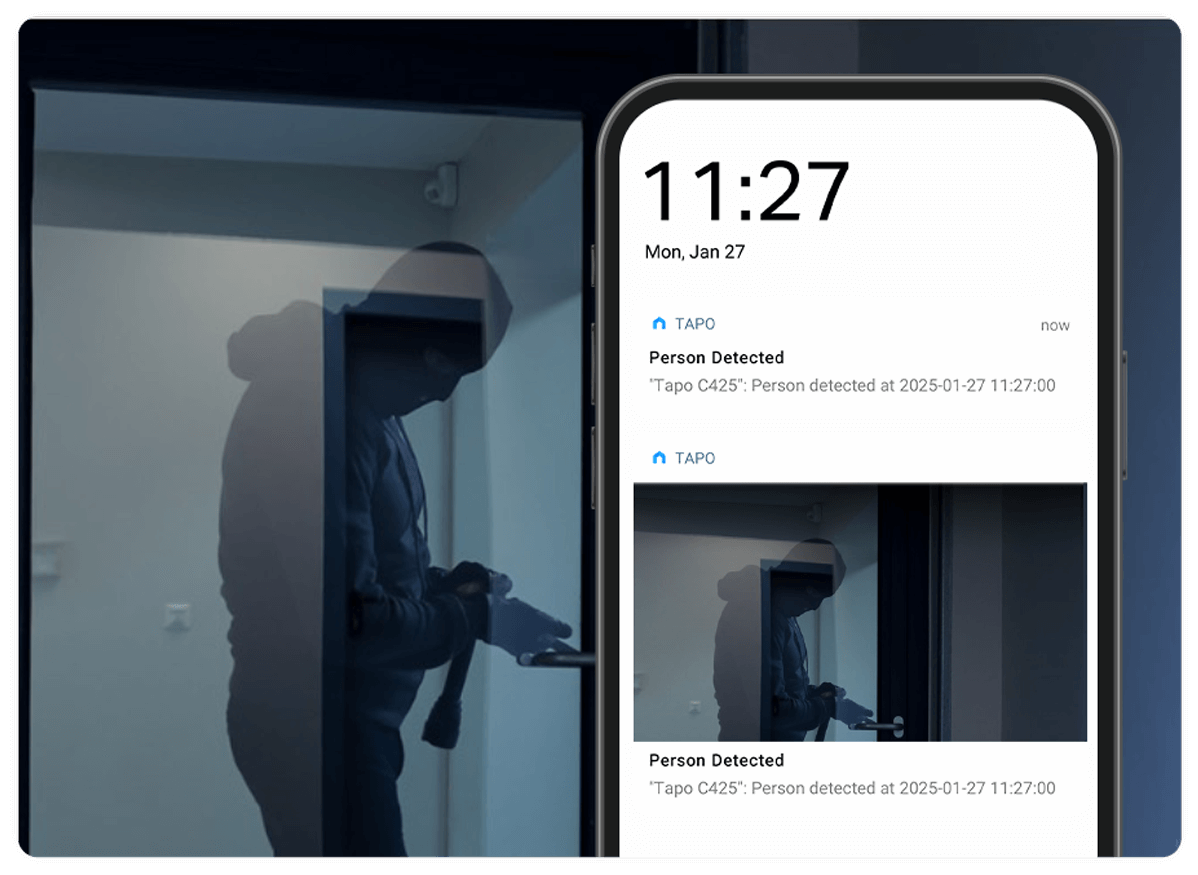
Snapshot Notifications are push notifications that include a photo snapshot from the moment of detection when your camera/doorbell detects motion. This lets you quickly see what triggered the alert without opening a full video clip.
Smart Filters
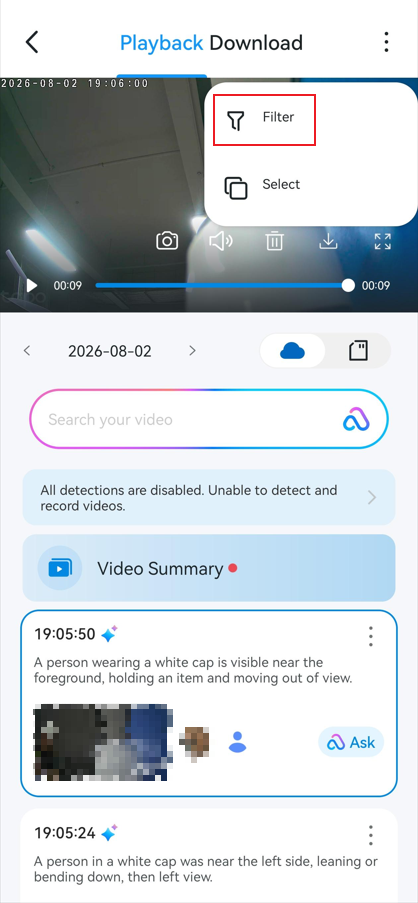
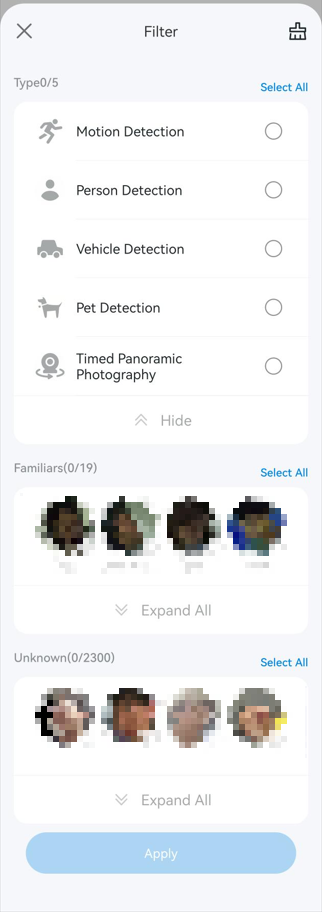
Smart Filters help you quickly find specific events by filtering recordings based on detection type, such as people, vehicles, animals, or sounds.
To use Smart Filters:
- Open the Tapo app Home page and tap the camera card to enter Live View.
- Go to Playback & Download > Playback. Tap the Cloud icon and select a date.
- Tap the three-dot icon (in the top right) to access Filter and Select options. (For dual-lens cameras, the Filter icon appears next to the Cloud icon)
- Click Filter and select the desired detection types.
Weekly Report
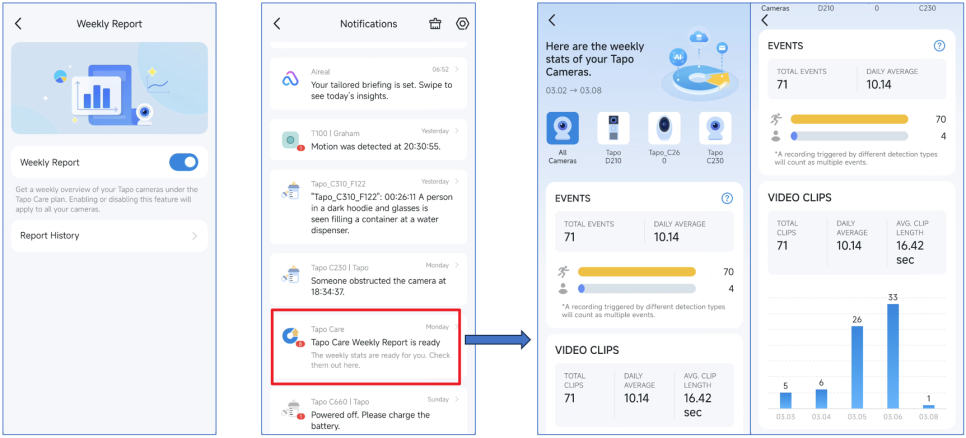
Weekly Report provides a weekly overview of camera activity, including the number of recorded events and key highlights from the week.
Open the Tapo app and enter Live View for your camera, then tap Tapo Care > Weekly Report to enable the feature. To view weekly reports, you can use either of the following ways:
- Open the Tapo app Home page, tap the Bell icon in the top right corner to enter the Notifications page, then find and view the weekly report.
- Open your camera’s Live View page, tap Tapo Care > Weekly Report > Report History.
Facial Recognition
Cloud-based facial recognition technology enhances security and efficiency by utilizing powerful cloud servers to analyze and identify detected faces. The face data is encrypted and strictly protected, used exclusively for recognition purposes. You can delete saved faces at any time. Face data is shared across all devices under the same account, enabling seamless management of facial information.
Note: Due to local regulations, facial recognition is currently unavailable in Illinois and Texas. Availability also depends on your device model and region, and may change over time.
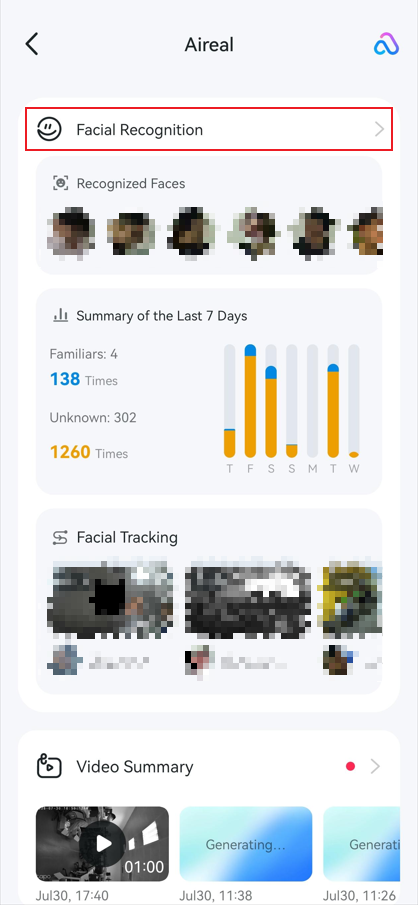
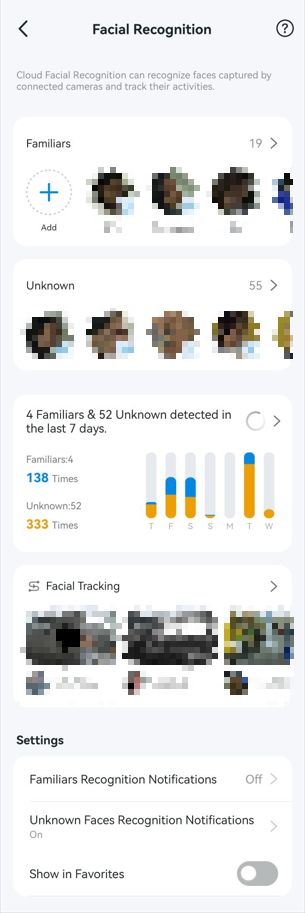
To manage Facial Recognition, go to the Tapo app Me page (tap the profile picture in the top right or the Me tab in the bottom right), select Aireal, and tap Facial Recognition. From here, you can manage Familiars and Unknown Faces, view Facial Recognition Report, Facial Tracking results, and configure related settings.
Manage Familiars and Unknown Faces
- In the Familiars page, tap the Plus icon in the top right corner to Add Faces: Copy from Other Devices, Take Photo, or Choose from Photos. Tap the Familiar profile to view the detailed report or delete the familiar.
- On the Unknown Faces page, tap the three dots in the top right corner to Combine Multiple Faces or Delete in Batch.
Facial Recognition Report
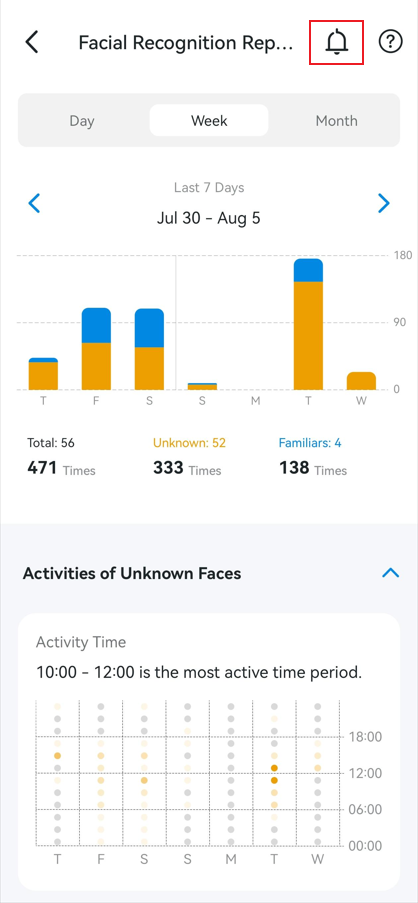
Facial recognition report tracks how many times, at what time, and in what locations the familiars and unknown persons appear. This offers insight into each person's involvement and enhances surveillance of surrounding activities.
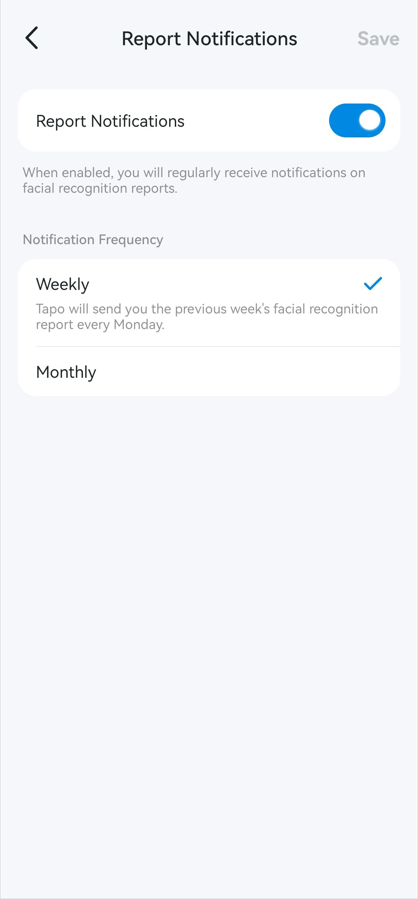
On the Facial Recognition Report page, tap the Bell icon in the top right to enable or disable Report Notifications and adjust the Notification Frequency.
Facial Tracking
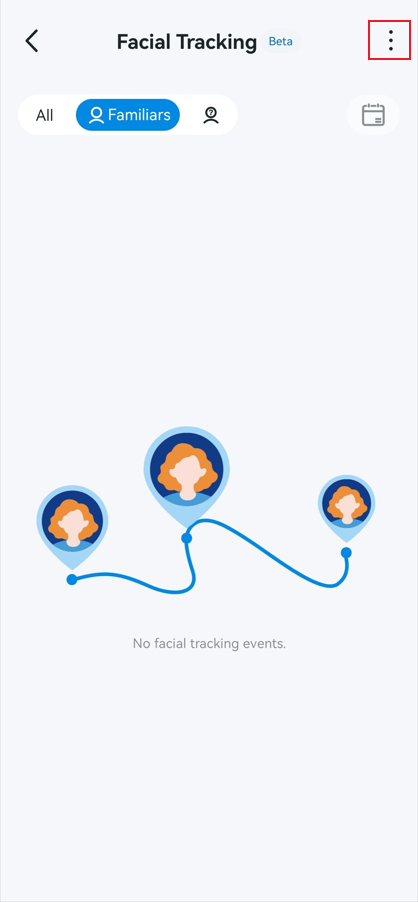
Using Facial Tracking to identify and track the repeated activities of the same person across cameras and automatically create a video of their actions.
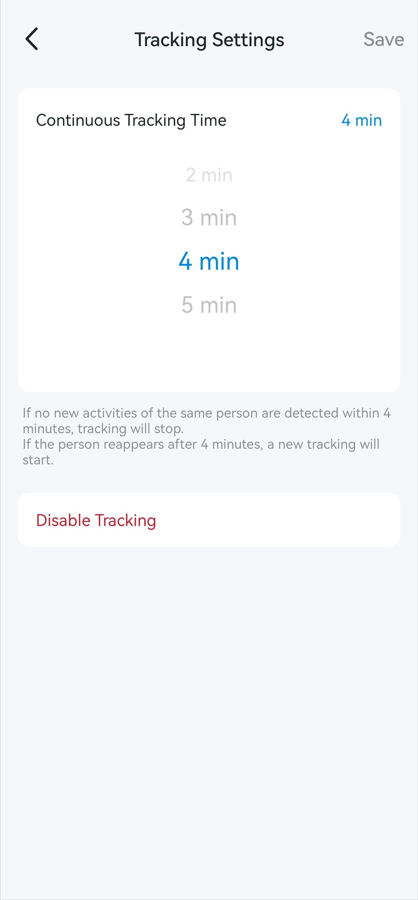
On the Facial Tracking page, tap the three dots in the top right to enable or disable Tracking and set Continuous Tracking Time.
Facial Recognition Settings
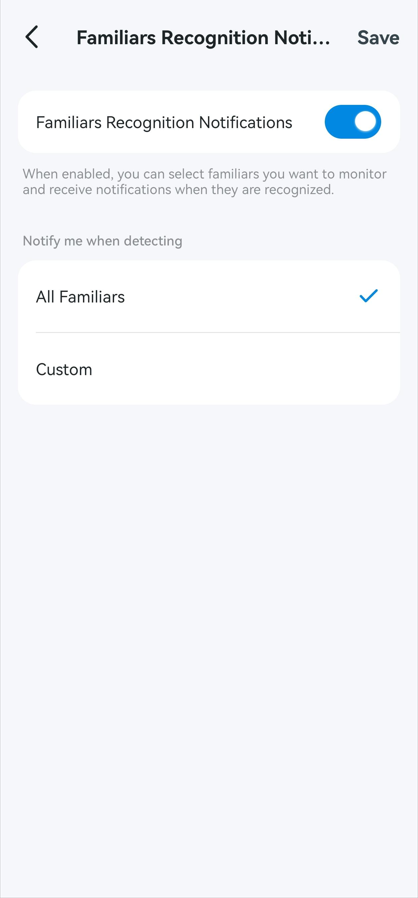
- Familiars Recognition Notification: when enabled, you can select familiars you want to monitor and receive notifications when they are recognized.
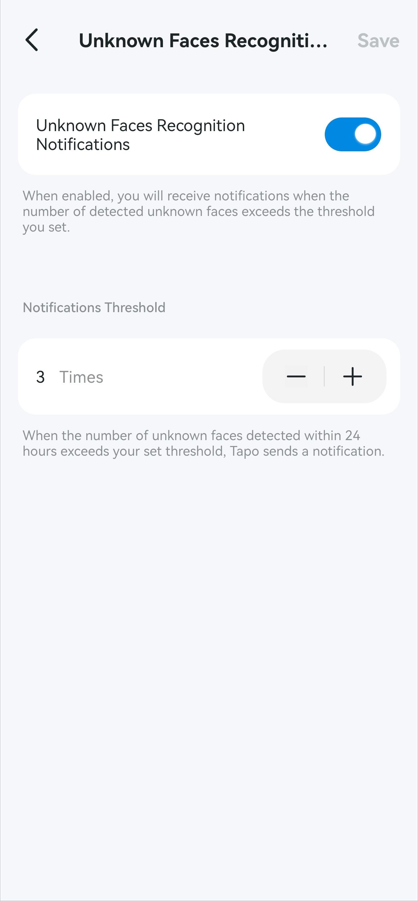
- Unknown Faces Recognition Notification: when enabled, you will receive notifications when the number of detected unknown faces exceeds the threshold you set.
Intelligent Summaries
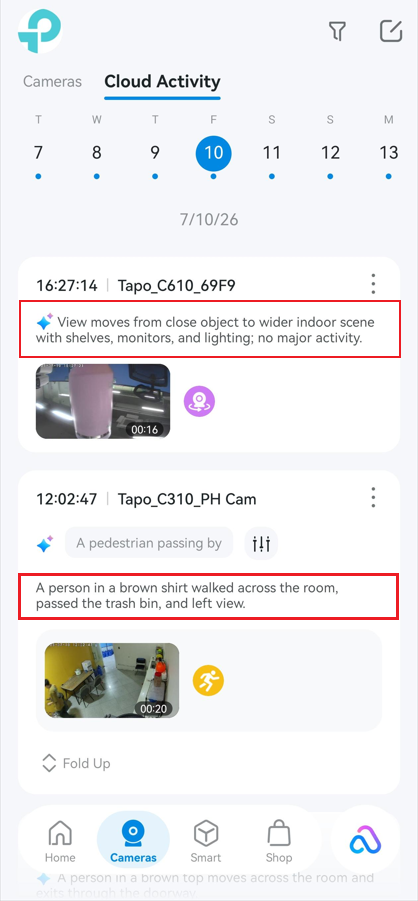
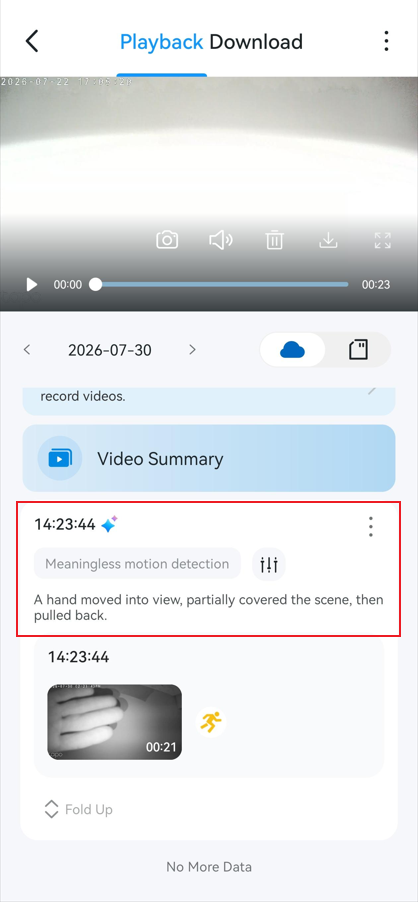
Intelligent Summaries are AI-generated descriptions of what happened on camera. Instead of watching each clip, you can read a summary of the key event. For example: "A person approached the front door at 2:14 PM and left after 30 seconds." This helps you quickly decide whether a clip is worth watching in full.
To view Intelligent Summaries, open the Tapo app, go to the Cameras tab, and view summaries on the Cloud Activity page. You can also find them on the camera Playback & Download page.
Video Recap
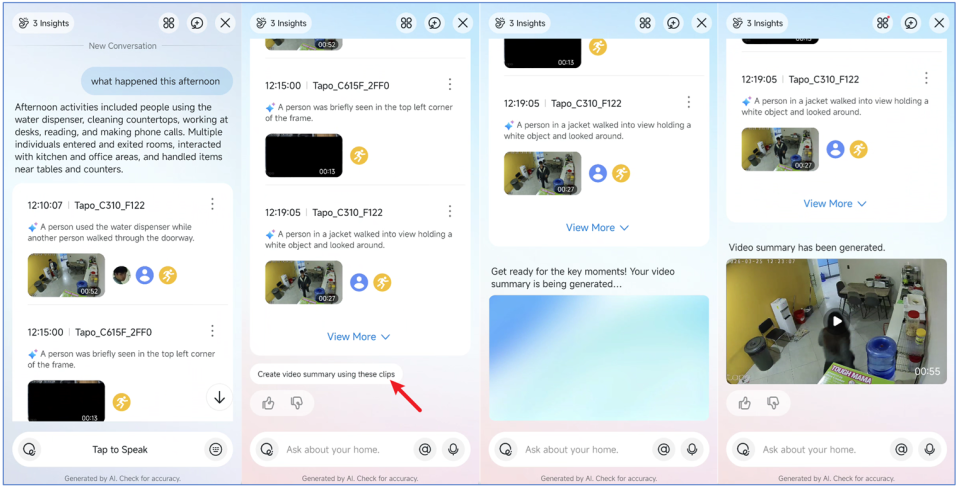
Video Recap automatically creates a short highlight video from your cameras' most important moments. Instead of reviewing hours of footage, you can watch a short recap that covers the key events of the day or week.
To generate a Video Recap:
- Tap the Aireal icon (bottom‑right corner) in the Tapo app to open AI Chat.
- Ask Aireal for a recap, such as "Show me today's Video Recap" or "What happened this afternoon?".
- Aireal will gather relevant clips and prompt you to generate a Video Summary with one tap.
AI Video Search
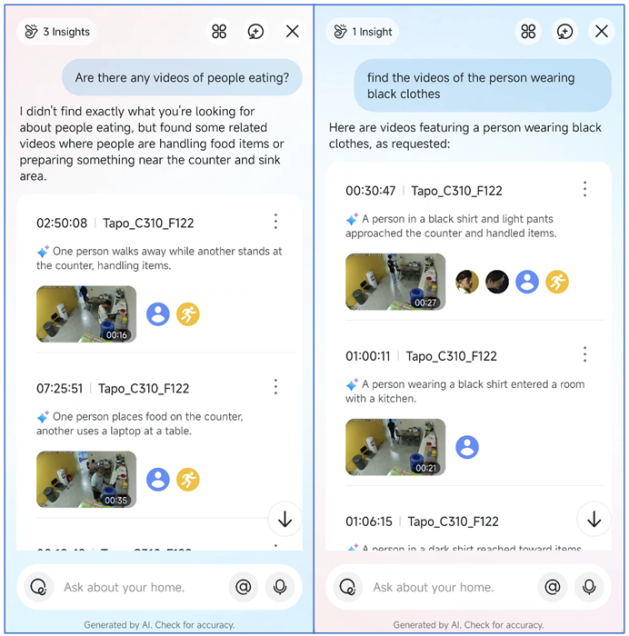
AI Video Search allows you to describe what you are looking for in plain language, and the AI will find matching clips from your video history.
To use AI Video Search:
- Tap the Aireal icon (bottom‑right corner) in the Tapo app to open AI Chat.
- Describe what you want to find. For example, search for "white car in driveway" or "someone at the back door" without scrolling through footage manually.
Intelligent Notifications
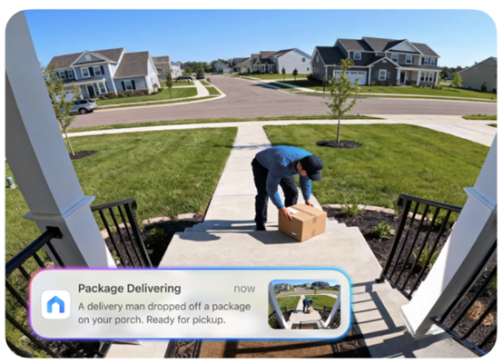
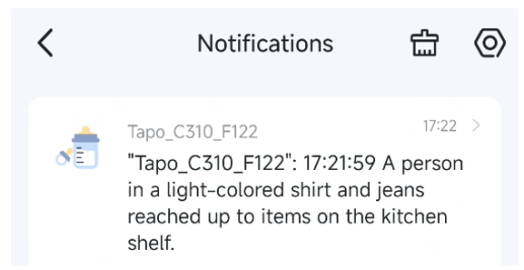
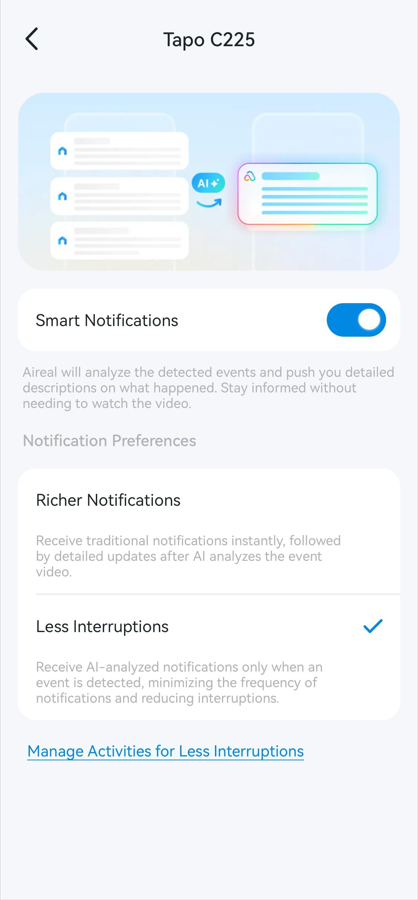
Intelligent Notifications provide detailed push alerts describing detected events — such as "A person is at your front door"— instead of generic motion alerts. Aireal analyses event videos and sends you specific descriptions, keeping you informed without needing to watch the footage.
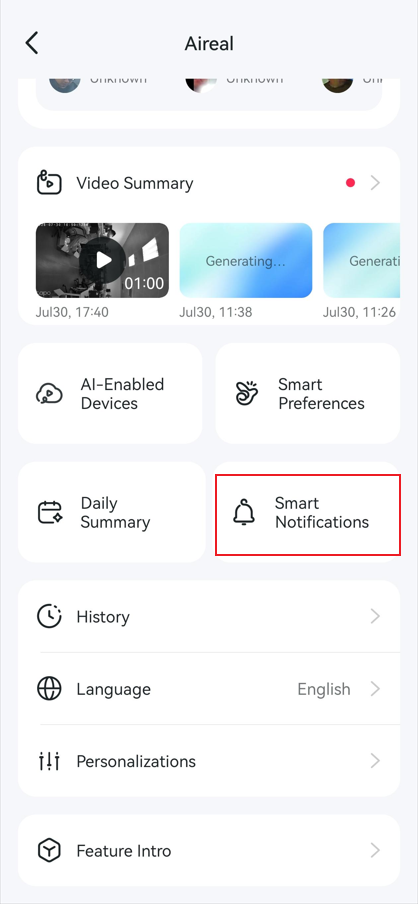
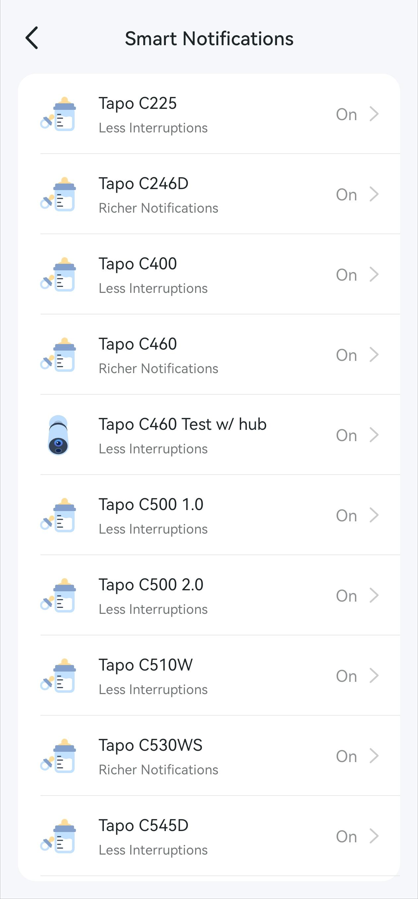
To enable Intelligent Notifications, go to the Tapo app Me page (tap the profile picture in the top right or the Me tab in the bottom right), select Aireal, tap Smart Notifications, choose your device to turn on Smart Notifications, and select your preferred mode:
- Richer Notifications: Receive traditional notifications instantly, followed by detailed updates after AI analyzes the event video.
- Less Interruptions: Receive AI-analyzed notifications only when an event is detected, minimizing the frequency of notifications and reducing interruptions.
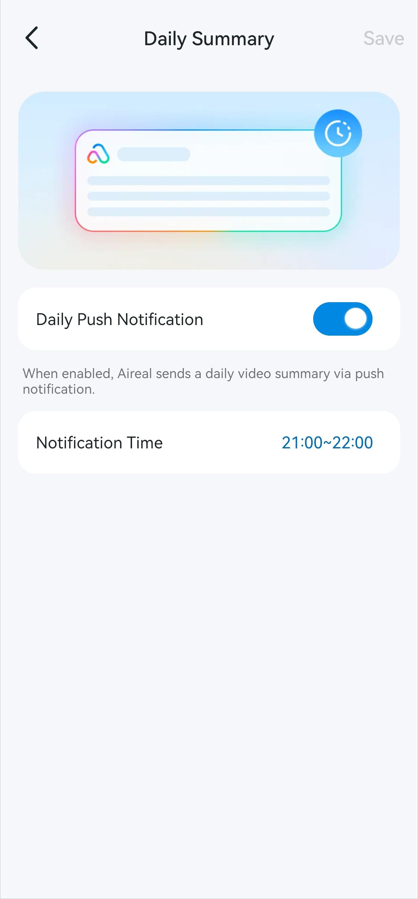
Daily Summary
Daily Summary is a feature where Aireal generates a brief overview of everything that happened on your cameras. The summary describes the key events in plain language so you can stay informed without reviewing every clip.
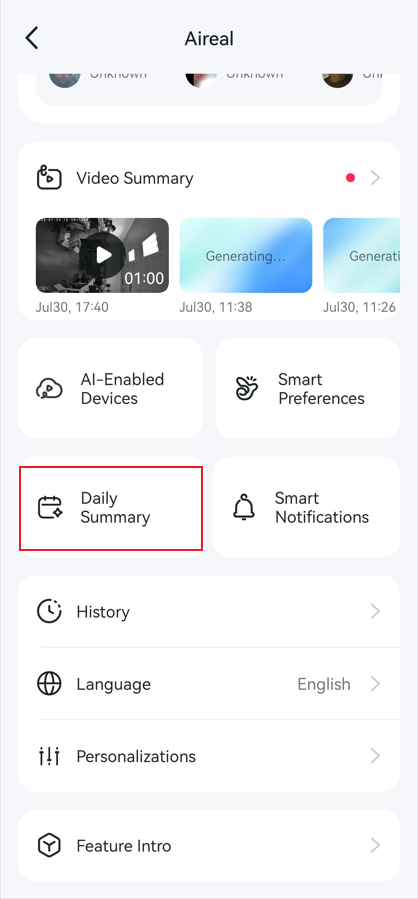
Go to the Tapo app Me page (tap the profile picture in the top right or the Me tab in the bottom right), select Aireal, tap Daily Summary to enable or disable the Daily Push Notification, and set the Notification Time.
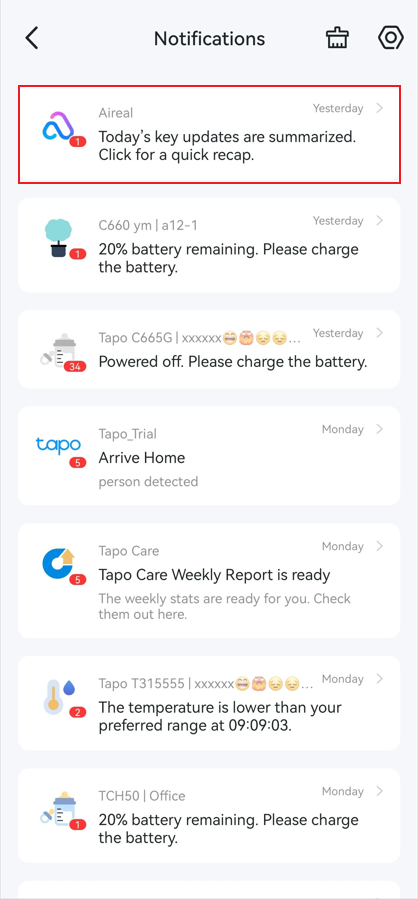
To view the Daily Summary, go to the Tapo app Home page, tap the Bell icon in the top right to enter the Notifications page.
Smart Preferences
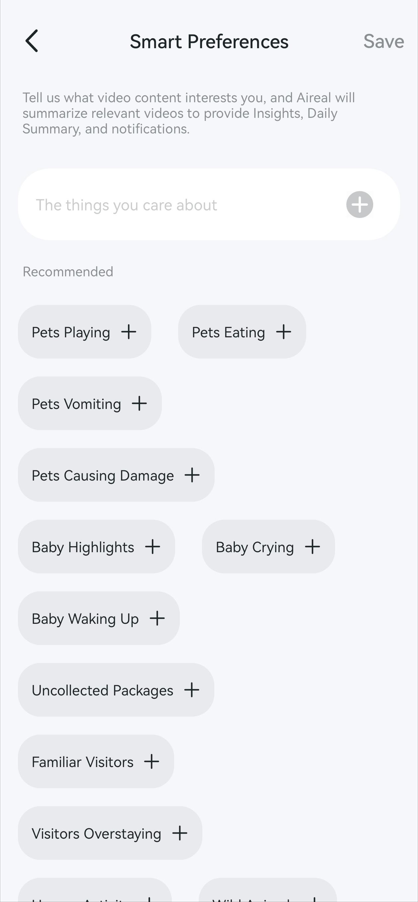
Smart Preferences lets Aireal learn what matters most to you and adjust how it surfaces information. Over time, Aireal becomes better at prioritizing the events and notifications that are most relevant to your life and routine.
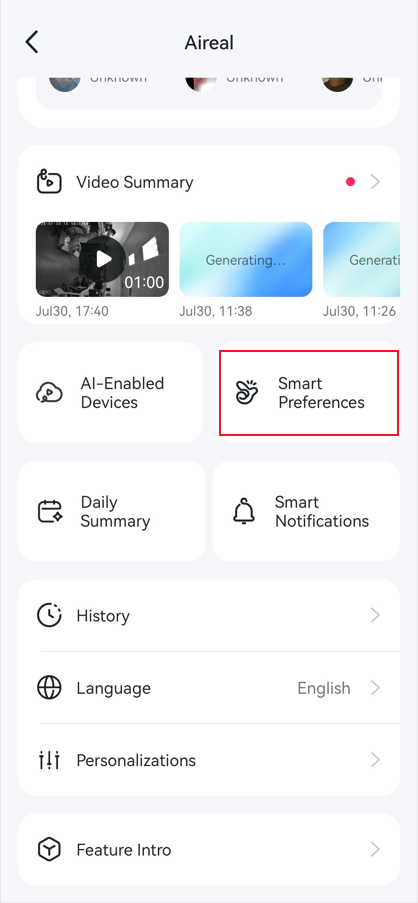
To customize Smart Preferences, go to the Tapo app Me page (tap the profile picture in the top right or the Me tab in the bottom right), select Aireal, and tap Smart Preferences to customize your settings.
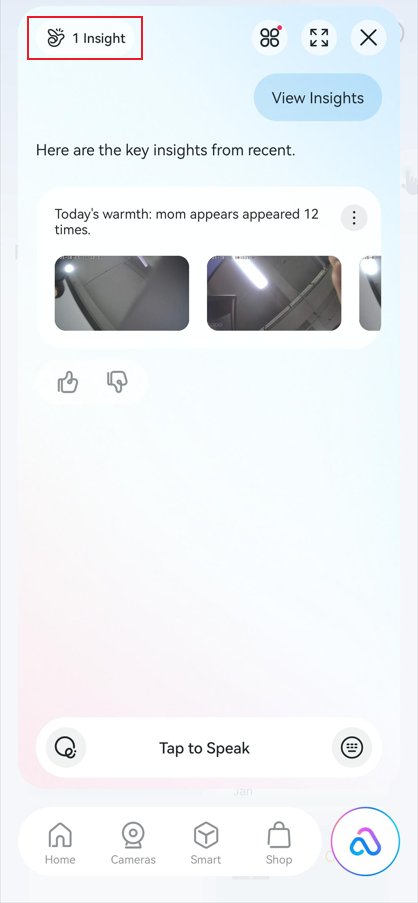
To view personalized insights, tap the Aireal icon in the bottom right of the Tapo app to open AI Chat, then tap Insight in the top left corner to view highlighted events that need your attention.
To learn more about each function and configuration, please visit the Download Center to download the manual for your product.