How to check event log of Tapo Button, Sensor, and Hub
Recent updates may have expanded access to feature(s) discussed in this FAQ. Visit your product's support page, select the correct hardware version for your device, and check either the Datasheet or the firmware section for the latest improvements added to your product. Please note that product availability varies by region, and certain models may not be available in your region.
Introduction
This FAQ explains how to view the activity history/event log for Tapo buttons, sensors, and hubs in the Tapo app. By reviewing activity logs, you can monitor recent actions, better understand how your devices are operating, and quickly troubleshoot issues.
Configuration
Method 1. Via Device Status page
Case 1: For Tapo button and sensor
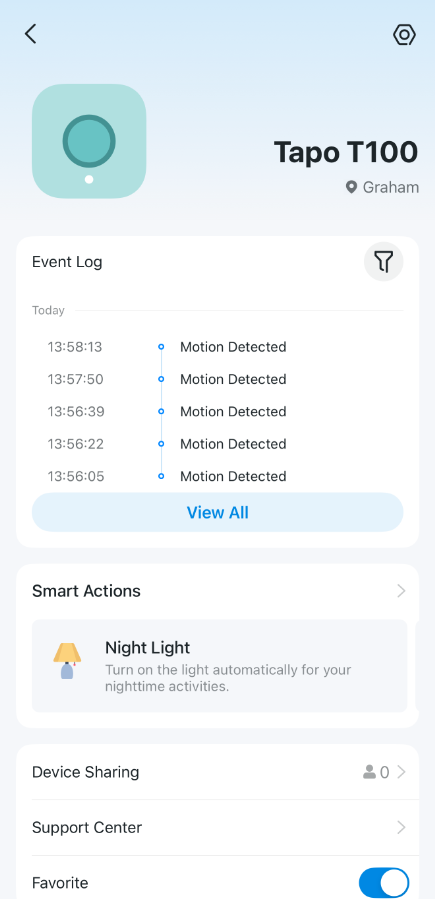
Step 1. Open the Tapo app and tap your device card on the home page to enter the device status page.
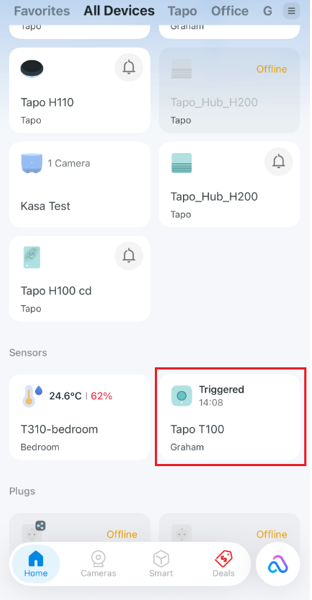
Step 2. On the device status page, you can check Event Log of your device.
Case 2: For Tapo hub
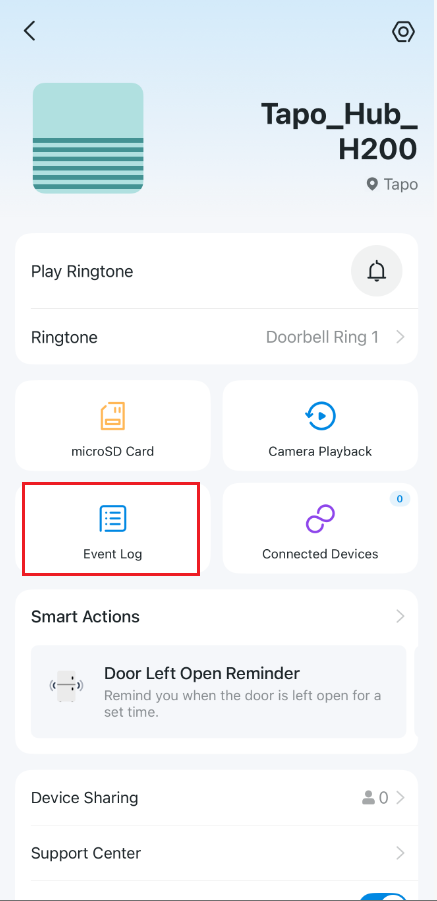
Step 1. Open the Tapo app and tap your device card on the home page to enter the device status page.
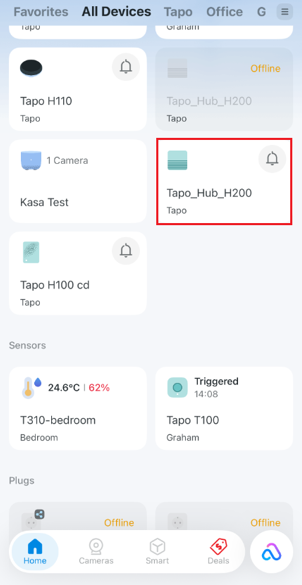
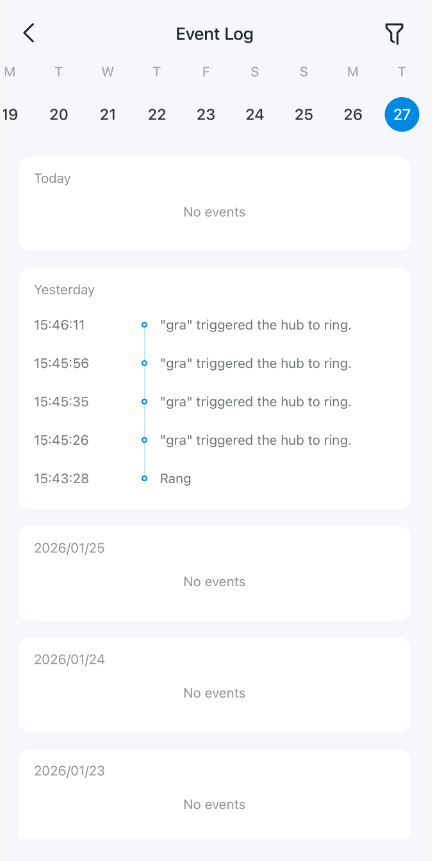
Step 2. Click on Event Log/Ring Log to check the activity history.
Method 2: Via App Notifications page
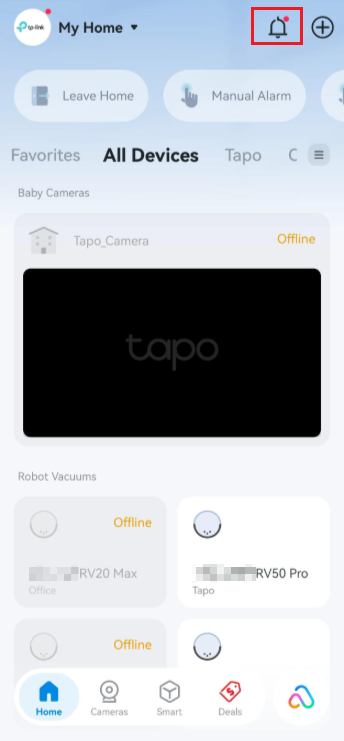
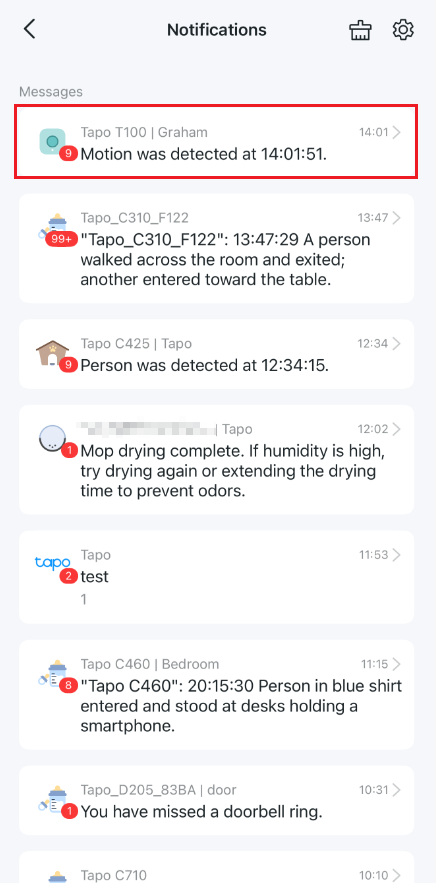
Open the Tapo app and tap the  icon in the top right to check all the activities of your device.
Get to know more details of each function and configuration, please go to the Download Center to download the manual of your product.