How to Tell If a Security Camera Is On, Recording, or Compromised
Whether you've noticed a camera in a shared space or you're trying to understand your own device, knowing how to tell if a security camera is on comes down to a handful of reliable indicators. Most security cameras show visible signs of activity: a glowing light, lens movement, or a status update in an app.
This guide covers seven things to check to determine whether a camera is active, how to tell if it's recording or just on standby, what warning signs suggest a camera may have been compromised, and what responsible camera manufacturers do to protect your privacy.
Key Takeaways
- The most common sign that a security camera is on is a visible indicator light. Most cameras have a small LED on the housing that glows or blinks red, green, or blue when the camera is active.
- A camera being on doesn't always mean it's recording. Many cameras only capture footage when they detect motion, not continuously.
- Infrared (IR) lights are used for night vision. They may appear as a faint red glow around the lens in low light, even when no other indicator light is visible.
- Unexpected movement, unusual audio, or unfamiliar account activity can be signs that a camera has been compromised. Unexplained spikes in network data usage are another thing to watch for.
- Cameras from reputable manufacturers include built-in security features. Encryption, firmware updates, and secure login protocols all help protect against unauthorized access.
How to Tell If a Security Camera Is On: 7 Things to Check
The most reliable way to assess a camera's status is to work through a short, practical checklist. Each of the following indicators can tell you something about whether a camera is powered on and active.
1. Look for an Indicator Light
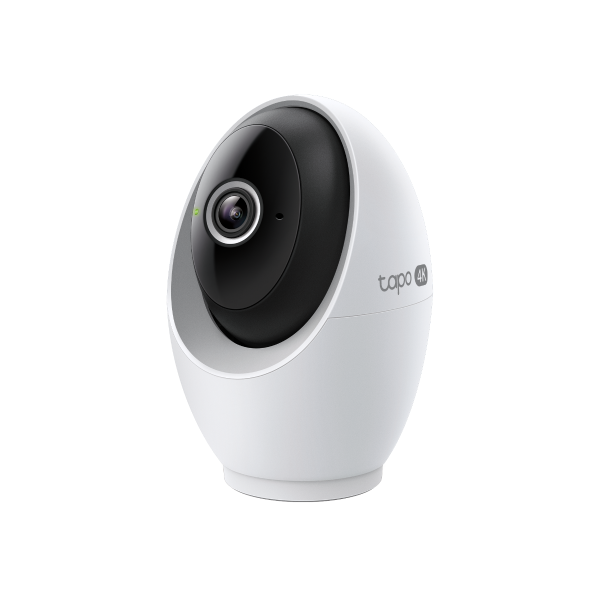
Most cameras have a small LED light on the front or side of the housing. When the camera is on, this light is typically solid or blinking. The color and behavior of the light vary by brand and model, but a visible light is usually the clearest sign that the camera is powered and active.
2. Check for Infrared (IR) Light
Many cameras use infrared light for night vision. In low light, you may see a faint reddish glow around the camera lens. This is the camera's IR illuminator at work. A smartphone camera can sometimes pick up IR light even when it's invisible to the naked eye. Point your phone camera at the device in a darkened room. If you see a glow on your screen, the camera's night vision is active.
3. Watch for Lens Movement
Pan/tilt cameras move to follow motion or adjust their viewing angle. If you see the lens rotating or tilting on its own, the camera is almost certainly powered on and functioning. Fixed cameras won't move, but you can check whether the lens appears focused and properly aligned rather than loose or mispositioned.
4. Check the Cable or Power Connection
A wired camera connected to a power source is likely on. Check whether the cable leading to the camera is plugged in and intact. For battery-powered or solar cameras, this check is less useful on its own. But a visible, intact connection to a power outlet is a reliable sign the camera has power.
5. Monitor Network Activity
Active security cameras will appear on a Wi-Fi network. If you have access to a router's connected device list, an active camera will appear there. You can also use a network scanning app to detect devices on the same network. A camera that appears on the network is powered and communicating.
6. Check the App or Software Status
If you have access to the camera's app or web dashboard, the software is the most direct way to confirm its status. An active camera will typically show a live feed or a connected status. Some cameras show the last motion event or recording timestamp, which tells you whether the camera has recently been active.
7. Assess Whether It Could Be a Real Camera
Not every device that looks like a security camera is one. Some are decoys with no recording capability. Common signs of a non-functioning camera include no visible wiring or power source, no indicator lights, a fixed, non-adjustable lens with no brand markings, and a housing that shows signs of low-quality construction. If a camera checks several of these boxes, it may be a decoy rather than a working device.
What Do the Indicator Lights Mean?
Indicator light behavior varies by brand and model. There's no single universal standard, but common patterns exist across most consumer security cameras.
- Red light: Often indicates the camera is on, recording, or that infrared night vision is active. A blinking red light may signal pairing mode or an error state.
- Green light: Typically signals that the camera is on and connected to a network.
- Blue light: Common on some brands, indicating active recording or a live connection.
- No light: Some cameras are designed without a visible indicator light, or the owner can deactivate it in settings. The absence of visible light doesn't mean the camera is off.
If a camera light is red, is it recording? Not necessarily. A solid or blinking red light often means the camera is on or that night vision is active, but whether it's actively recording depends on the camera's recording mode settings. Some cameras use a red light specifically to signal recording; others use it only to indicate power.
The most reliable way to interpret a specific camera's indicator behavior is to check the device manual, the manufacturer's support pages, or the camera's companion app.
Is the Camera Recording or Just On Standby?
A camera can be powered on without actively recording anything. How to tell if a camera is recording depends on understanding the three main recording modes most cameras use.
Continuous recording means the camera captures footage at all times while it's powered on. This mode uses the most storage and is less common in battery-powered cameras due to its high power demand.
Motion-triggered recording means the camera only starts recording when it detects movement. Between motion events, the camera is on and monitoring, but it's not capturing footage. Many consumer cameras default to this mode to save storage space and battery life.
Scheduled recording means the camera records during specific time windows set by the owner. Outside of those windows, the camera may be powered on but not recording.
In practice, a camera with no visible indicator activity and no recent motion trigger may be on standby without capturing anything. If you have access to the camera's app or software, checking the recording log or event history will tell you whether footage has been captured and when. For help locating saved detection recordings in the app, see Tapo's FAQ on finding recordings.
Signs a Security Camera May Have Been Hacked
Security camera hacking is rare. Modern cameras from reputable manufacturers use encryption, secure login protocols, and regular firmware updates to protect against unauthorized access. That said, it's worth knowing the warning signs.
Signs that a camera may have been compromised include:
- The camera is moving or panning without anyone controlling it
- Unusual audio or voices coming from the camera's speaker
- Unexpected spikes in your home network's data usage
- Login notifications or account activity you don't recognize
- Footage or camera settings that appear to have changed without your input
If you notice any of these, take action promptly. Keep the camera's firmware updated, use a strong and unique password for the camera's account, enable two-factor authentication where the manufacturer offers it, and regularly review the devices connected to your network.
Choosing a camera from a manufacturer with a strong security track record also matters. Tapo has signed the Cybersecurity and Infrastructure Security Agency (CISA) Secure by Design pledge, meaning security is built into products from the start rather than added on later. For more details on how Tapo approaches camera security, see Tapo's security FAQ.
What Responsible Camera Manufacturers Do Differently
When evaluating a camera brand from a privacy standpoint, a few factors set transparent manufacturers apart from the rest. Clear documentation of recording modes, local storage options, encryption standards, and owner-facing privacy controls are all signals worth looking for.
Tapo builds several of these controls directly into its cameras. Here's what that looks like in practice.
Physical Privacy Mode: Visible Proof the Camera Is Not Recording
Some Tapo cameras include a physical privacy mode that goes beyond a software switch. When activated, the camera physically blocks its own lens at the hardware level. You can see it happen, and no video can be captured while it's active.
The Tapo C125 has a physical privacy shutter that covers the lens when activated. Press the camera button once to toggle privacy mode on or off, or control it in the Tapo app.
The Tapo C225 has a dedicated Privacy Button on the camera body. Press it once and the lens physically rotates downward into the housing, blocking it entirely. You can also toggle it from the Tapo app.
The Tapo C260 achieves the same result through the Tapo app. One tap physically blocks the lens with the camera's own housing.
In all three cases, the lens is physically covered, and no video can be captured until you reverse it. The most direct answer to whether a camera is watching is: when physical privacy mode is on, it can't be.
Privacy Zones: Block Specific Areas from Being Recorded
Privacy zones are software tools that let you define areas within the camera's field of view that won't be recorded. Once set, those areas appear blacked out in the live feed and in any recorded footage.
This is useful when a camera covers a large area, but you want to exclude part of it. A camera pointed at a front door might also capture a neighbor's window or a shared hallway. Setting a privacy zone over that area means it stays permanently out of frame, even when the rest of the feed is active.
To set up a privacy zone on a Tapo camera, open the Tapo app and go to the camera's live view. Tap the settings icon, then select Detection. From there, select Privacy Zone and tap Add Zone. Drag the corners of the zone overlay to cover the area you want to exclude, then save. The zone takes effect immediately and appears as a blacked-out area in both live view and recordings. You can create multiple zones and adjust or remove them at any time from the same menu.
For a step-by-step walkthrough, Tapo's privacy zone setup guide covers supported models and configuration details.
Other Privacy and Security Features
Transparent manufacturers also offer indicator lights that owners can always see, local microSD storage that keeps footage on your own property rather than a remote server, and encrypted data transmission as standard.
Tapo cameras support local storage via a microSD card (sold separately) across most models. The Tapo support center answers common questions about how storage and data are handled.
Now You Know What to Look For
Knowing how to tell if a security camera is recording you, or whether a device may have been compromised, comes down to reading the right signals. Indicator lights, lens activity, network presence, and app status together give you a clear picture of what any camera is doing.
If you are exploring cameras built with privacy and transparency in mind, Tapo's home security camera collection is a practical starting point.
Frequently Asked Questions
How can you tell if a security camera is recording?
The most direct way is to check the camera's app or software dashboard, which typically shows a live recording status, recent event history, or the timestamp of the last captured clip. You can also look for a solid or blinking indicator light, which on many models signals active recording. Keep in mind that cameras set to motion-triggered mode may only record when they detect activity.
What does a red light on a security camera mean?
A red light typically means the camera is on, that infrared night vision is active, or that the camera is in pairing mode. Whether it indicates active recording depends on the specific model. Check the manufacturer's documentation or app to confirm what the red light signals on your device.
Can a security camera be on without an indicator light?
Yes. Some cameras are designed without a visible indicator light, and many allow the owner to turn off the indicator in the app settings. Network scanning tools or the camera's companion app are more reliable ways to confirm whether a camera without a visible light is active.
How do you know if a security camera has been hacked?
To tell if your security camera has been hacked, watch for the camera moving without input, unfamiliar audio from the speaker, login alerts you didn't trigger, unexplained changes to footage or settings, or unusual spikes in network data usage. If you notice these signs, update your firmware, change your password, and enable two-factor authentication if your camera supports it.
Is it illegal for a security camera to record without a visible indicator?
No, it's not illegal for a security camera to record without a visible indicator light. However, notice and consent may be required in certain situations, depending on where the camera is located and the applicable local laws. If you have questions about a specific situation, consult a legal professional or your local consumer protection authority.