How to configure the Smart Dual Tracking feature for Tapo Dual-Lens Camera
Gli aggiornamenti recenti potrebbero aver esteso l'accesso alle funzionalità discusse in questa FAQ. Visita la pagina di supporto del prodotto, seleziona la versione hardware corretta del dispositivo e controllae la scheda tecnica o la sezione firmware per gli ultimi miglioramenti aggiunti al prodotto. Nota che la disponibilità del prodotto varia a seconda della regione e alcuni modelli potrebbero non essere disponibili nella tua regione.
Introduction
This FAQ article provides step-by-step instructions for configuring the Smart Dual Tracking feature to use your dual-lens cameras better.
Note: The device images shown below are only used as an example.
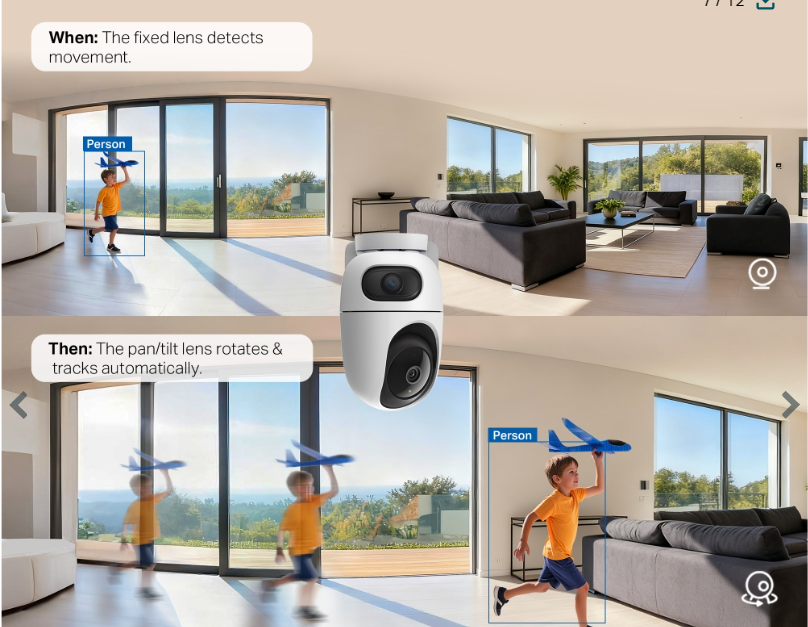
The telephoto lens features automatic pan and tilt to follow motion or shift focus between different areas as needed. When the fixed lens detects events, the pan/tilt lens will automatically pivot to focus on and track the moving object.
Requirement
Set up your dual-lens camera in the Tapo app. You can get the Tapo app by visiting the Google Play Store, the App Store, or by scanning the QR code.

Configuration
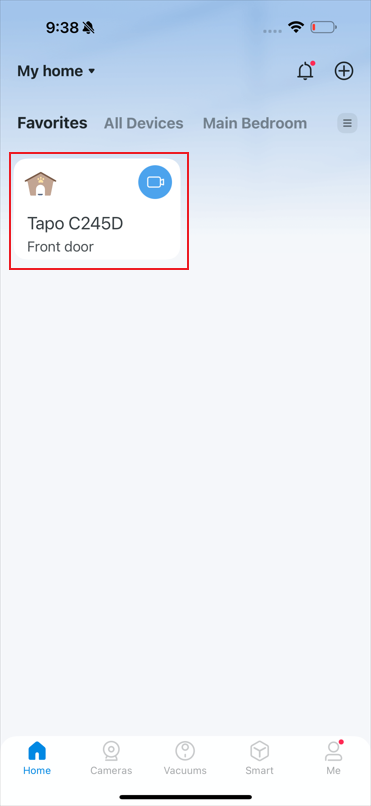
Step 1. In the app, tap your camera on the Home page and then the  icon to enter its Settings page.
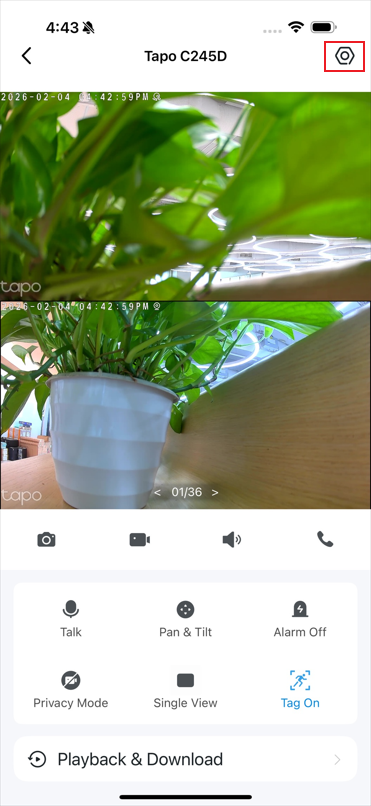
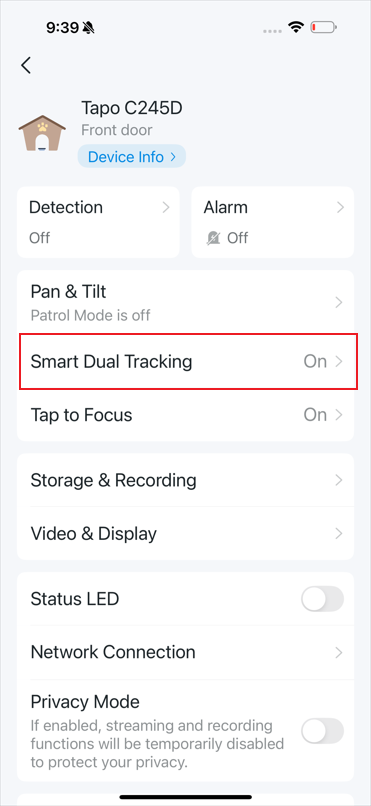
Step 2. Select Smart Dual Tracking on the Settings page. Enable the Smart Dual Tracking feature.
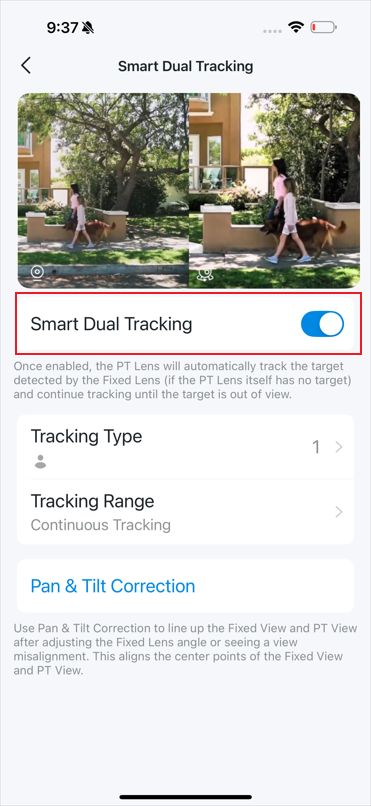
Step 3. Set the tracking type and range. You can use Pan & Tilt Correction to line up the wide-angle view and the pan/tilt view.
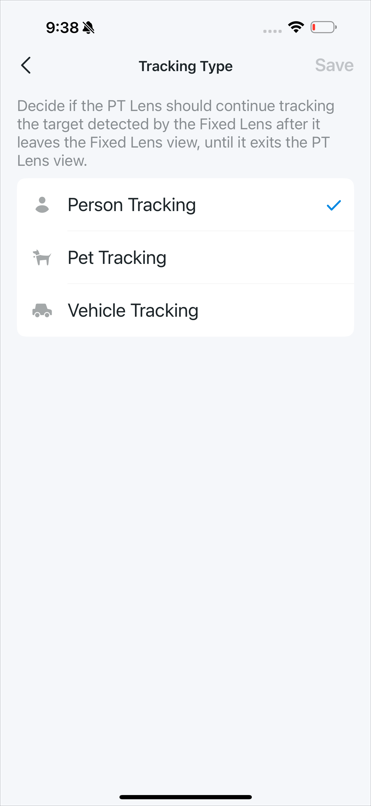
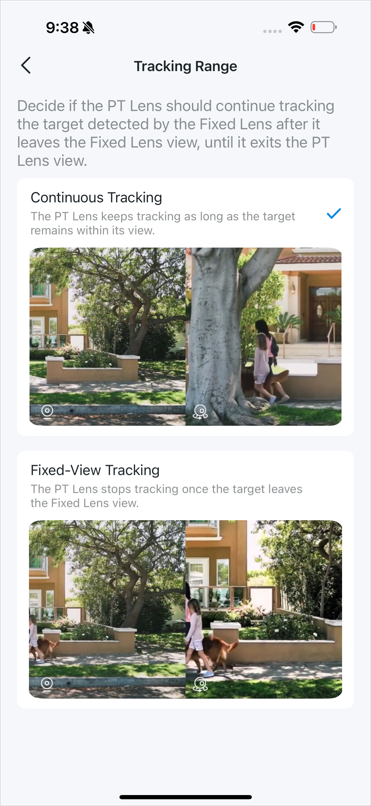
Get to know more details of each function and configuration please go to Download Center to download the manual of your product.