How to Check and Fix an Unstable Tapo or Kasa Network Connection
Recent updates may have expanded access to feature(s) discussed in this FAQ. Visit your product's support page, select the correct hardware version for your device, and check either the Datasheet or the firmware section for the latest improvements added to your product. Please note that product availability varies by region, and certain models may not be available in your region.
If your Tapo or Kasa smart device is showing a slow-loading screen, delayed live view, or a dropped connection, an unstable network is often the cause. This guide walks you through three diagnostic steps: checking your device's Wi-Fi signal strength (also called RSSI), testing the connection delay between your device and phone using a Ping command, and following a checklist of fixes to improve stability. Work through each step in order to identify and resolve the issue.
Key Takeaways
- This guide covers three parts: checking the signal strength (RSSI) of your Tapo or Kasa device, testing the delay between your device and phone with a Ping command, and following the troubleshooting steps to improve connection stability.
- You can check the Wi-Fi signal strength of your Tapo or Kasa device in the app under Device Settings > Device Info.
- A signal stronger than -50 dBm is considered strong, between -70 dBm and -50 dBm is good to average, and below -70 dBm is poor.
- If your signal strength is good but you are still experiencing issues, checking the delay between your device and phone using the Ping command can help identify the root cause.
- If many data packets are lost during the Ping test or the delay exceeds 100ms, your network connection is likely unstable and needs attention.
Part 1: Check Your Tapo or Kasa Device Signal Strength
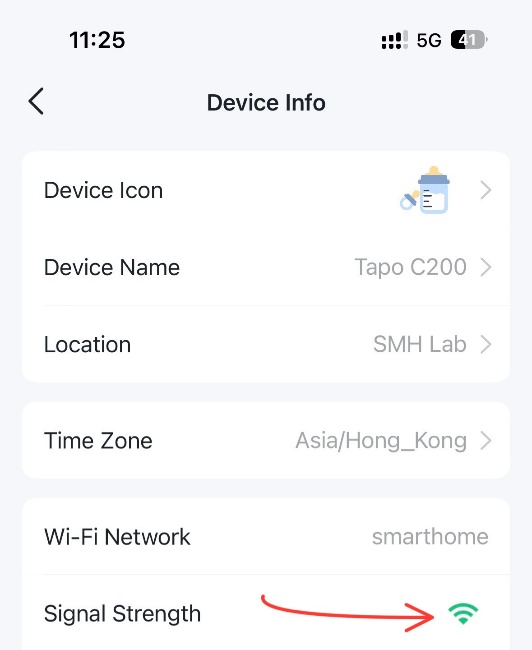
If your device is connected to Wi‑Fi, you can check its signal strength in the app.
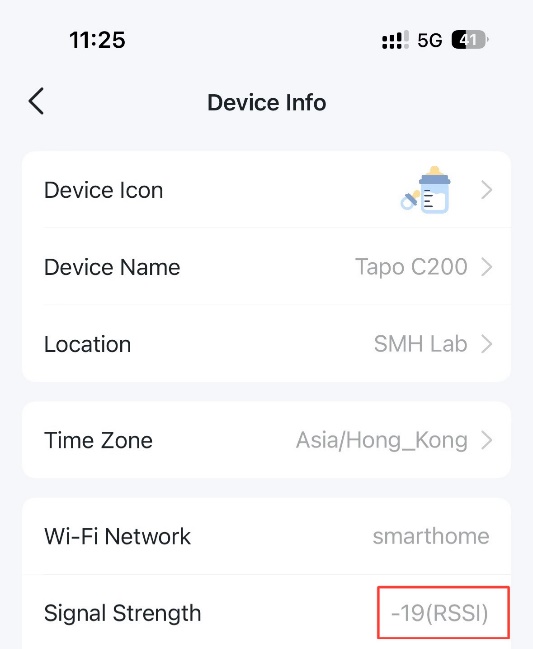
For most devices: Open the Tapo app, tap the device card on the Home page, then tap gear icon in the top right to enter Device Settings > Device Info. Tap the Wi‑Fi icon to view the RSSI value.
For Tapo H200 and H500: Go to Device Settings > Network Connection > Test Wi‑Fi Signal. Note that this option is unavailable if the hub is connected to the router via Ethernet only.
Signal strength ratings are as follows:
- Strong: more than -50 dBm
- Good to Average: between -70 dBm and -50 dBm
- Poor: less than -70 dBm
Part 2: Test the Connection Delay Between Your Device and Phone
Due to different network topologies and wireless interference, we still need to check the actual delay between the smart device and the phone via the Ping command if there is a connection issue (such as slow loading, unstable issue, etc.).
Here we use the APP “Network Analyzer” as an example.
Step 1: Install the test app “Network Analyzer” on your phone.
For Android: https://play.google.com/store/apps/details?id=net.techet.netanalyzerlite.an
For iOS: https://apps.apple.com/app/network-analyzer/id562315041
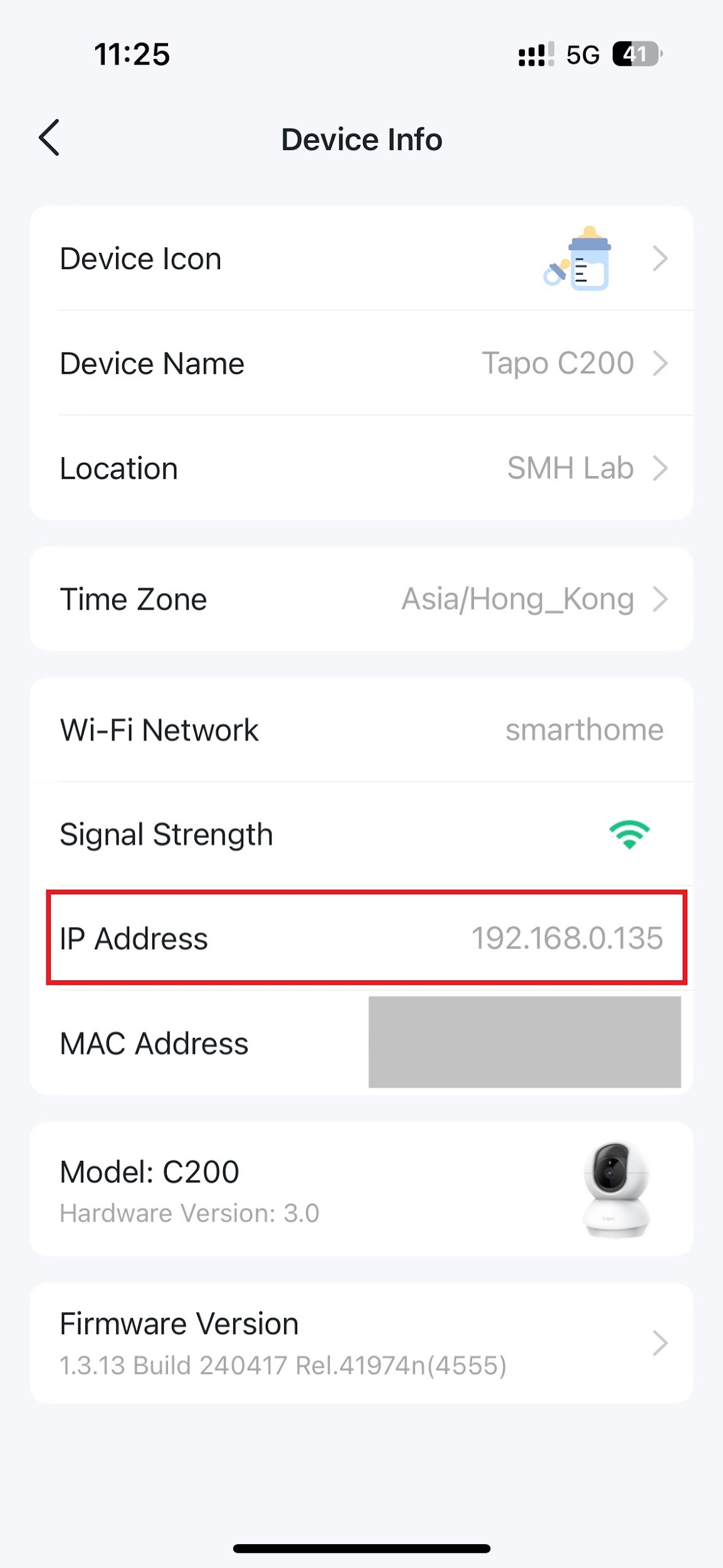
Step 2: Check the IP address of the smart device you want to test on the Tapo APP.
You can find the smart device's IP address on the Device Settings > Device Info page.
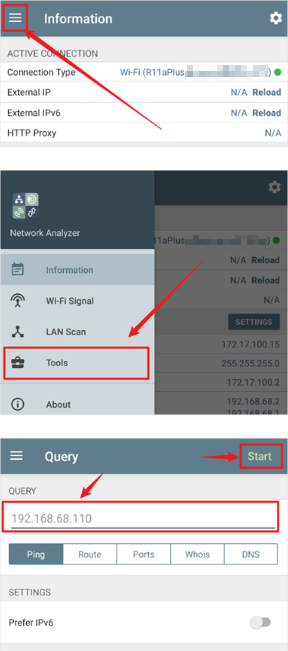
Step 3: Ping the IP address.
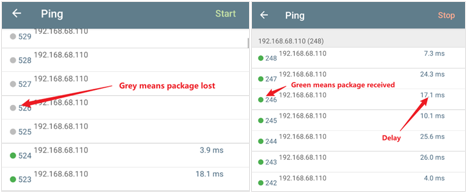
Open the “Network Analyzer” app, go to Tools > Ping, enter the camera's IP address, then tap Start.
Step 4: Check the test results.
If your test results indicate that many data packages are lost, it means your network is unstable.
If the data package delay is over 100ms, accessing to your device can be relatively slow.
Part 3: How to Fix an Unstable Tapo or Kasa Connection
If your signal strength or Ping results indicate an unstable connection, the steps below are common starting points. For full step-by-step directions on each item, see What if Tapo Smart Devices Keep Losing Connection or Going Offline? — that guide covers these fixes in detail and includes additional options not listed here.
Quick-reference checklist:
- Check the device power supply.
- Ensure both the device firmware and the Tapo app are up to date.
- Reboot the router and Tapo device, and check if the smart device reconnects.
- Optimize device placement.
- Expand Wi-Fi coverage.
- Reduce Wi-Fi interference.
- Assign a unique static IP to each device through the Tapo app (for cameras and doorbells) or your router settings.