How to fix no sound or audio quality issues on Tapo Camera/Doorbell
Gli aggiornamenti recenti potrebbero aver esteso l'accesso alle funzionalità discusse in questa FAQ. Visita la pagina di supporto del prodotto, seleziona la versione hardware corretta del dispositivo e controllae la scheda tecnica o la sezione firmware per gli ultimi miglioramenti aggiunti al prodotto. Nota che la disponibilità del prodotto varia a seconda della regione e alcuni modelli potrebbero non essere disponibili nella tua regione.
Introduction
You may occasionally encounter no sound or audio quality issues with your Tapo cameras or doorbells, such as being unable to hear any sound in live view, playback recordings or two-way communication. Various factors, including device settings, microphone or speaker configuration, network conditions, or the installation environment, can cause this. This article provides step-by-step troubleshooting guidance to help identify the root cause of the no sound issue and restore normal audio functionality on your Tapo cameras/doorbells.
Requirements
- Both the camera/doorbell firmware and Tapo app version are up-to-date.
- The mobile device has a stable network connection.
Troubleshooting
Scenario 1: No Sound in Playback Recordings
Step 1. Enable record sound.
Navigate to camera Device Settings > Storage & Recording and ensure the Record Sound toggle is enabled. If this is off, the camera will not capture any audio during recording.
Step 2. Test local playback.
If you hear no sound within the app, download the recording to your phone’s local gallery. Try playing it using a Third-party Media Player or transfer it to a Computer to check if the audio tracks are present. This helps determine if the issue is caused by the Tapo app's playback interface or a compatibility issue with your phone's player, rather than a missing audio track in the file itself.
Step 3. Adjust camera microphone volume.
Go to the Live View page, tap the Speaker icon, and ensure the Microphone slider is turned up. This slider controls the sensitivity of the camera's mic for both live viewing and recordings.
Note: Video recordings only capture ambient sounds and the visitor’s voice. This is because the device has built-in Noise Reduction and Echo Cancellation features. To prevent high-pitched "howling" or feedback between the microphone and speaker, the system automatically filters out the audio coming from the camera’s speaker. Consequently, your own voice from the Tapo app will not be included in the final recording.
Scenario 2: No Sound in Two-Way Talk
Case 1: Cannot hear the visitor’s voice on the phone side
Step 1. Check phone and device volume settings.
Make sure your phone’s media volume is turned up and adjust the microphone volume if needed. Also confirm that the camera/doorbell’s speaker and microphone volumes are set high in the Tapo app > Live View > Talk page.
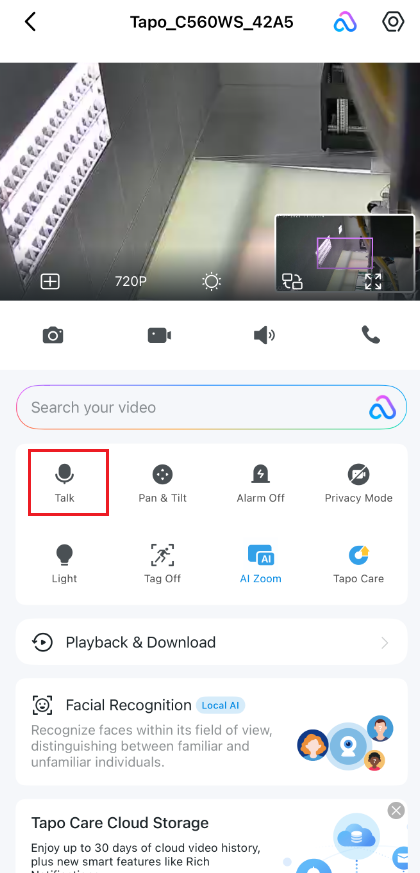
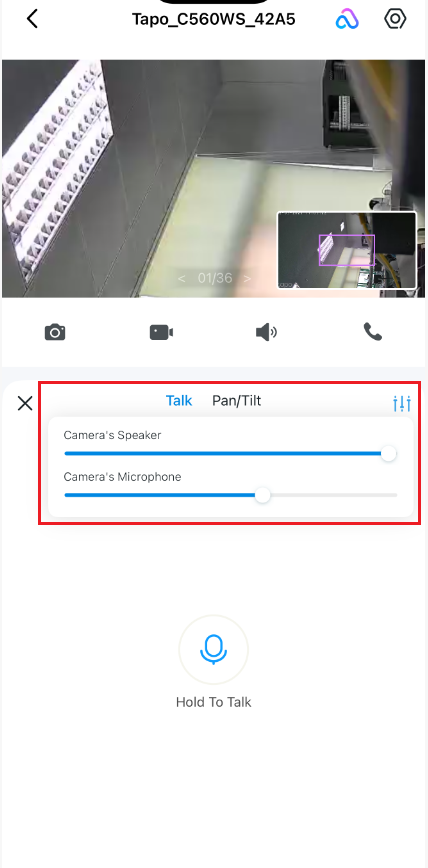
Step 2. Check for microphone obstructions.
Inspect the surface of the camera/doorbell for front or sides. Check for dirt, dust, or debris blocking the small Microphone hole. Clean it gently if necessary. To ensure the physical path for sound waves is clear and not muffled by external debris or water tension.
Note: If there was recent rain, moisture may be trapped in the hole. Wipe the area and dry it gently with a hairdryer if needed.
Step 3. Check phone audio settings.
Ensure your phone is not in Silent Mode. Turn up the Media Volume and ensure you have granted the Tapo app all necessary permissions for Speaker and Audio.
Step 4. Verify network stability.
A weak connection can cause audio lag or loss. Check the camera's signal strength in the Tapo app via Device Settings > Device Info > Signal Strength/RSSI. For detailed network troubleshooting, please refer to: What should I do if Tapo smart devices keeps losing connection or going offline?
Case 2: Visitor cannot hear the owner's voice from the device side
Step 1. Test the device speaker.
Press the doorbell button or trigger a test event to verify that the device produces a chime or sound. This confirms if the physical Speaker is functioning. To isolate whether the problem is a physical hardware failure of the speaker or a software/network transmission issue.
Step 2. Check phone microphone.
Ensure your phone’s physical microphone is working normally, e.g., try a voice memo or a regular call. Also, check whether any Bluetooth headsets are connected, as they might be capturing your audio instead.
Step 3. Grant app permissions.
Ensure the Tapo app has been granted Microphone Permission in your phone’s system settings. Without this, your voice cannot be transmitted.
Step 4. Verify network connection.
A weak connection can cause audio lag or loss. Check the camera's signal strength in the Tapo app via Device Settings > Device Info > Signal Strength/RSSI. For detailed network troubleshooting, please refer to: What should I do if Tapo smart devices keeps losing connection or going offline?
Contact TP-Link technical support with the following information if you still encounter issues after trying the above suggestions.
- Model number and OS version of your mobile device.
- Tapo app version.
- MAC address of your camera/doorbell.
- Related videos to show the problem.