Wie aktiviere ich die Erkennungsfunktion der Tapo/Kasa-Kamera und -Türklingel?
Neuere Updates können den Zugang zu Funktionen, die in dieser FAQ erläutert werden, erweitert haben. Besuchen Sie die Support-Seite Ihres Produkts, wählen Sie die richtige Hardware-Version für Ihr Gerät aus und schauen Sie entweder im Datenblatt oder im Firmware-Bereich nach den neuesten Verbesserungen für Ihr Produkt.
Introduction
This article explains how to enable the Detection function on Tapo & Kasa cameras and doorbells. With detection settings enabled, Tapo camera/doorbell will detect the events and record them for you to view.
Configuration
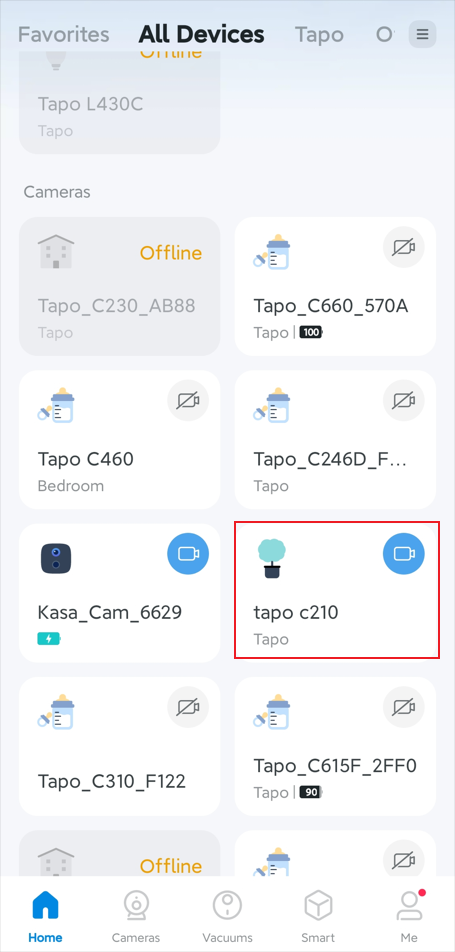
Step 1. On the Tapo app Home page, tap the camera/doorbell card to enter the Live View page.
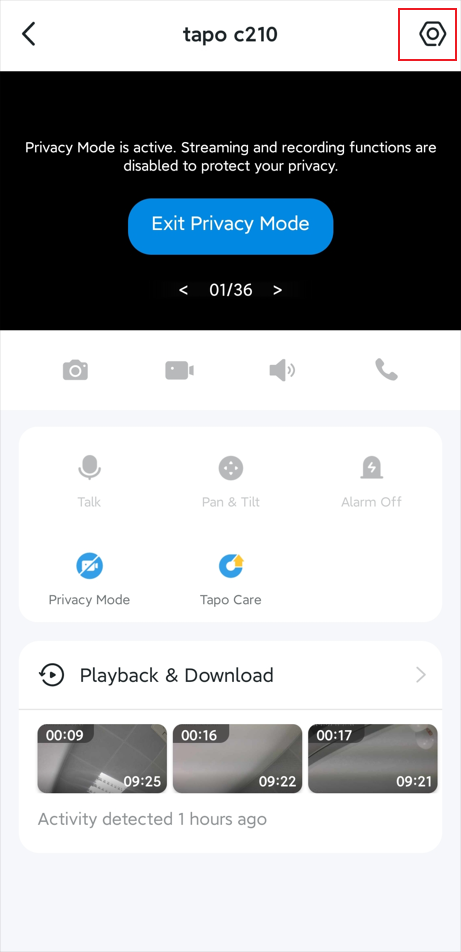
Step 2. Tap the gear icon in the top right corner to enter the Device Settings page.
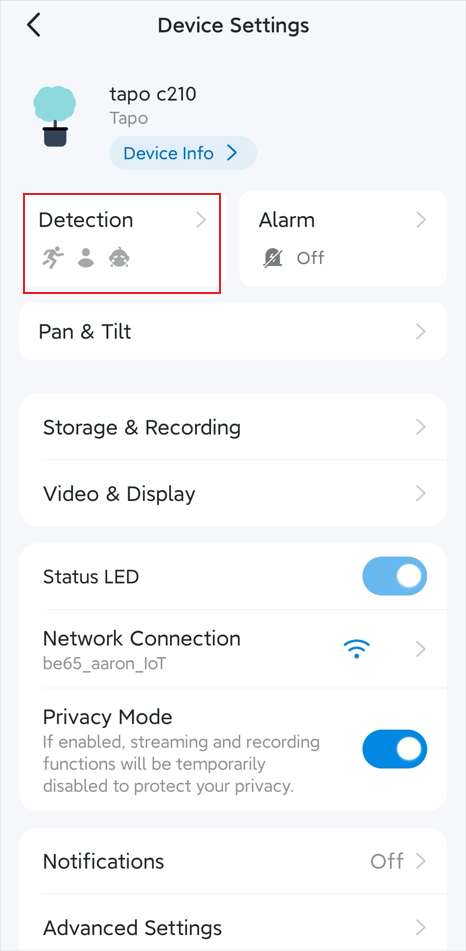
Step 3. Go to Detection page and configure the Detection settings as per your desire.
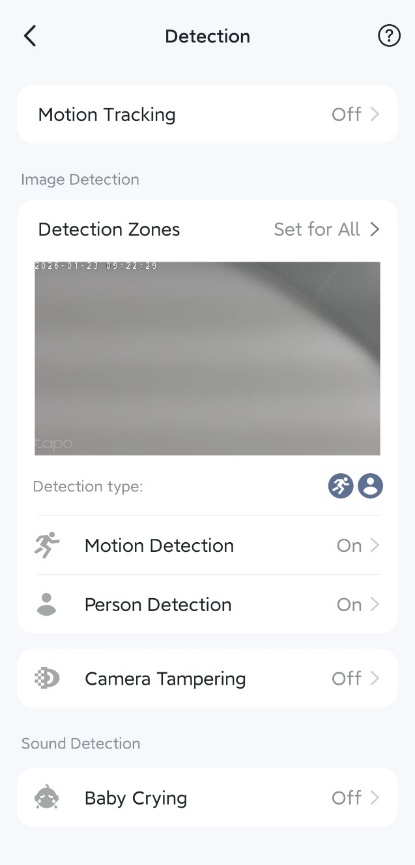
- Tap Motion Tracking to enable or disable the feature. Note that the availability of this feature may vary by model.
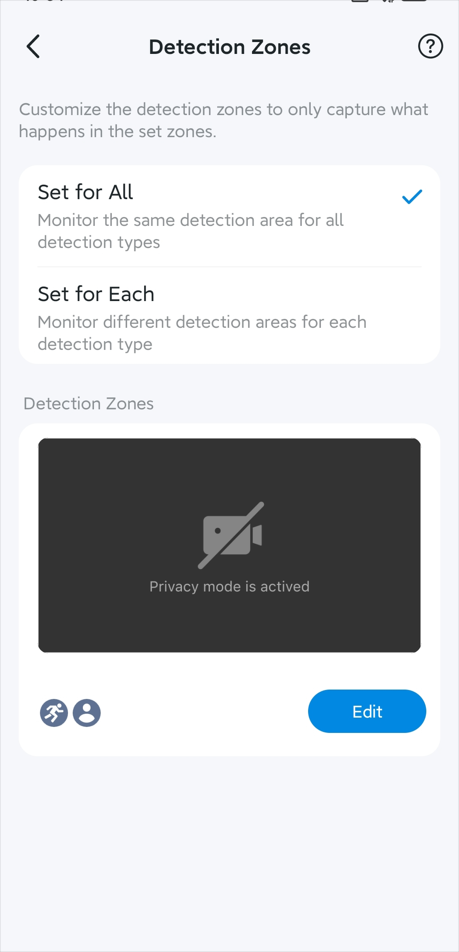
- Tap Detection Zones to customize the area you want the camera/doorbell to monitor, ensuring it only detects activity within the zones you set.
- Enable or disable the desired detection types and adjust the sensitivity as needed. Supported detection types may vary by device model.
Step 4. After configuring the Detection feature, video clips of detected events will be uploaded to the cloud server if you subscribe to the Tapo Care service, or saved locally to your Tapo Hub or microSD card when Local Recording is enabled. Go to Tapo App > Camera/Doorbell Live View > Playback & Download page to view the detection recordings.
Step 5. Enable the notification feature if you want to receive a push notification on your phone when the camera/doorbell detects an event.
Step 6. Enable the alarm feature to have the camera/doorbell trigger an alarm when it detects an event.