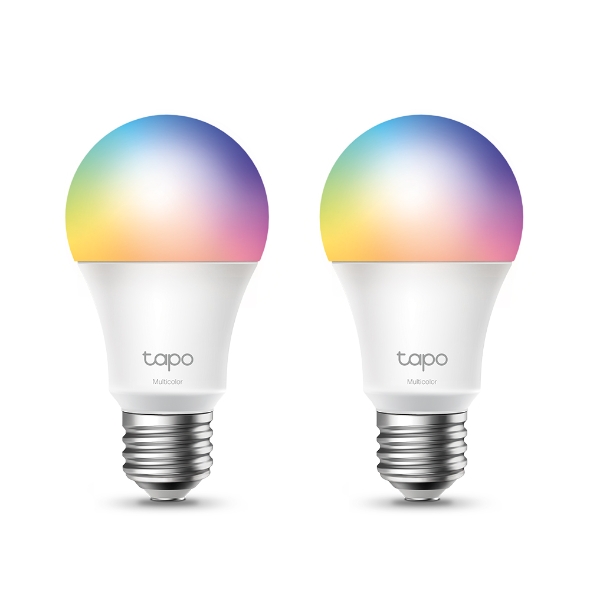
Многоцветный Легко создавайте сценарии для вашей повседневной жизни или занятий, настраивая яркость, цветовую температуру и цвета — с 16 000 000 оттенков на выбор.
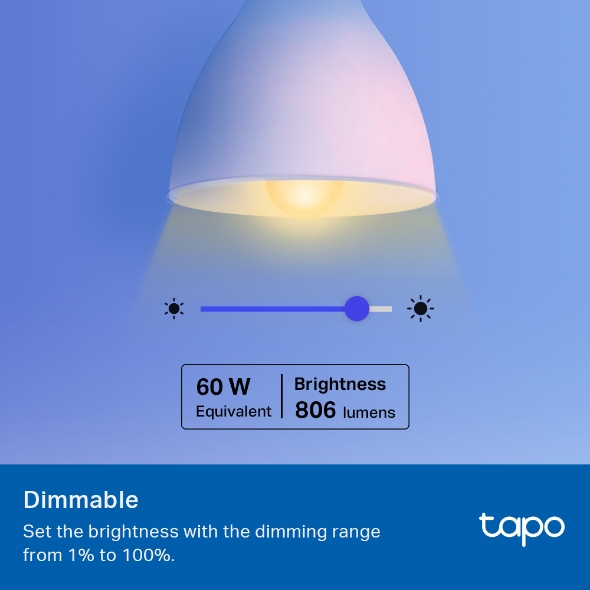
Эквивалент 60 Вт Светодиодная лампа излучает до 806 люмен белого света и имеет диапазон регулировки яркости от 1% до 100%.
Предустановленные настройки для удобства Нашли любимое освещение для просмотра фильмов? Сохраните его как настройку, которую вы сможете легко выбрать для будущих киносеансов.
Расписание Таймер–Создавайте расписания и отсчитывайте время включения/выключения в соответствии с установленной яркостью/цветом.
Режимы восхода и заката – Автоматически включайте свет в соответствии с вашим часовым поясом.
Хаб не требуется– Подключите светильник TL13E к домашней сети Wi-Fi, и все готово.
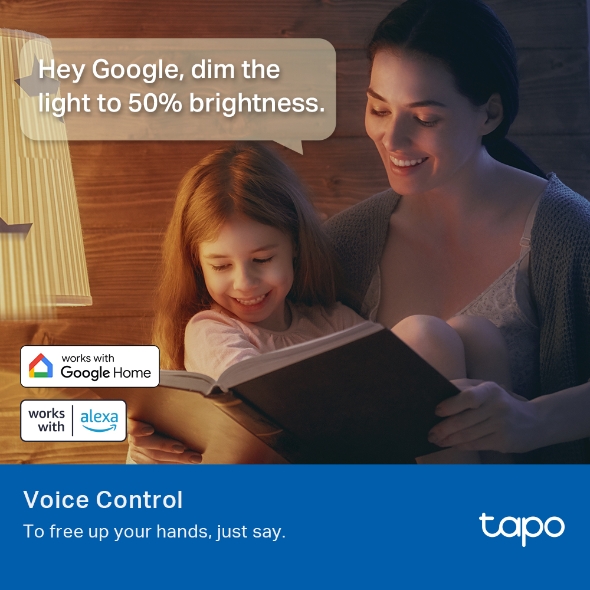
Голосовое управление – Управляйте светом с помощью голосовых команд, так как Tapo работает с Amazon Alexa и Google Assistant.
Пульт дистанционного управления – Достаньте телефон из кармана и откройте приложение Tapo, чтобы управлять освещением дистанционно.
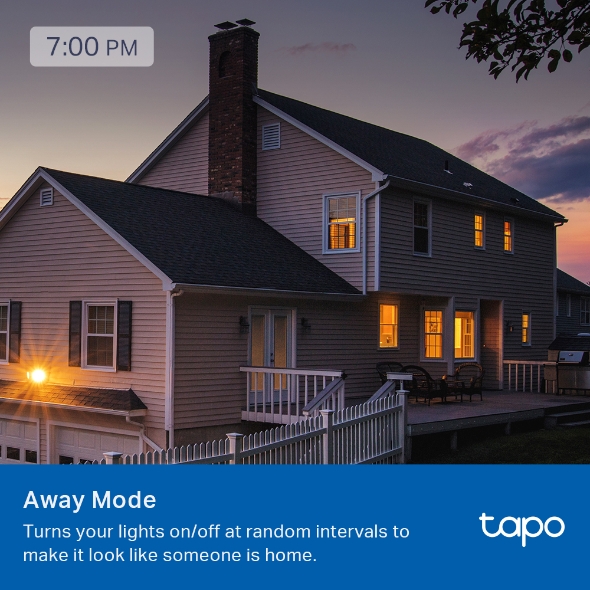
Режим «Вне дома» — Автоматически имитирует присутствие кого-либо дома, чтобы отпугнуть нежелательных посетителей.
Восстановить последнее состояние освещения — Лампа автоматически возвращается в предыдущее выключенное состояние.
Легко создавайте сценарии для повседневных дел или особых мероприятий, настраивая яркость, цветовую температуру (2500–6500 К) и цвета — с выбором из 16 000 000 оттенков.
Регулировка яркости
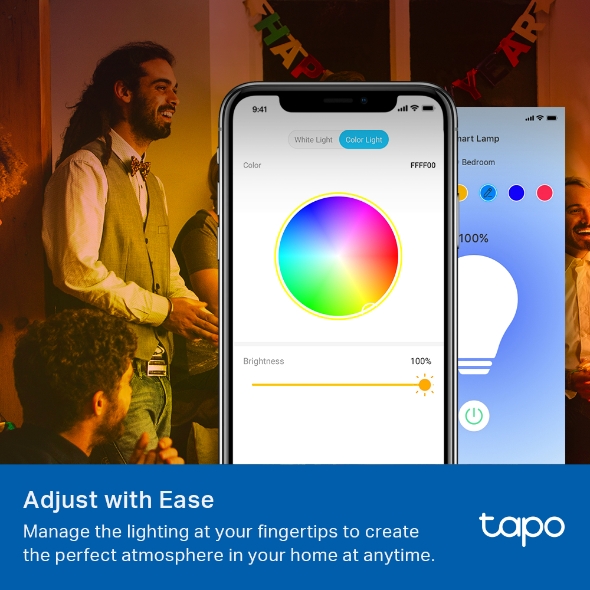
Легкая настройка
Управляйте освещением одним касанием, чтобы создать идеальную атмосферу в вашем доме — в любое время.
Предустановки для удобства
Нашли идеальное освещение для просмотра фильмов? Сохраните его как настройку, чтобы мгновенно создавать нужную атмосферу для кинопросмотров.
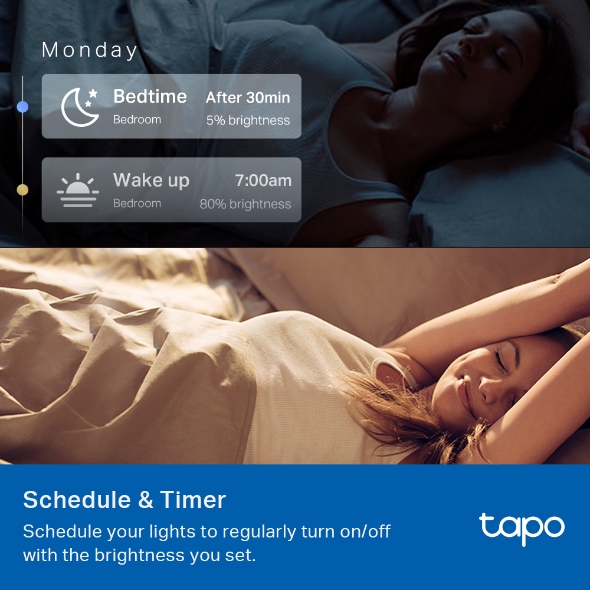
Понедельник
Время сна
Спальня
Через 30 минут
5% яркости
Пробуждение
Спальня
7:00 утра
80% яркости
Расписание и таймер
Легкое управление вашей жизнью
Создавайте регулярные расписания для включения/выключения с заданной яркостью. Режимы восхода и заката позволяют свету активироваться автоматически в соответствии с вашим часовым поясом.
Hey Google, приглуши
свет до 50% яркости.
Alexa, измени
цвет на желтый.
Начните жизнь, управляемую вашим голосом
Работает с Amazon Alexa и Google Assistant, освобождая ваши руки. Просто скажите «Alexa, включи свет» или «Hey Google, приглуши свет в спальне».
18:00
17:50
Оптимизируйте свою жизнь с помощью удаленного управления
С TL13E и приложением Tapo вам нужно всего одно нажатие на смартфоне, и всё готово. Независимо от того, насколько поздно вы вернетесь домой, Tapo всегда с вами. Добро пожаловать домой!
18:30
Отправляйтесь в отпуск со спокойной душой
Режим «Отсутствие» включает и выключает свет в случайные промежутки времени, создавая впечатление, что кто-то дома — это отпугивает злоумышленников.
Хаб не требуется
Подключите лампу L530E к домашней сети Wi-Fi, и всё готово. Не нужны дополнительные хабы или другие устройства.
Энергосбережение
Передовые технологии позволяют Tapo L530 потреблять меньше энергии, чем обычные светодиодные лампы — всего 8,3 Вт для 806 лм (эквивалент 60 Вт).
Экосистема Tapo
Приложение Tapo дает вам полный контроль над устройствами. Постоянно растущая экосистема Tapo делает ваш дом по-настоящему умным.
Простая настройка и быстрая конфигурация
Следуйте пошаговому руководству, чтобы завершить настройку за считанные минуты.
Загрузите приложение Tapo
Вкрутите лампу
Следуйте инструкциям в приложении
ВНИМАНИЕ: Увеличение веса может снизить механическую устойчивость некоторых светильников и патронов, а также ухудшить контакт и фиксацию лампы
Поддержка Tapo App
Простая и удобная настройка
1Скачайте бесплатное приложение
2Запустите приложение
3Доступ к устройству из любого места
* Compatible with iOS 9.0 or higher and Android 4.3 or higher
Пошаговая инструкция по установке
1
Загрузите и откройте приложение Tapo.
2
Нажмите «Плюс» (+), чтобы добавить новое устройство.
3
Найдите свое устройство и подключите его
4
Назовите устройство и выберите помещение, в которой оно находится.
5
Поздравляем! Вы завершили настройку!
Характеристики
TECHNICAL SPECIFICATIONS
Form Factor:
A60, E27
Brightness:
806 Lumens
Color Temperature Range:
2500-6500 K
Color Changing:
Да (только через приложение и облако)
Dimmable:
Да (только через приложение и облако)
Light Beam Angle:
220 °
Color Rendering Index:
≥ 80
Warm-Up Time to 95%:
≤1 s
SDCM:
≤ 6
Switching Cycles:
15,000
Lifetime:
25,000 Hrs
Input Voltage:
220-240 V~, 50/60 Hz
Weighted Energy Consumption:
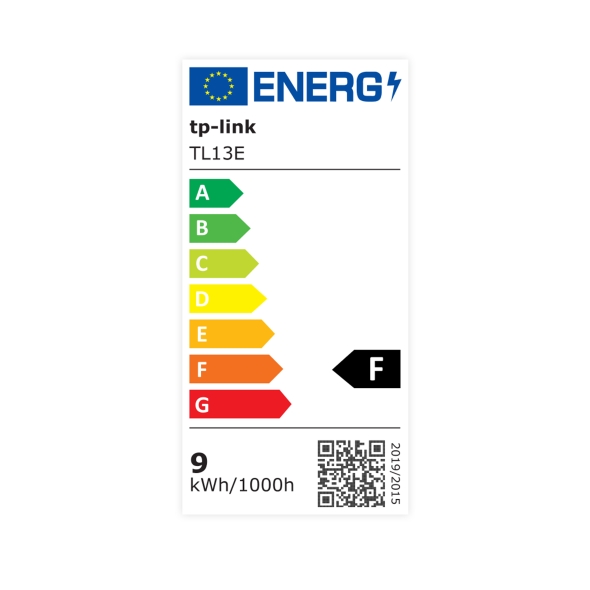
9 kWh/1000 h
Power Consumption:
8.3 W
Standby Power Consumption:
0.4 W
Equivalent Incandescent Lamp Power:
60 W
Energy Class:
F
GENERAL
Reference Control Settings:
2700K, 100% яркость (заводские настройки по умолчанию) Для сброса настроек устройства до заводских значений обратитесь к разделу «Сброс к заводским настройкам» в руководстве пользователя.
PHYSICAL
Package Contents:
• Умная лампочка Tapo • Краткое руководство пользователя
Мы используем файлы cookie и историю браузера, чтобы улучшить ваш опыт, персонализировать контент и рекламу, а также анализировать использование наших сайтов. Подробнее см. в нашей Политике конфиденциальности.
Настройки файлов cookieПринять все файлы cookie
Ваши настройки конфиденциальности
Мы используем файлы cookie и историю браузера, чтобы улучшить ваш опыт, персонализировать контент и рекламу, а также анализировать использование наших сайтов. Подробнее см. в нашей Политике конфиденциальности.
Основные файлы cookie
Эти файлы cookie необходимы для функционирования веб-сайта и не могут быть отключены в ваших системах.
Аналитические файлы cookie позволяют нам анализировать ваши действия на нашем веб-сайте, чтобы улучшать и адаптировать его функциональность.
Маркетинговые файлы cookie могут устанавливаться нашими рекламными партнёрами через наш веб-сайт для создания профиля ваших интересов и показа вам релевантной рекламы на других веб-сайтах.
Google Analytics & Google Tag Manager &
Google Optimize
"
}
},
{
"@type": "Question",
"name": "How to unlink third-party accounts from your TP-Link ID",
"acceptedAnswer": {
"@type": "Answer",
"text": "
If you've previously linked your TP-Link ID to third-party services such as Amazon Alexa or Google Home and wish to remove this integration, follow the steps outlined below. Unlinking your TP-Link ID will revoke access to these services to control your Tapo or Kasa devices. Please note that after unlinking, voice commands and automation associated with these services will no longer function until re-linked.
Method 1: Unlinking via Third-Party app
Unlink Alexa service
1. Open the “Amazon Alexa” app and select “Skills & Games” in the menu.
2. Select the button “Your Skills”.
3. Search “Tapo” / “Kasa” skill.
4. Select the button “Disable Skill” to disable the skill, which can unlink the Tapo/Kasa account from Alexa.
Unlink Google Home service
1. Open the “Google Home” APP and select Settings > Works with Google.
2. Find “Tapo” / “Kasa” on “Linked” service, tap and select Unlink account.
3. Confirm “UNLINK” to unlink Tapo/Kasa account from Google Home.
Unlink SmartThings service
1. Open the “SmartThings” APP and select “Menu”.
2. Tap the Settings icon at the upper right.
3. Tap “Linked Services”, tap Tapo/Kasa, and select “Unlink” to unlink Tapo/Kasa account from SmartThings.
Method 2: Unlinking via TP-Link
If you don’t have access to your third-party account, you can unlink the third-party service by changing the password of your TP-Link account.
1. Set a new password in Tapo/Kasa APP in Me > View Account > Change Password.
2. The Email address used for Tapo/Kasa account will receive an Email to tell you that the password has been changed.
3. Please select “unlink services” to unlink all the third-party accounts with your TP-Link ID.
"
}
},
{
"@type": "Question",
"name": "Почему я получаю электронное письмо с сообщением «Мы заметили новый вход в систему»?",
"acceptedAnswer": {
"@type": "Answer",
"text": "
Введение
Если вы получили электронное письмо или уведомление с текстом «Мы заметили новый вход», это может означать, что новое устройство вошло в вашу учетную запись TP-Link. Вот возможные причины:
Вы выполнили вход с нового устройства, используя тот же TP-Link ID.
Ваш TP-Link ID был предоставлен другим лицам (например, членам семьи или друзьям), и они выполнили вход с другого устройства.
Чтобы защитить свою учетную запись и предотвратить возможный несанкционированный доступ, следуйте инструкциям по устранению неполадок в этой статье.
Загрузите приложение Tapo/Kasa/Deco/Tether/Aginet из Google Play Store или App Store.
Устранение неполадок
Шаг 1: Подтвердите активность входа и измените пароль учетной записи
Рекомендуется проверить, выполнялся ли вход в учетную запись с ваших доверенных устройств. Если нет, как можно скорее измените пароль входа. Вот инструкция по изменению пароля учетной записи: https://community.tp-link.com/en/forgetpw
Примечание: Если вы использовали одинаковые имя пользователя и пароль для вашего TP-Link ID в нескольких приложениях или на веб-сайтах, пожалуйста, используйте сложный для угадывания уникальный пароль, который не используется в других учетных записях.
Приложение Tapo: Откройте Приложение Tapo > Я > Нажмите на учетную запись> Безопасность входа>Двухфакторная аутентификация.
Приложение Kasa: Откройте Приложение Kasa > Я > Нажмите на учетную запись> Безопасность входа> Двухфакторная аутентификация.
Приложение Deco: Откройте Приложение Deco > Нажмите на кнопку-гамбургер в левом верхнем углу > Нажмите на учетную запись> Безопасность входа > Двухфакторная аутентификация.
Приложение Tether: Откройте Приложение Tether > Нажмите на кнопку-гамбургер в левом верхнем углу > Нажмите на учетную запись> Безопасность входа> Двухфакторная аутентификация.
Приложение Aginet: Откройте Приложение Aginet > Нажмите на кнопку-гамбургер в левом верхнем углу > Нажмите Просмотр учетной записи> Безопасность входа > Двухэтапная проверка.
Шаг 3:Удалите недоверенные устройства в разделе 2FA
Если вы уже включили 2FA, пожалуйста, просмотрите список доверенных устройств и удалите все неизвестные записи, чтобы гарантировать, что доступ к вашей учетной записи не осуществляется с несанкционированных устройств.
Вопросы и ответы
В1: Почему я получил электронное письмо «Мы заметили новый вход»?
О1: Это письмо означает, что новое устройство выполнило вход в вашу учетную запись TP-Link. Возможная причина — вы выполнили вход с нового устройства, используя тот же TP-Link ID.
В2: Что мне делать, если я не выполнял вход с нового устройства?
О2: Немедленно проверьте активность входа и измените пароль учетной записи.
В3: Как создать надежный пароль?
О3: Используйте уникальный, сложный для угадывания пароль, который не используется на других веб-сайтах или в приложениях. Избегайте повторного использования одинаковых имени пользователя и пароля.
В4: Как удалить недоверенные устройства после включения 2FA?
О4: Перейдите в раздел Двухэтапная проверка в вашем приложении и просмотрите список доверенных устройств. Удалите все неизвестные устройства, чтобы предотвратить несанкционированный доступ.
Чтобы узнать больше подробностей о каждой функции и настройке, перейдите в Центр загрузок и скачайте руководство для вашего продукта.
"
}
},
{
"@type": "Question",
"name": "How Secure Are Tapo Devices? Security Standards and Privacy Features Explained",
"acceptedAnswer": {
"@type": "Answer",
"text": "
Tapo is safe and built with strong, layered security standards across all its smart home devices. This page covers Tapo's key security features, from global certifications and data encryption to account protection, data defense infrastructure, and camera-specific privacy controls. Whether you're asking whether Tapo is secure for your home network or wondering how your camera footage is protected, you'll find the answers here.
Key Takeaways
Tapo holds ISO 27001 and ISO 27701 certifications.
Tapo uses AES 128-bit encryption and TLS 1.2 protocols to protect sensitive data, including camera video and user identity information.
Two-Step Verification (2FA) is available to protect Tapo accounts against unauthorized access.
Tapo partners with AWS for DDoS protection, Web Application Firewalls, and regular security audits.
Tapo cameras support Privacy Mode, which physically blocks the lens from recording, and Privacy Zone settings to exclude specific areas from recording.
Our Global Certifications
Tapo is committed to data security and compliance, holding ISO 27001 and ISO 27701 certifications. These certifications demonstrate our adherence to international standards for information security management and personal information management.
Data Encryption
Tapo employs AES-128 encryption and TLS 1.2 protocols to protect sensitive information, such as camera footage and user identity data. AES 128-bit encryption offers robust protection using a 128-bit key, making unauthorized access nearly impossible. TLS 1.2 ensures secure internet connections, maintaining data confidentiality and integrity while resisting eavesdropping and tampering.
Account Security
To enhance user account security, Tapo implements a Two-Step Verification mechanism. This requires an additional verification step beyond just a username and password, safeguarding user credentials and preventing unauthorized access.
Comprehensive Data Defense
Tapo partners with AWS to leverage top-tier security services, including DDoS protection and Web Application Firewalls (WAFs), to protect against data attacks. Additionally, we have disaster recovery measures in place to quickly restore data in case of corruption or loss, and we conduct regular security audits to monitor data access and identify potential breaches.
Secure Cameras, Private Life
Tapo cameras are secure and designed to protect both your home and your personal information, with a full range of privacy and monitoring features. Our solutions ensure both safety from threats and privacy for your data.
Secure Local & Cloud Storage: Keep up to 512GB of footage stored continuously on a microSD card (not included) or choose our Tapo Care Cloud subscription service, which not only saves your video history but also provides additional benefits such as activity notifications with snapshots.
Privacy Mode: Set your Tapo camera to privacy mode, and the camera’s lens will be blocked from recording your private moments.
Set Privacy Zone: Set up blocked areas for your cameras in the Tapo app to prevent recording private spaces, such as your bed. Record only areas that need to be monitored, such as doorways and windows, to ensure your privacy is not leaked.
"
}
},
{
"@type": "Question",
"name": "How to get the log of Tapo app",
"acceptedAnswer": {
"@type": "Answer",
"text": "
Introduction
App logs are crucial for further analyzing the problem. This article will guide you on how to get Tapo app log.
Requirement
Download the Tapo App by visiting the Google Play Store, the App Store, or by scanning the QR code.
Note: Make sure the Tapo app version is the latest.
Step 1:
Launch the Tapo app and log in. Go to Me > Support Center. The location of Me button may vary by app version. It is located either in the bottom right corner or top left corner of the app.
or
Step 2:
Choose the Tapo device for which you need to collect logs. Here we take the Tapo C210 as an example.
Step 3:
Select any FAQ, slide to the bottom of the FAQ, and select Contact Technical Support, then select Email Support.
Step 4:
Select the corresponding issue type and fill in the rest of the information. Then check Add App Logs, then tap Submit.
Note: If you have contacted TP-Link technical support, attach your reference number, such as email TKIDXXX.
Get to know more details of each function and configuration, please go to the Download Center to download the manual of your product.





 Загрузите и откройте приложение Tapo.
 Нажмите «Плюс» (+), чтобы добавить новое устройство.
 Найдите свое устройство и подключите его
 Назовите устройство и выберите помещение, в которой оно находится.
 Поздравляем! Вы завершили настройку!

 or
or 


