How to Use Point and Go Feature on Tapo Robot Vacuums
Недавние обновления могли расширить доступ к функциям, обсуждаемым в этом разделе часто задаваемых вопросов. Посетите страницу поддержки вашего продукта, выберите подходящую версию аппаратного обеспечения для вашего устройства и проверьте раздел «Техническое описание» или «Прошивка», чтобы узнать о последних улучшениях, добавленных в ваш продукт. Обратите внимание, что доступность продукта зависит от региона, и некоторые модели могут быть недоступны в вашем регионе.
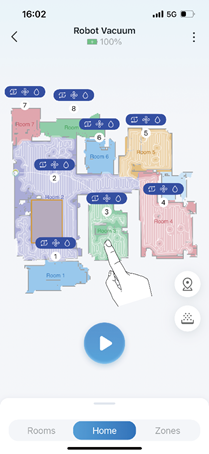
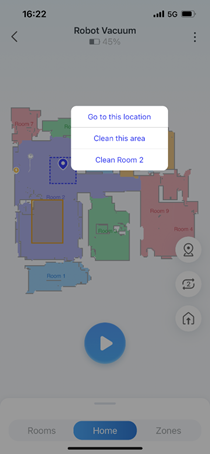
The Point and Go feature for Tapo Robot Vacuums lets you quickly and conveniently direct the robot vacuum to a specific location or room that needs cleaning. Rather than running a full cleaning cycle, you simply tap and hold on your already-established map in the Tapo app to target exactly where you need. This is one of several practical robot vacuum features that give you hands-on control without disrupting your regular schedule. Once you hold on the map, three actions become available: Go to this location, Clean this area, and Clean a specific room.
Key Takeaways
- Point and Go is accessed by touching and holding on the map in the Tapo app.
- There are three available actions: Go to this location, Clean this area, and Clean a specific room.
- "Go to this location" sends the vacuum to a designated spot on the map without cleaning.
- "Clean this area" sends the vacuum to a designated spot and starts Spot Cleaning.
- "Cleaning [room name]" sends the vacuum to clean a specific room.
How to Use Point and Go
Step 1. Touch and hold on the map for quick controls.
Step 2. Choose the actions you want.
- Go to this location: Go to the designated location.
- Clean this area: Go to the designated location and start Spot Cleaning.
- Cleaning "XXX": Clean the designated room.
To learn more about each function and configuration, please visit the Download Center to download the manual for your product.