What should I do if the video image is upside down on my Tapo or Kasa Camera?
Недавние обновления могли расширить доступ к функциям, обсуждаемым в этом разделе часто задаваемых вопросов. Посетите страницу поддержки вашего продукта, выберите подходящую версию аппаратного обеспечения для вашего устройства и проверьте раздел «Техническое описание» или «Прошивка», чтобы узнать о последних улучшениях, добавленных в ваш продукт. Обратите внимание, что доступность продукта зависит от региона, и некоторые модели могут быть недоступны в вашем регионе.
Introduction
Tapo & Kasa cameras support the Invert Image function. If the camera video image appears upside down in the Tapo or Kasa app, enable Invert Image or Video Rotation to correct it.
Note: To ensure proper operation, install the battery camera in an upright position. Do not mount it upside down, as this may impair the PIR sensor’s performance and increase the risk of water entering the charging port. For this reason, Invert Image is not supported for battery cameras.
Configuration
Scenario 1: Enable Invert Image in Tapo App
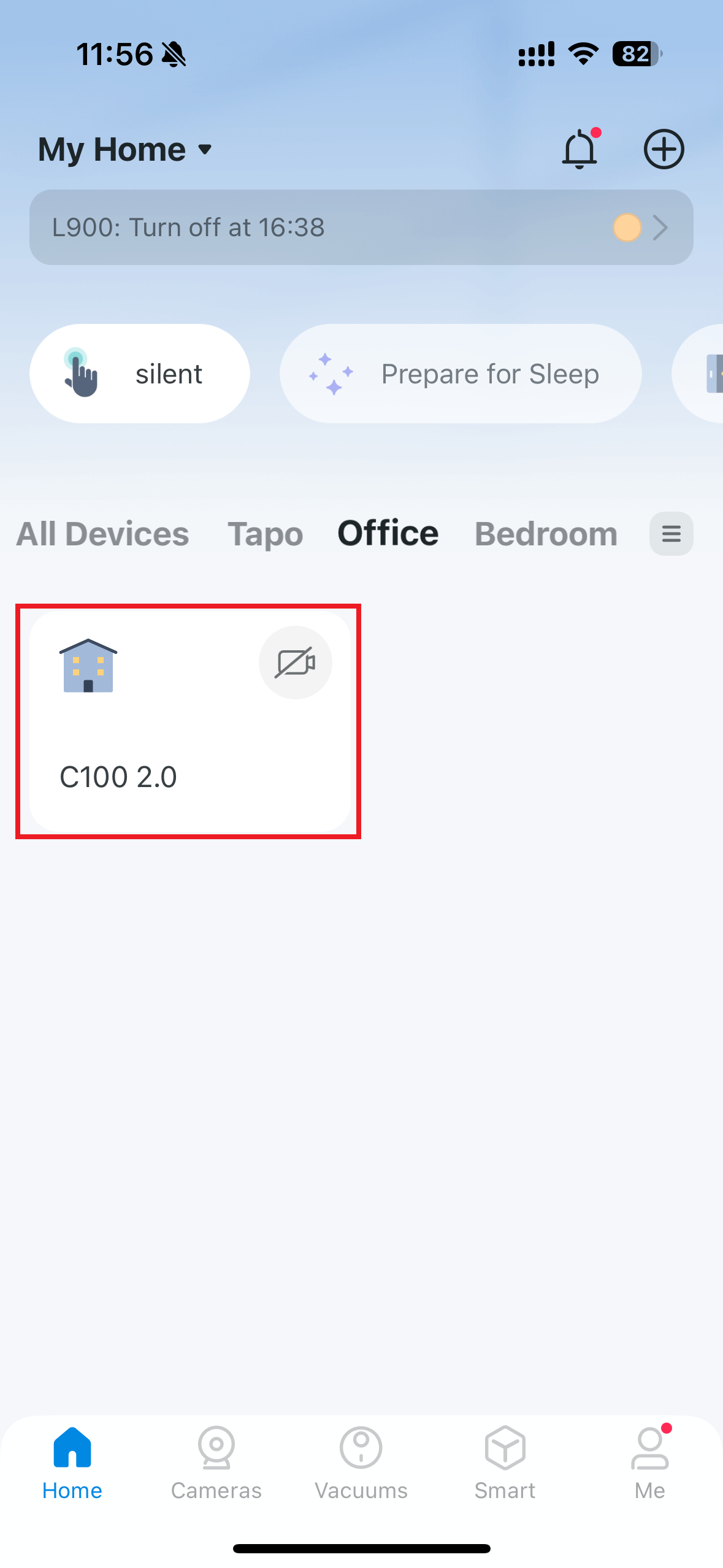
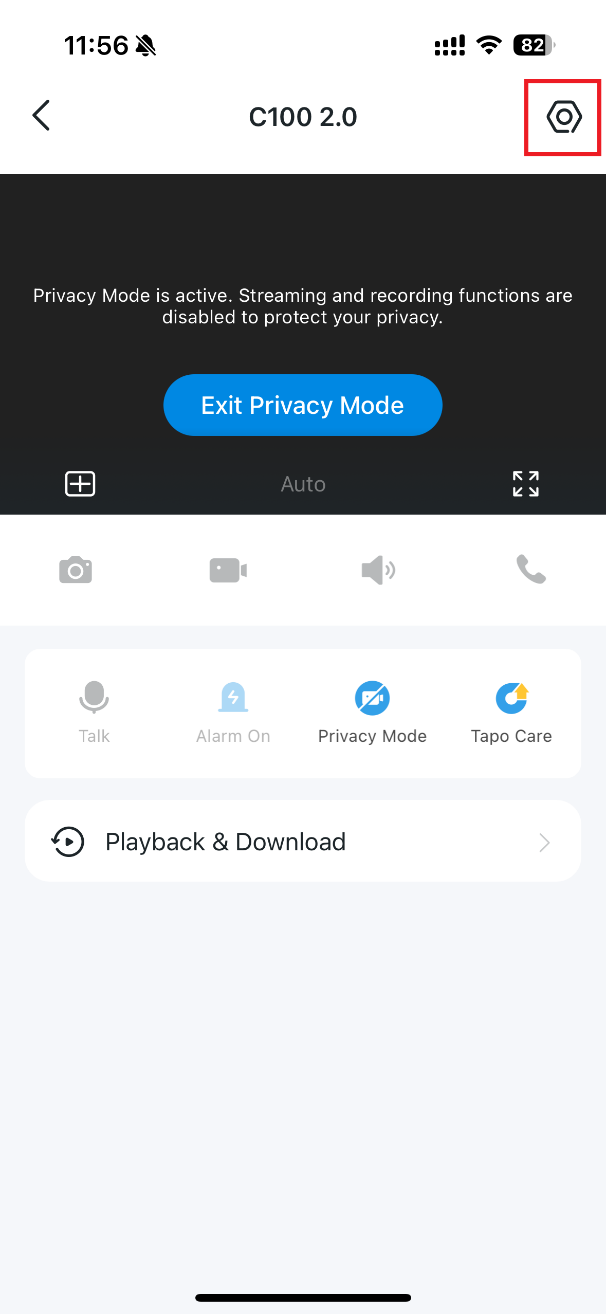
Step 1. On the Home page of the Tapo app, tap your camera model card to go to the live view page. Then tap the icon in the top right corner to enter the Device Settings page.
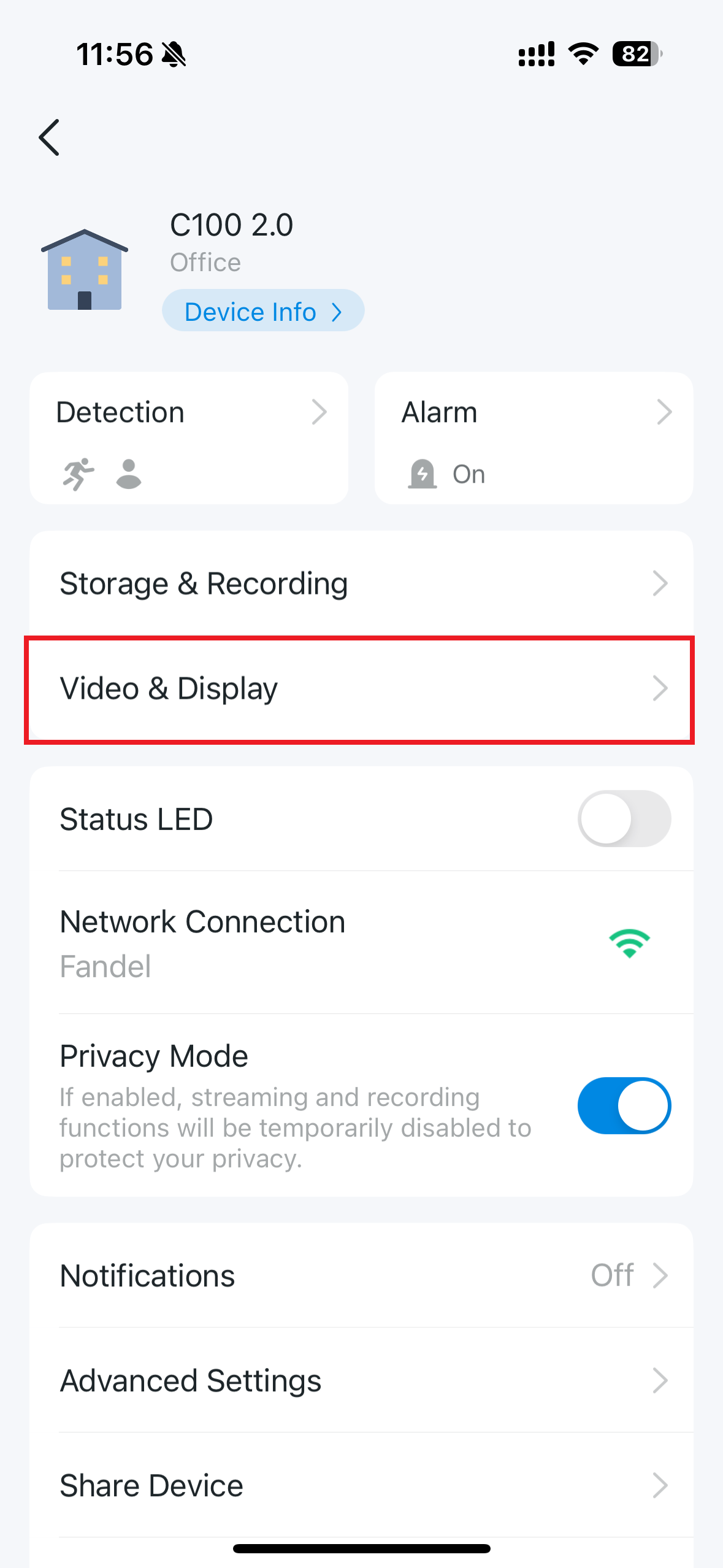
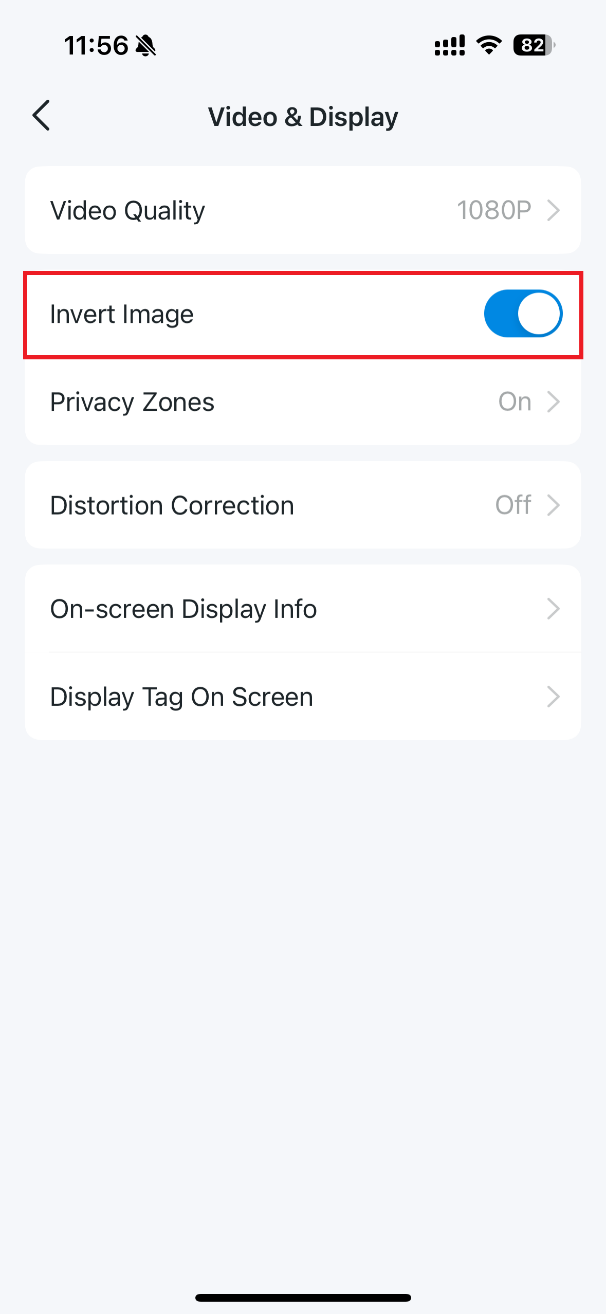
Step 2. Tap Video & Display on the device settings page, and toggle the Invert Image option on or off to rotate the image 180°.
Scenario 2: Enable Video Rotation in Kasa App
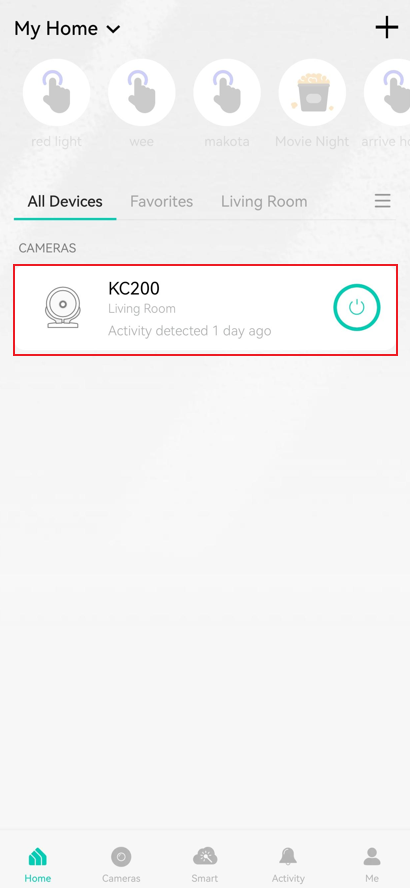
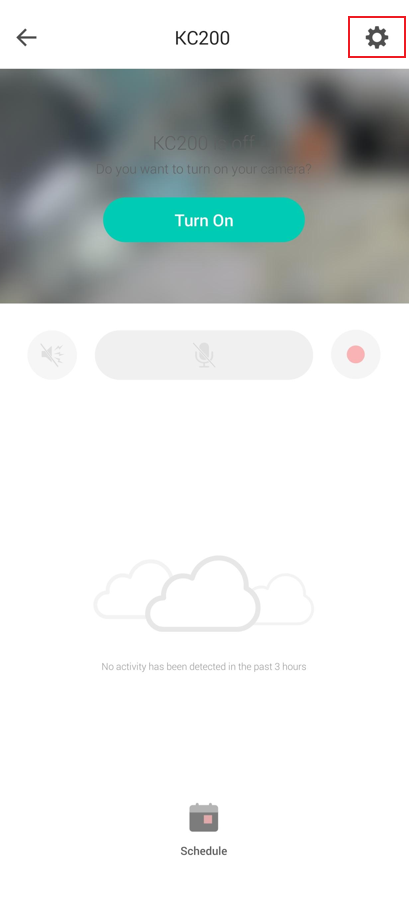
Step 1. On the Home page of the Kasa app, tap your camera model card to go to the live view page. Then tap the icon in the top right corner to enter the Device Settings page.
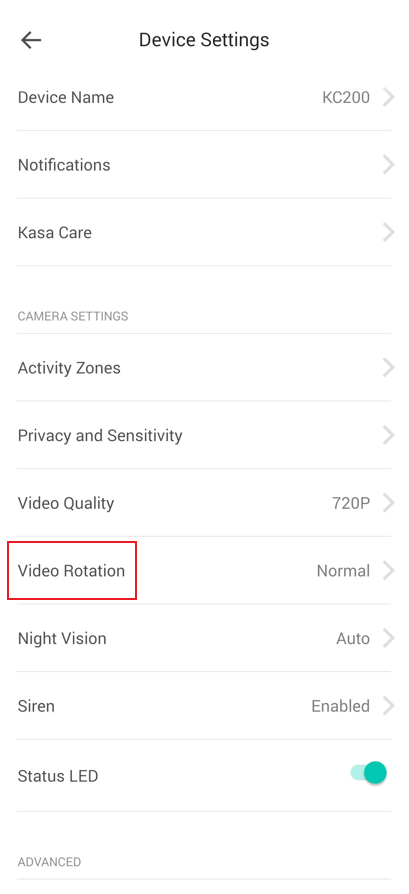
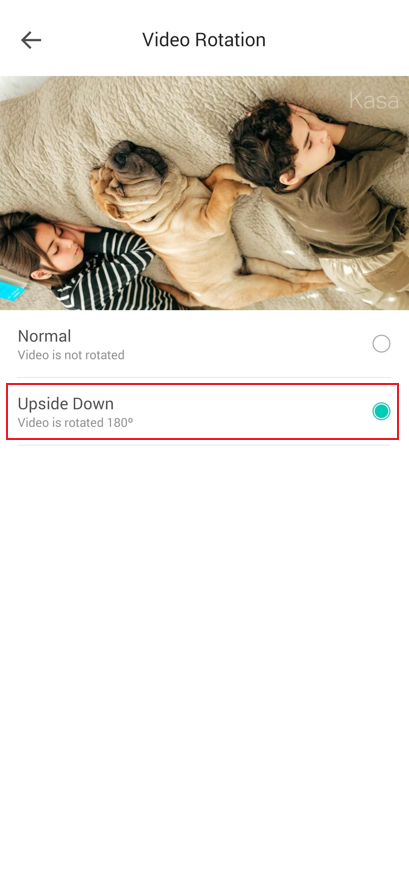
Step 2. Tap Video Rotation on the device settings page, and select the Normal or Upside Down option to rotate the image 180°.
Get to know more details of each function and configuration, please go to download center to download the manual of your product.