How to check event log of Tapo Button, Sensor, and Hub
Недавние обновления могли расширить доступ к функциям, обсуждаемым в этом разделе часто задаваемых вопросов. Посетите страницу поддержки вашего продукта, выберите подходящую версию аппаратного обеспечения для вашего устройства и проверьте раздел «Техническое описание» или «Прошивка», чтобы узнать о последних улучшениях, добавленных в ваш продукт. Обратите внимание, что доступность продукта зависит от региона, и некоторые модели могут быть недоступны в вашем регионе.
Introduction
This FAQ explains how to view the activity history/event log for Tapo buttons, sensors, and hubs in the Tapo app. By reviewing activity logs, you can monitor recent actions, better understand how your devices are operating, and quickly troubleshoot issues.
Configuration
Method 1. Via Device Status page
Case 1: For Tapo button and sensor
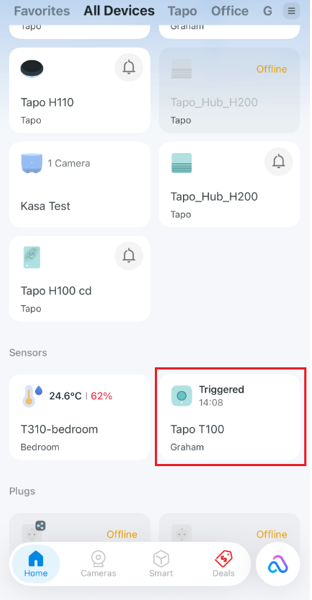
Step 1. Open the Tapo app and tap your device card on the home page to enter the device status page.
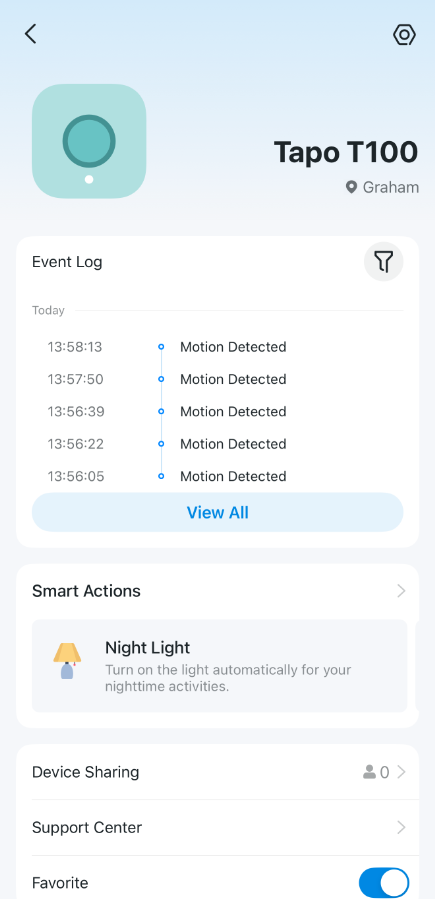
Step 2. On the device status page, you can check Event Log of your device.
Case 2: For Tapo hub
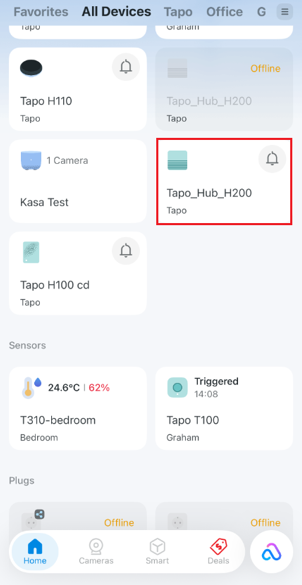
Step 1. Open the Tapo app and tap your device card on the home page to enter the device status page.
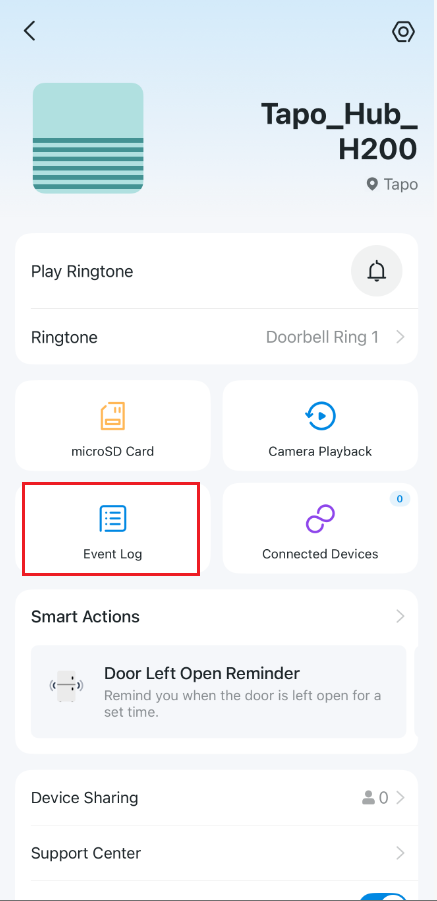
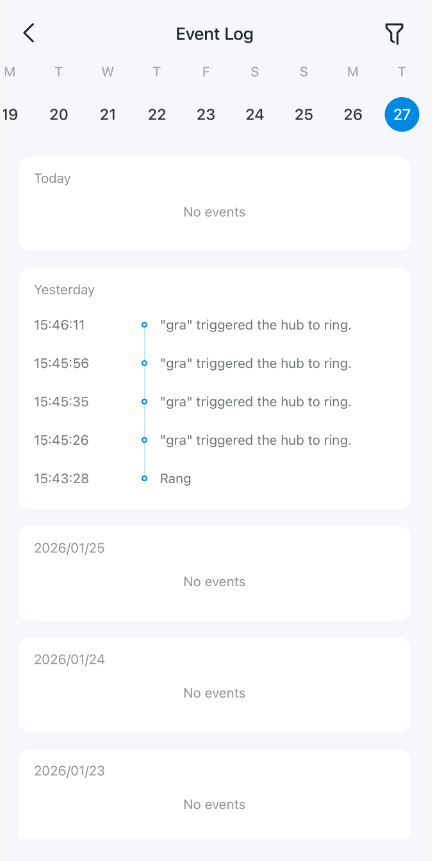
Step 2. Click on Event Log/Ring Log to check the activity history.
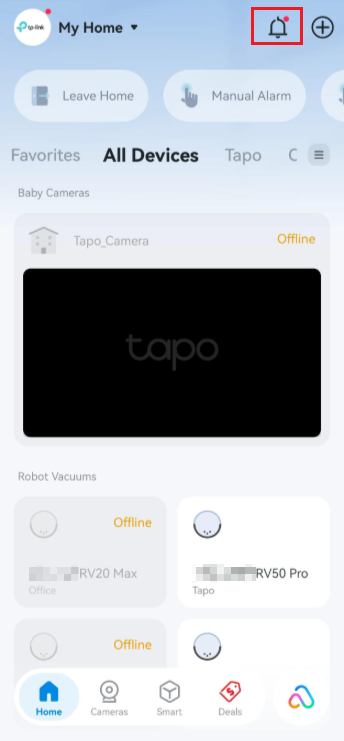
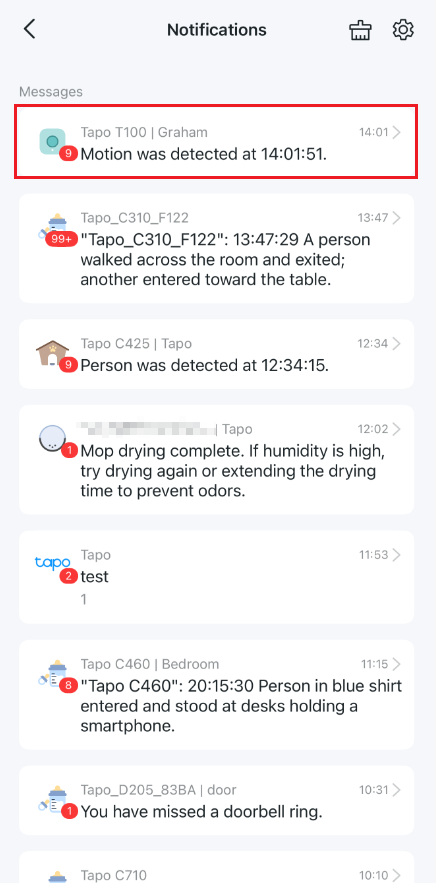
Method 2: Via App Notifications page
Open the Tapo app and tap the  icon in the top right to check all the activities of your device.
Get to know more details of each function and configuration, please go to the Download Center to download the manual of your product.