How to Set Up Schedule, Away Mode, and Timer for TP-Link Plug/Bulb/Switch in the Tapo App
Son güncellemeler, bu SSS'de tartışılan özellik(ler)e erişimi genişletmiş olabilir. Ürününüzün destek sayfasını ziyaret edin, cihazınız için doğru donanım sürümünü seçin ve ürününüze eklenen en son geliştirmeler için Veri Sayfası veya ürün yazılımı bölümünü kontrol edin.
This guide covers three automation features available on Tapo and Kasa smart devices, including plugs, light bulbs, light strips, and switches: Schedule, Away Mode, and Timer. Schedule automates recurring on/off times for your devices. Away Mode turns a device on and off randomly within a set time window to simulate occupancy. The timer counts down a set duration before turning the device on or off. Together, these features let you automate your smart home routine without manual intervention. Note that the Auto-Off Timer is available for supported smart plugs only.
Key Takeaways
- The Schedule feature lets you set recurring on/off times for a single device or multiple devices at once, with support for Custom Time, Sunrise, and Sunset triggers.
- When scheduling multiple devices using automation, each device must be connected to the Internet to operate.
- Away Mode turns a device on and off randomly within a set time window to simulate occupancy, making it useful for home security when you are away.
- The Timer feature counts down a set amount of time before automatically turning the device on or off.
- The Auto-Off Timer automatically turns off the connected appliance after a set duration every time it is turned on. It is available on all Tapo smart plugs and select Kasa models.
Schedule
Case 1. Create a schedule for a single device
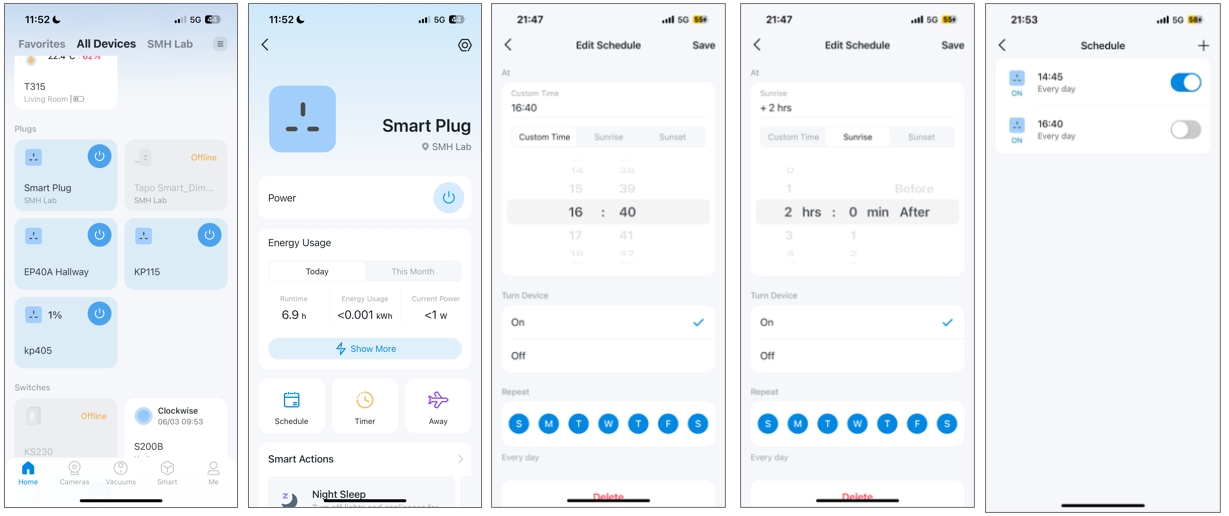
- On the Tapo app Home page, click the device card to enter the device page.
- Choose Schedule, then tap the + icon in the upper-right corner to add a new schedule.
- Choose either a Custom Time, Sunrise, or Sunset time. When choosing Sunrise or Sunset, you can also set an offset time. The times of Sunrise and Sunset will be synchronized with regional realities.
- Set the Repeat times within a week.
- Click Save. After creating schedules, you can always enable or disable them manually.
Case 2. Create a schedule for multiple devices at once
Note: This method uses automation and requires the smart device to be connected to the internet to operate.
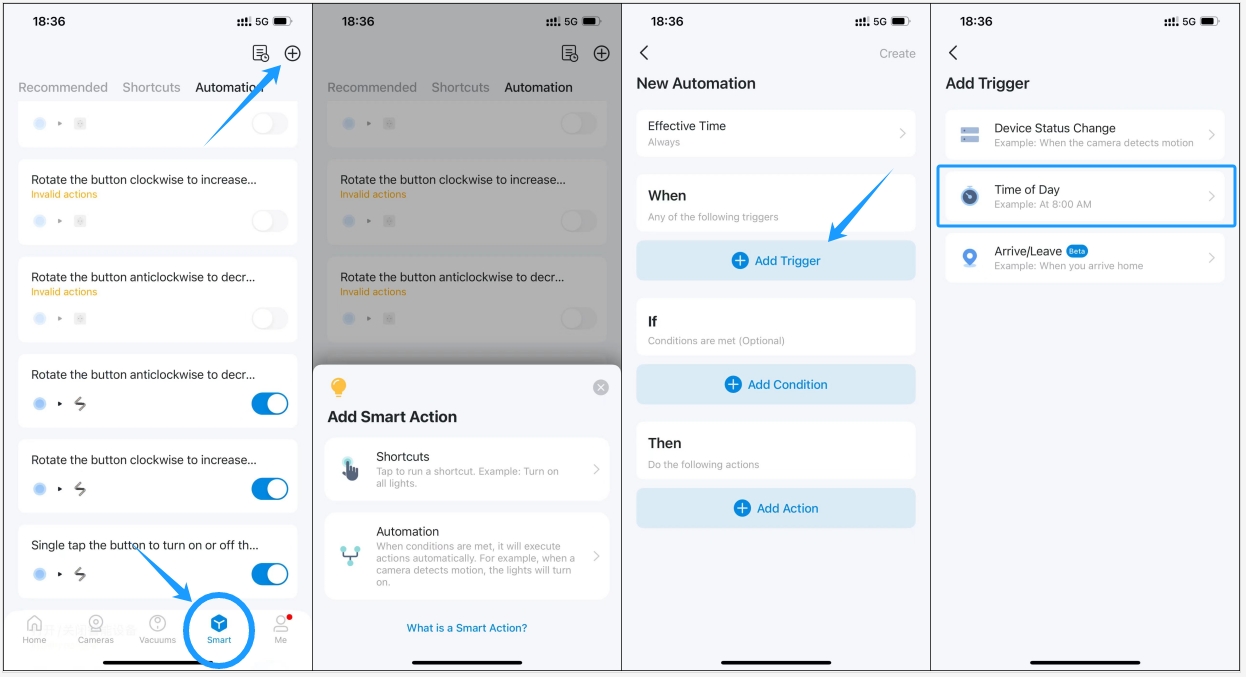
- Open Tapo App, go to Smart > Click the + icon in the top right corner > Choose Automation.
- Tap Add Trigger > choose Time of Day.
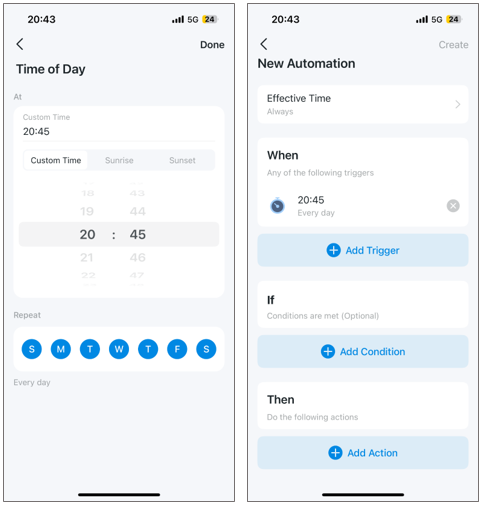
- Choose either a Custom Time, Sunrise, or Sunset time. When choosing Sunrise or Sunset, you can also set an offset time. Note that the time of Sunrise and Sunset will be synchronized according to regional realities.
- Set the Repeat times within a week.
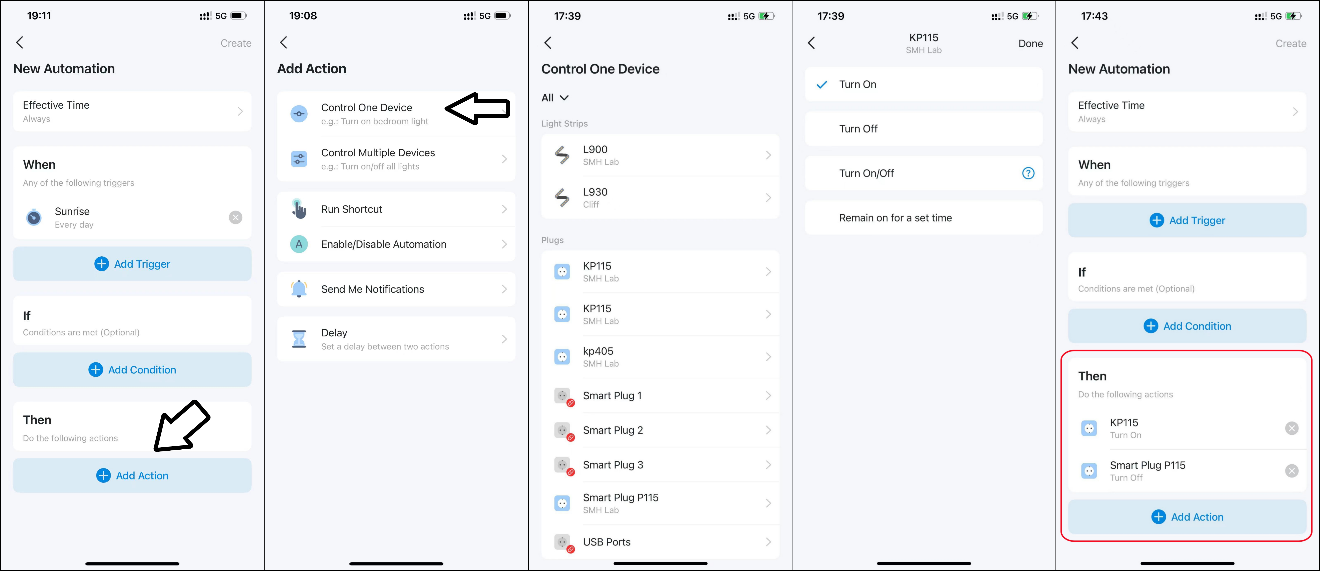
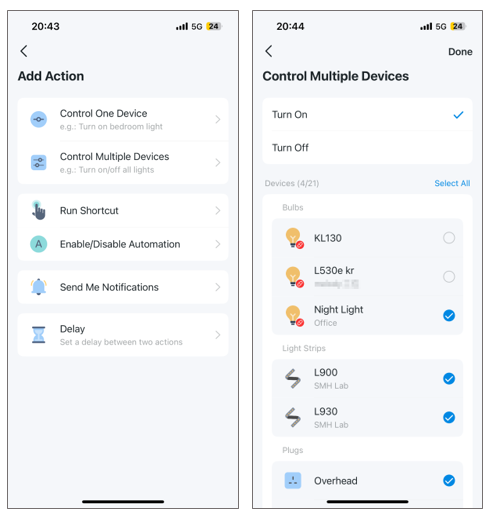
- Next, click Add Action to choose which smart devices you would like to control using the time settings above.
- If you want to turn on/off different devices separately, e.g., while turning on living room lighting, turn off bedroom lighting, choose Control One Device, select a smart device, set it to be turned on/off, then add it to the action list.
- Repeat the process, adding the devices that you want to turn on/off via the schedule to the action list one by on
- To perform the same action on all devices, here are two methods:
Method One: Click Add Action > Choose Control Multiple Devices, select the devices you want to turn on via this schedule. Then tap Done.
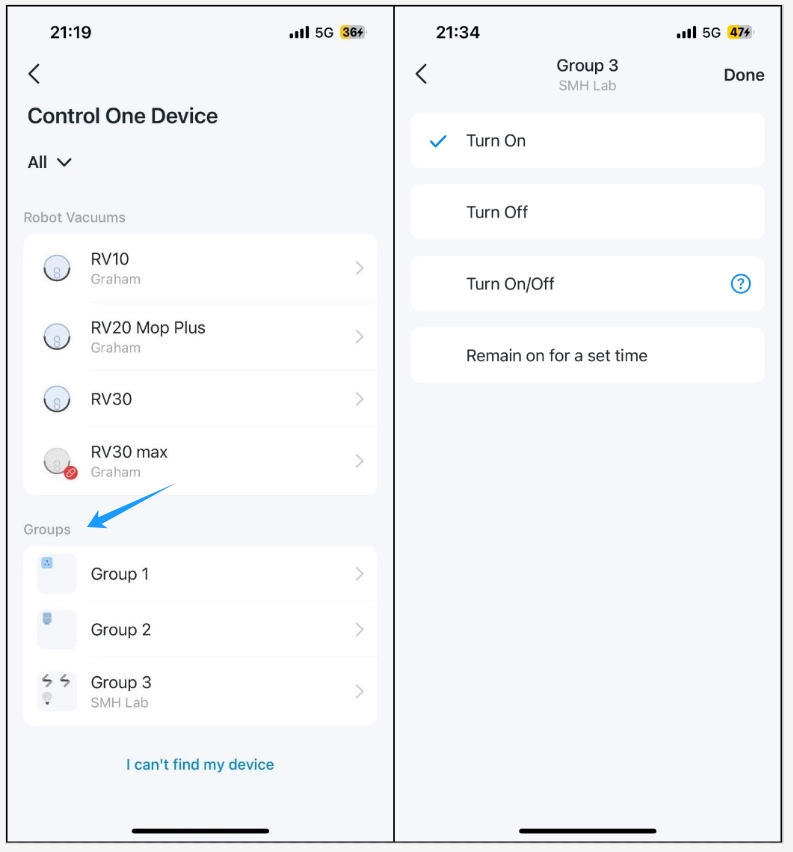
Method Two: Create a Group for the smart devices in advance. After selecting Add Action, choose Control One Device, then locate the Group section in the list, and select a group.
Away Mode
By enabling the Away Mode feature on Tapo IoT devices, the device will be randomly turned on and off at the set time, making it appear as if someone's at home.
Here we take the Tapo smart plug to show you how to enable the Away Mode feature.
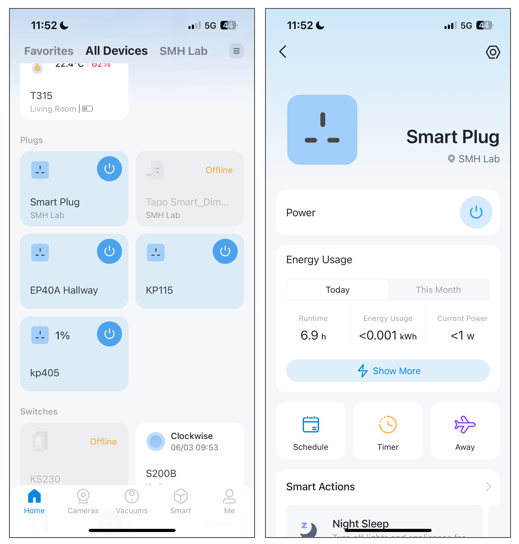
- On the Tapo app Home page, click the device card to enter the device page.
- Click the Away icon.
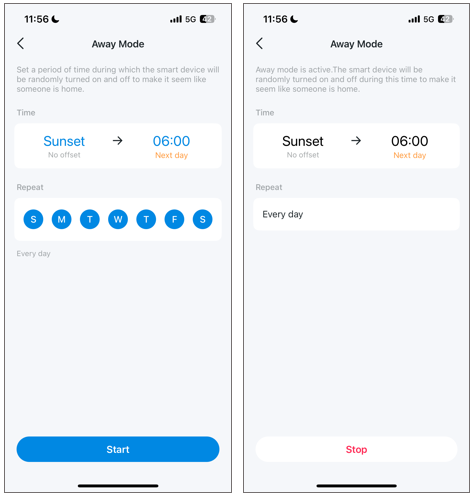
- Set the start and end times: You can choose a Custom Time, Sunrise, or Sunset. When choosing Sunrise or Sunset, you can also set an offset time. Note that the time of Sunrise and Sunset will be synchronized according to regional realities.
- Set the Repeat times within a week.
- Click Start to enable the away mode. You can stop the away mode on this page at any time.
Timer
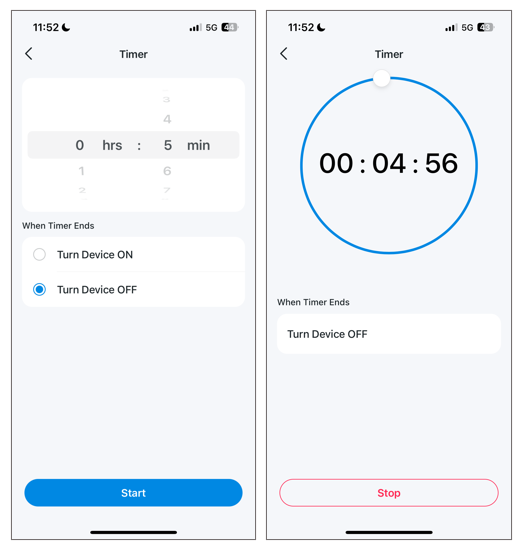
Follow the instructions below to set a countdown timer that automatically turns the smart device on or off after a set amount of time.
- On the Tapo app Home page, click the device card to enter the device page.
- Click the Timer.
- Set a countdown to turn the smart device on or off when the timer ends.
Auto-Off Timer (For Smart Plug)
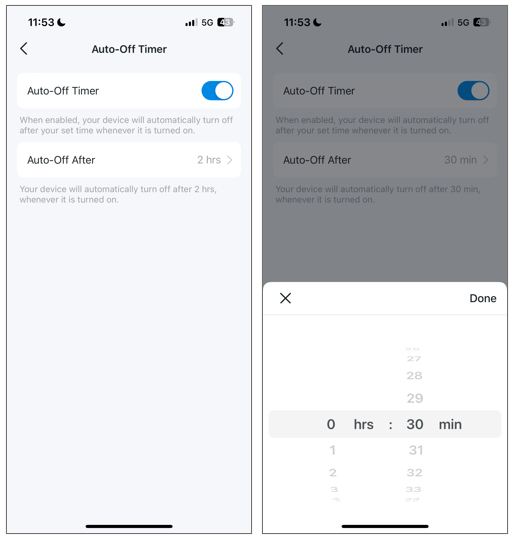
The auto-off timer feature can help you turn off the appliance automatically after the set time whenever it turns on. Supported models include all Tapo Smart Plugs and Kasa EP40M, KP125M, EP25 V2.
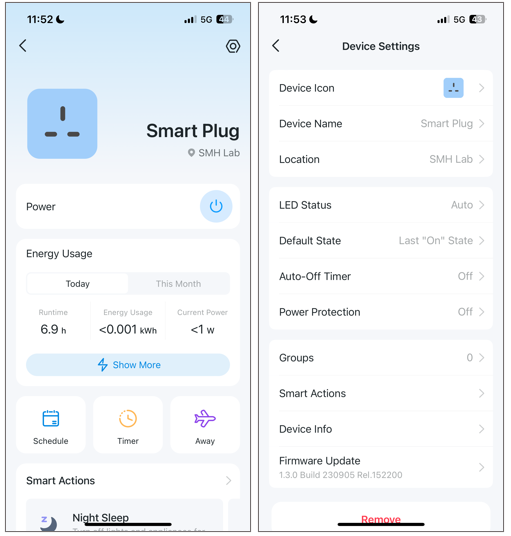
- On the Tapo app Home page, click the device card to enter the device page.
- Tap the gear icon in the top right to enter Device Settings, choose Auto-Off Timer and enable it.
- Tap Auto-Off After to set the auto-off time.
Frequently Asked Questions
Q1: When the mobile phone time zone changes, does the scheduled or Automation runtime of devices such as smart plugs, light bulbs, and switches change?
The runtime for schedules and automations is determined by the device's own time zone. Devices such as smart plugs, light bulbs, and switches do not support individual device time zone settings. Therefore, their time zone is set during initial configuration (typically matching the time zone of the phone used during setup) and will generally not automatically change if your phone's time zone or the Tapo App account time zone is modified. If you wish to change a device's time zone, you must reset the device and reconfigure it.
Q2: Under what circumstances does a device's time zone synchronize with the phone's time zone?
A device's time zone will automatically synchronize with the phone's time zone when the year of the device's internal time does not match the year of the phone's time, and the device is on the local network or in a discoverable Bluetooth state. Other situations (e.g., only changing the phone's time zone or the App account's time zone) will not trigger synchronization.
Q3: If an automation includes multiple devices, which device's time zone will it use for operation?
If the automation includes more than one device, the runtime will be based on the first device's time zone. If no devices are included in the automation, the runtime will be based on the phone's time zone.