How to adjust Image Style and Image Brightness on Tapo Camera
Недавние обновления могли расширить доступ к функциям, обсуждаемым в этом разделе часто задаваемых вопросов. Посетите страницу поддержки вашего продукта, выберите подходящую версию аппаратного обеспечения для вашего устройства и проверьте раздел «Техническое описание» или «Прошивка», чтобы узнать о последних улучшениях, добавленных в ваш продукт. Обратите внимание, что доступность продукта зависит от региона, и некоторые модели могут быть недоступны в вашем регионе.
Introduction
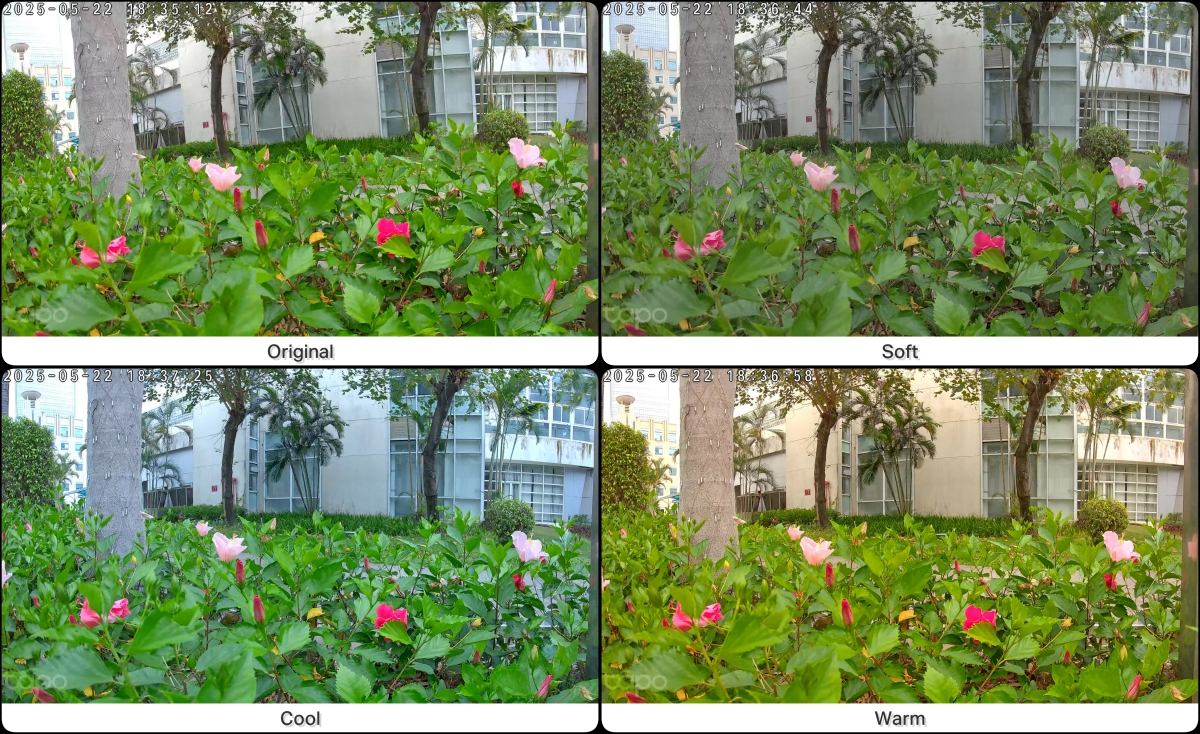
The image style feature applies predefined parameters to adjust color in the camera output. The brightness control allows manual adjustment of overall exposure. This article provides instructions for configuring both image style and brightness settings on Tapo cameras.
Configuration
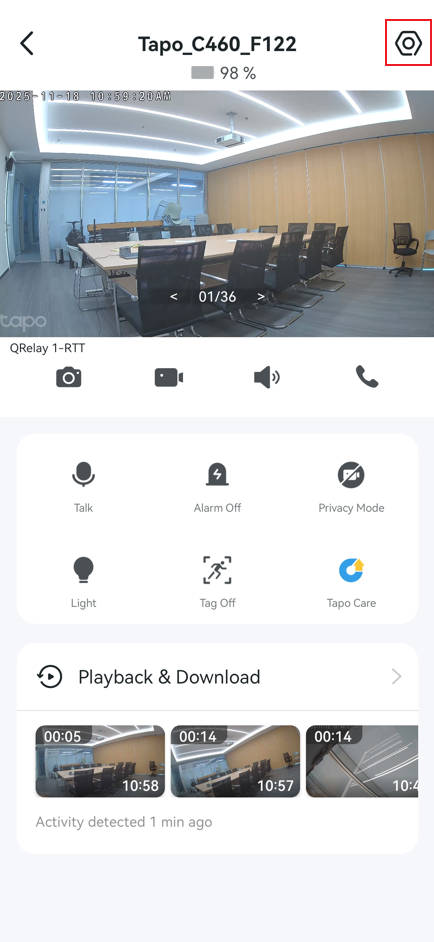
Step 1. On the Tapo app home screen, tap your device card, then tap the gear icon in the top right to open Device Settings.

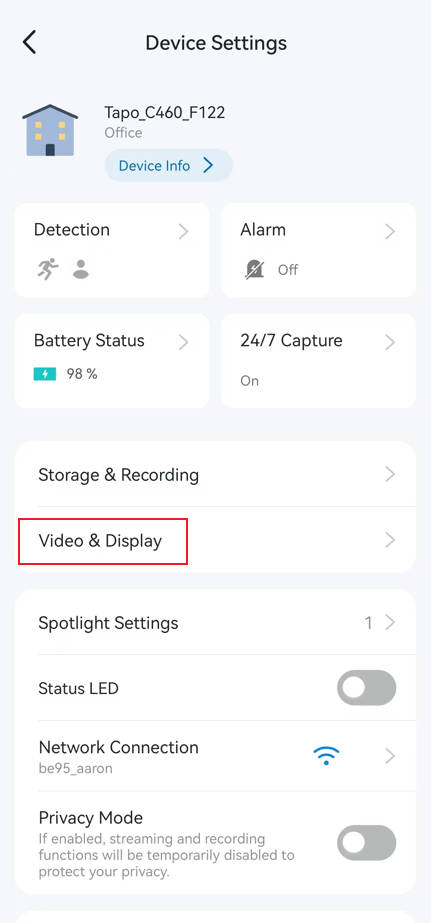
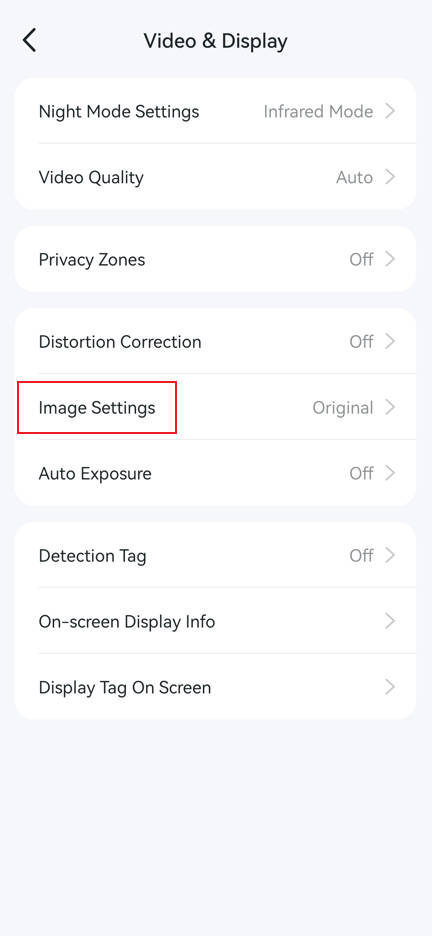
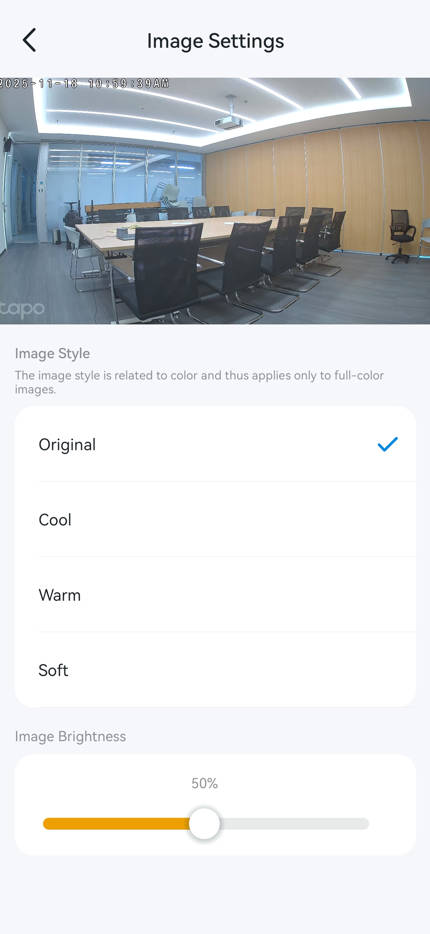
Step 2. Navigate to Video & Display > Image Settings to select an image style and adjust image brightness.
- Image Style offers four options: Original, Cool, Warm, and Soft.
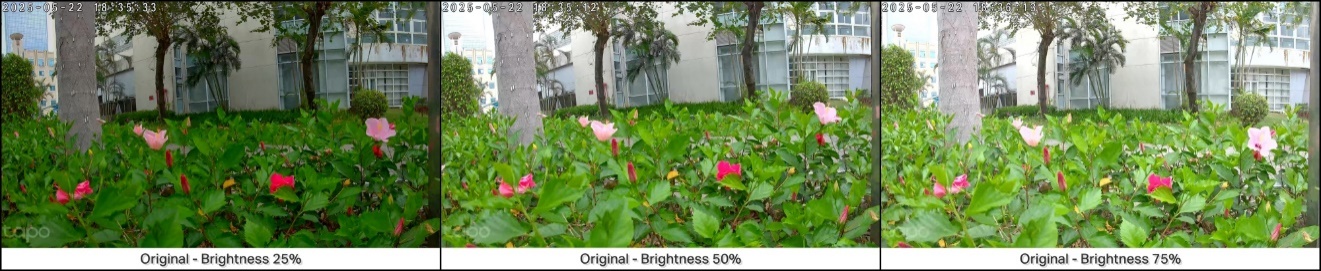
- Brightness is adjustable from 1% to 100%.
Note: Image style is related to color and thus applies only to full-color images. Excessive brightness may cause loss of some picture details.
Get to know more details of each function and configuration please go to Download Center to download the manual of your product.