How to connect Tapo S110E with Google Home to voice control external devices
Недавние обновления могли расширить доступ к функциям, обсуждаемым в этом разделе часто задаваемых вопросов. Посетите страницу поддержки вашего продукта, выберите подходящую версию аппаратного обеспечения для вашего устройства и проверьте раздел «Техническое описание» или «Прошивка», чтобы узнать о последних улучшениях, добавленных в ваш продукт. Обратите внимание, что доступность продукта зависит от региона, и некоторые модели могут быть недоступны в вашем регионе.
Introduction
This guide will show you how to link your Tapo Module with Google Home. Once connected, you can easily control your external device using voice commands.
NOTE: Please first ensure both the Tapo app and Tapo Smart Module have the latest software and firmware updates installed.
Configuration
First, ensure your Tapo smart module is fully set up and connected to the internet. You have two options for linking the Tapo S110E with Google Home:
Option 1: Via Tapo app
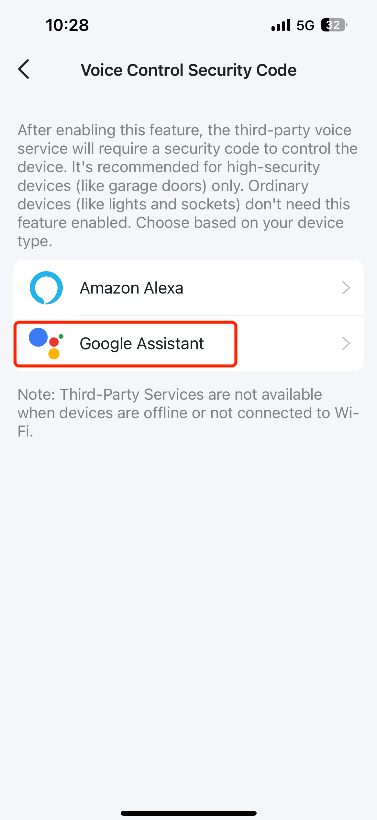
Step 1. Open the Tapo app, tap Me > Third-Party Service > Google Assistant > Tapo Actions. The location of Me button may vary by app version. It is located either in the bottom right corner or top left corner of the app.
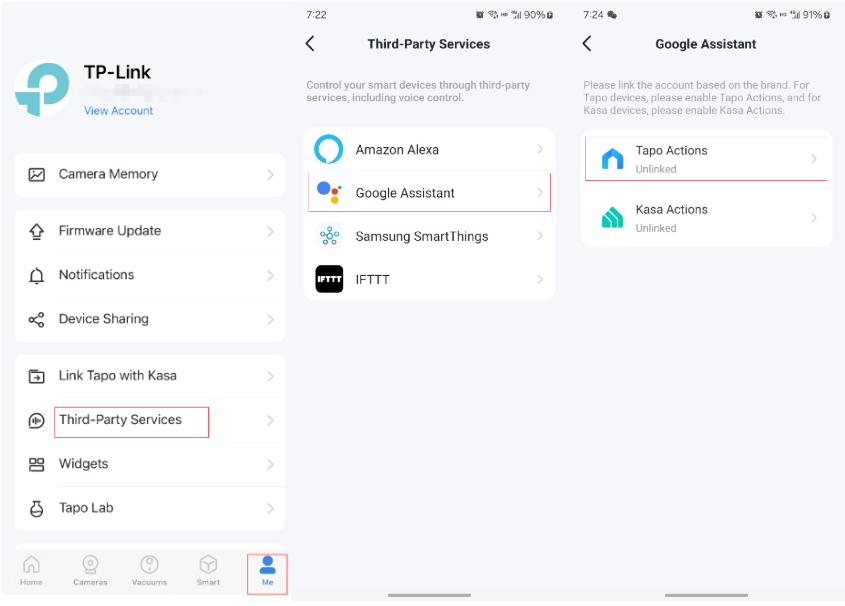
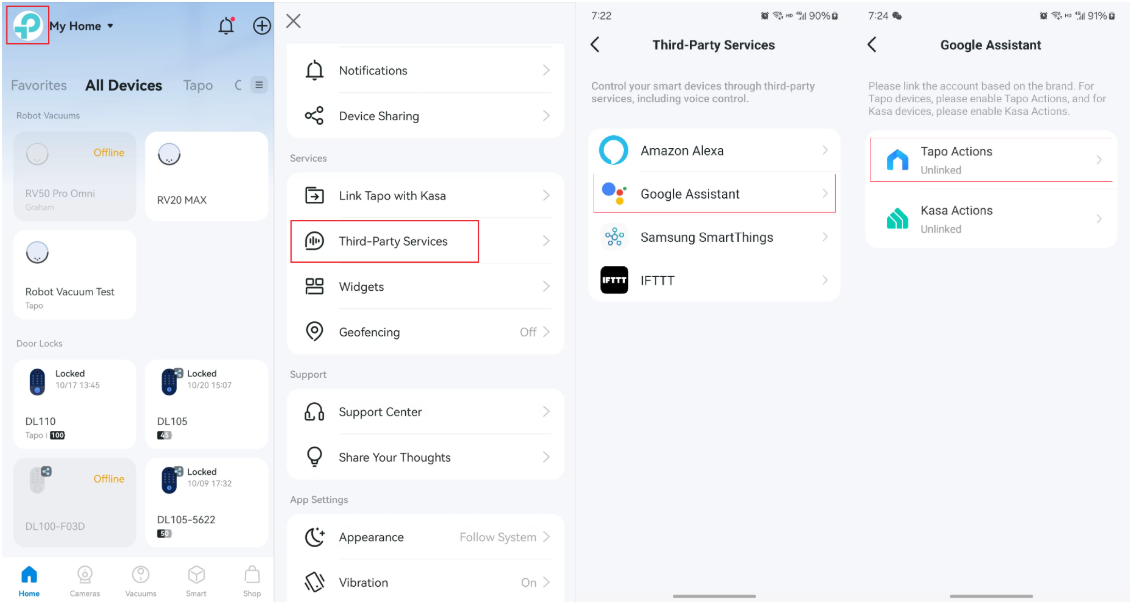
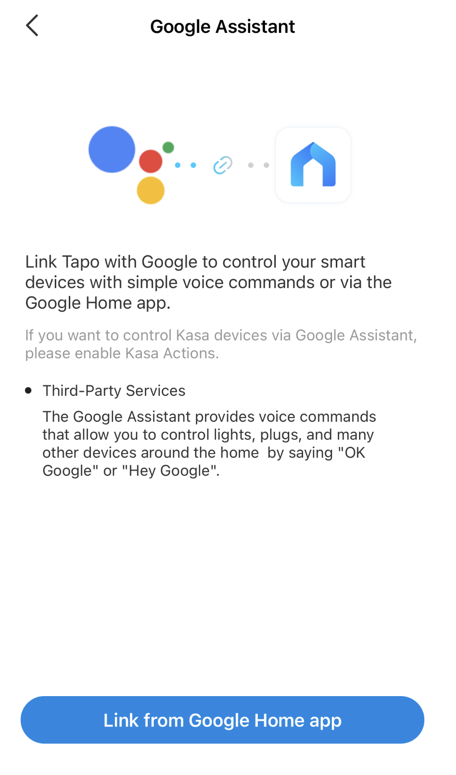
Step 2. Tap Link from Google Home app, then it will turn to the Google Home app automatically.
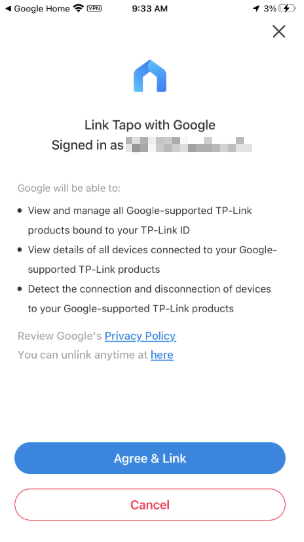
Step 3. Google Home will start the link procedure and open the Tapo app. Tap Agree & Link.
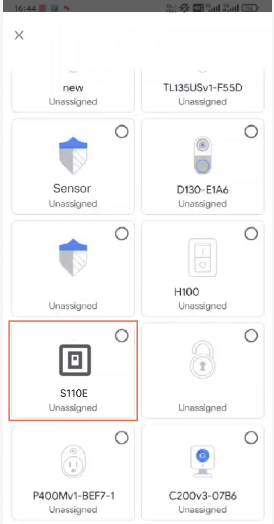
Step 4. The link procedure is finished. You will see the devices linked to your TP-Link ID. Select your S110E and assign it to a room.
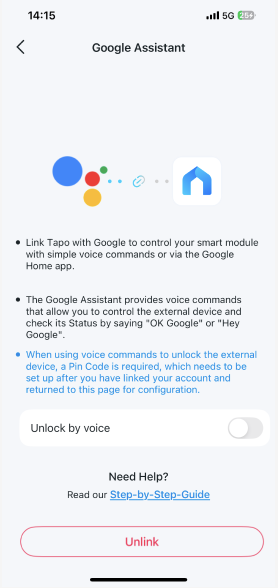
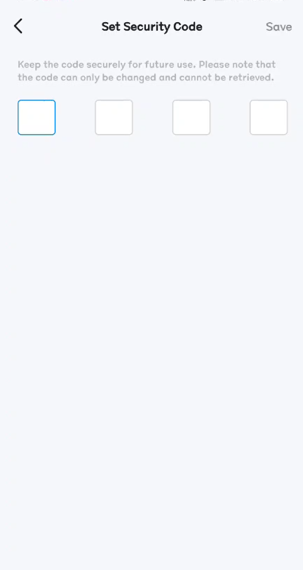
Step 5. Your smart module is connected successfully. Open the Tapo app and go to the Device Settings Page. Toggle on Unlock by Voice and set a security code for future use. This code is needed to control your S110E via voice commands. Note that this code can only be reset and cannot be retrieved.
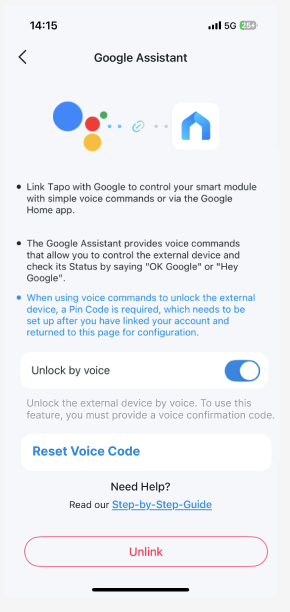
Option 2: Via Google Home app
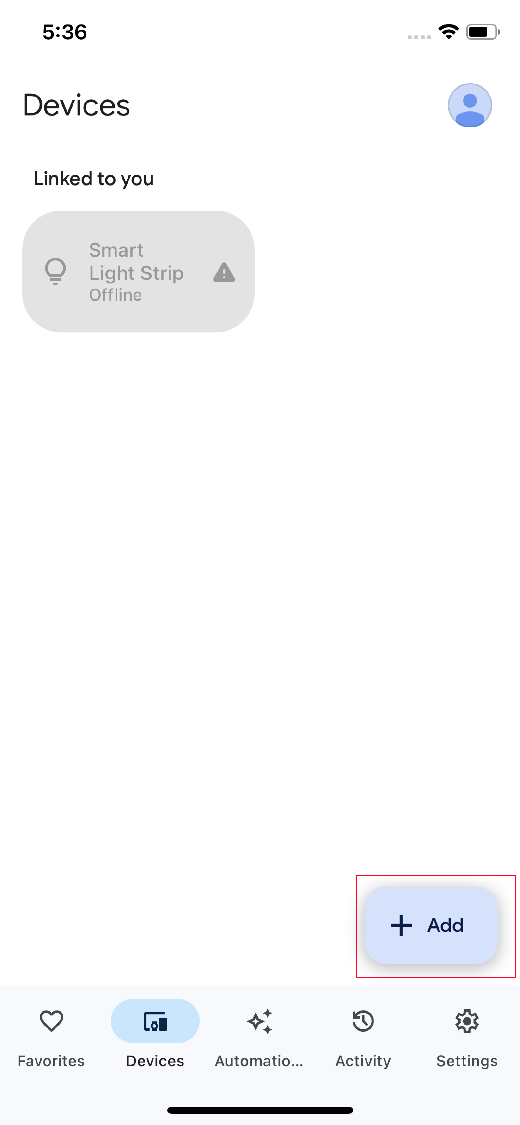
Step 1. Open the Google Home app, tap the device menu, and then tap the Add button.
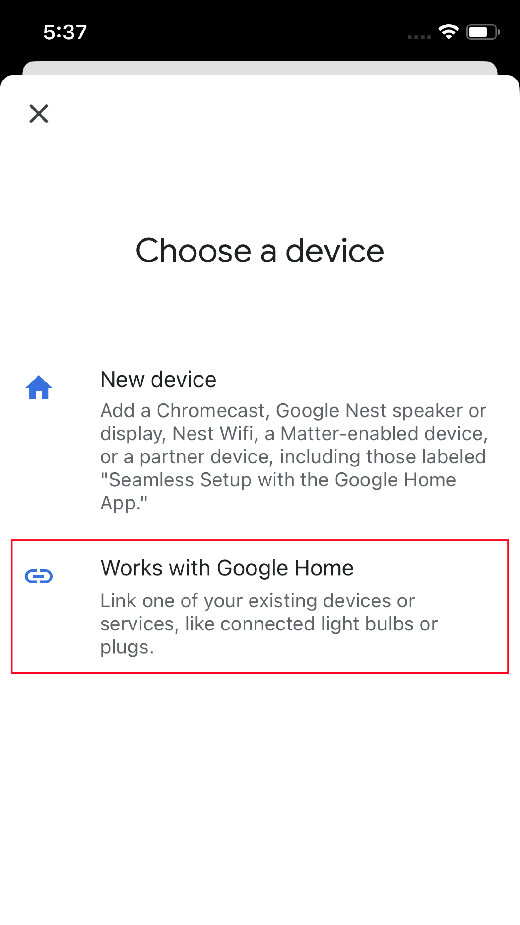
Step 2. Tap Works with Google Home.
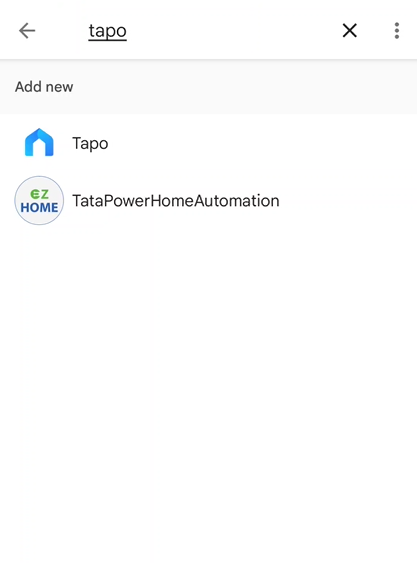
Step 3. Search Tapo and Tap Tapo, it will automatically open the Tapo app and start link procedure.
Step 4. The following steps are the same as Option 1.
Enjoy!
You can control your Tapo Smart Module Linked External Devices using simple voice commands. For example: “Hey Google, unlock my Tapo Garage Door”.
Note: Every time you change the name of the Tapo device, you will need to discover the device again to update its name.
Get to know more details of each function and configuration please go to Download Center to download the manual of your product.