FAQ's
How to configure 802.1Q tag VLAN on TL-SG3109
04-27-2011
65,605
A Virtual Local Area Network (VLAN) is a network topology configured according to a logical scheme rather than the physical layout. Hosts in the same VLAN communicate with each other as if they are in a LAN. However, hosts in different VLANs cannot communicate with each other directly.
Now let´s learn how to configure the tag VLAN on L2 managed Switches by the following example:
Network Topology:
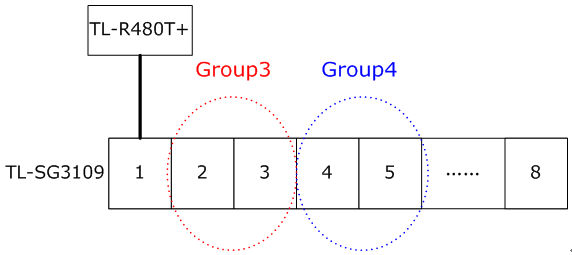
Here we take TL-SG3109 which has 8 ports as an example.
TL-SG3109 connects to Internet via TL-R480T+ in port 1. The computers of Group3 connect to port2&3 of TL-SG3109, computers of Group4 connect to port 4&5 of it.
Purpose:
1 The computers from Group3 can communicate with each other.
2 The computers from Group4 can communicate with each other.
3 The computers of Group3 and Group4 can’t communicate with each other.
4 Both the Group3 and Group4 can go to Internet through TL-R480T+.
VLAN Configuration parameters:
To achieve the purpose, we configure 3 VLANs:VLAN3,VLAN4,VLAN5
-To achieve Purpose 1, we create the VLAN3 (VLAN ID=3):
Port: port1,2,3.
Port VLAN Mode: General
Port Membership: Untagged.
- To achieve Purpose 2, we create the VLAN4(VLAN ID=4):
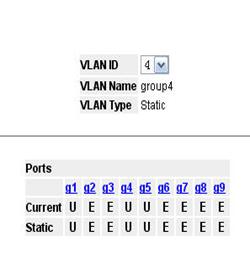
Port: port1,4,5.
Port VLAN Mode: General
Port Membership: Untagged
In fact, we have already achieved the Purpose 3 by setting VLAN3 and VLAN4.
- To achieve Purpose 4, we create the VLAN5(VLAN ID=5):
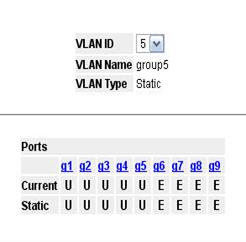
Port: port1,2,3,4,5,
Port VLAN Mode: General
Port Membership: Untagged
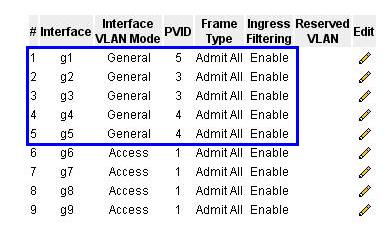
-Setting PVID for each port.
|
Port
|
PVID
|
|
Port1
|
5
|
|
Port2
|
3
|
|
Port3
|
3
|
|
Port4
|
4
|
|
Port5
|
4
|
The frames forwarding by port 2&3 will be tagged based on PVID 3, so it will only accepted by ports belongs to VLAN 3.We can get the other PVIDs in a similar way.
Now ,let’s start to configure the switch:
Part I:Setting Port VLAN Mode
Step 1:Please login the configuration page of the TL-SG3109 and go to:
Bridging Config->VLAN->Membership->Interface Settings- Port VLAN Mode:
Step2:Please adjust the mode from Access to General
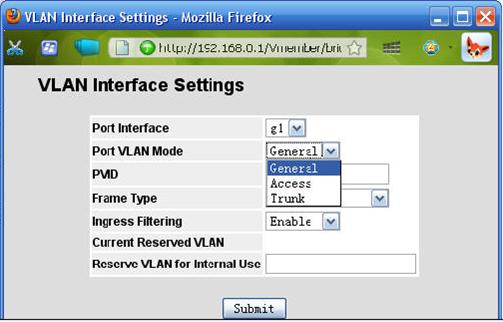
Step 3:Please adjust all the VLAN ports to general
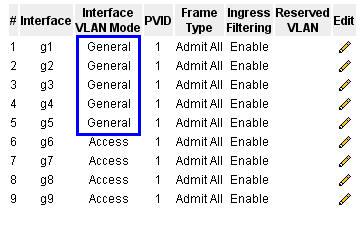
Part II: Setting VLANs
Step 1:Creat the VLAN 3:
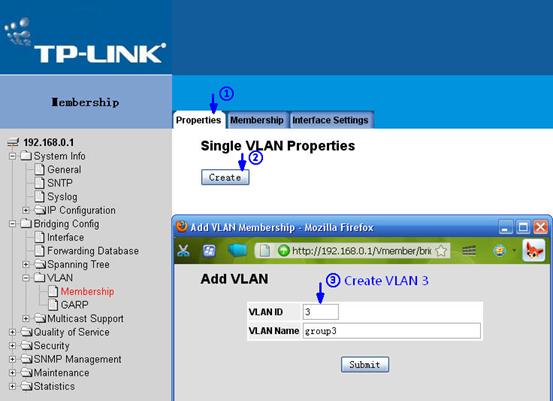
Step 2:Please also create VLAN4 and VLAN5
Step 3:Please add ports1,2,3 in VLAN 3.

Step 4:Please also add member ports in VLAN4 and VLAN5.
Part III: Setting PVIDs for ports.
Again, please go back to Interface Setting->PVID.
Please assign a PVID as per the table in VLAN Configuration parameters.
Finally, we get a summary like this:
Now, the network will work as described in Purpose.
Get to know more details of each function and configuration please go to Download Center to download the manual of your product.