How to Export Temperature & Humidity History Data from Tapo Sensor
Recent updates may have expanded access to feature(s) discussed in this FAQ. Visit your product's support page, select the correct hardware version for your device, and check either the Datasheet or the firmware section for the latest improvements added to your product. Please note that product availability varies by region, and certain models may not be available in your region.
Tapo temperature and humidity sensors not only provide visual data records with the Tapo App but also support history data export, allowing users to further data analysis or local data storage.
Export Temperature & Humidity History Data
The following steps will guide you step by step on how to export the sensor's historical data.
On Tapo Temperature & Tumidity sensor
- Open Tapo App and go to Tapo temperature & humidity sensor’s device page.
- On the History section, click “View All” -> click the download button in the upper right corner.
- Enter the email address where you want to receive the data.
- Select the time interval and range.
- Click Export.

Notes:
1. The data is stored for up to 2 calendar years.
2. Export interval:
- In minutes: 1, 15, 30 minutes
- In hours: 1, 6, 12 hours
- In days: 1 day
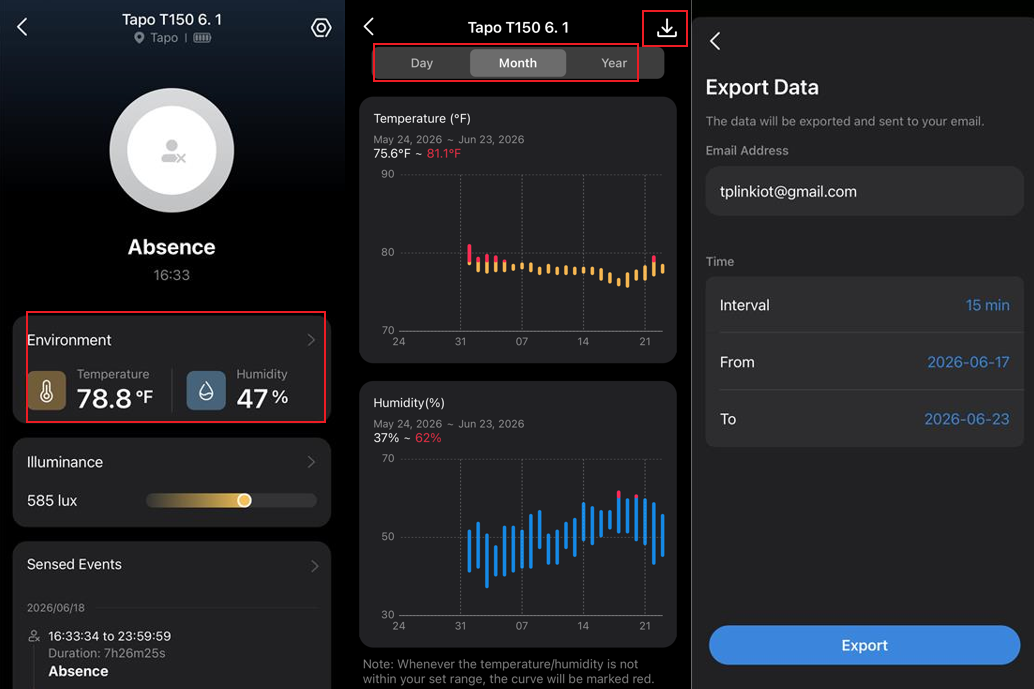
On Tapo Smart Human Presence Sensor
1. Open the Tapo app and go to the sensor's Device Page.
2. Go to the Environment Section.
3. Select the Day/Month/Year and click the download button in the upper right corner.
4. Enter the email address where you want to receive the data, select the time interval and range, then click Export.
5. Done. Now check your inbox to find the exported data!
Can’t receive the exported data email?
- Double-check the email address.
- Check if it is in the spam mailbox.
- Check the network quality of your device (for receiving emails), try switching networks and reload the inbox.