How to receive critical alerts from Tapo app
Les mises à jour récentes peuvent avoir étendu l'accès aux fonctionnalités décrites dans cette FAQ. Visitez la page d'assistance de votre produit, sélectionnez la version matérielle adaptée à votre appareil et consultez la fiche technique ou la section du firmware pour connaître les dernières améliorations ajoutées à votre produit.
Introduction
Requirement
Make sure you have set up your baby camera successfully. If you haven’t, set up your Tapo camera first.
Configuration
You can follow the steps below to set Tapo’s notification type.
Step 1. In the app, tap the device card and then the gear icon to enter the settings page.
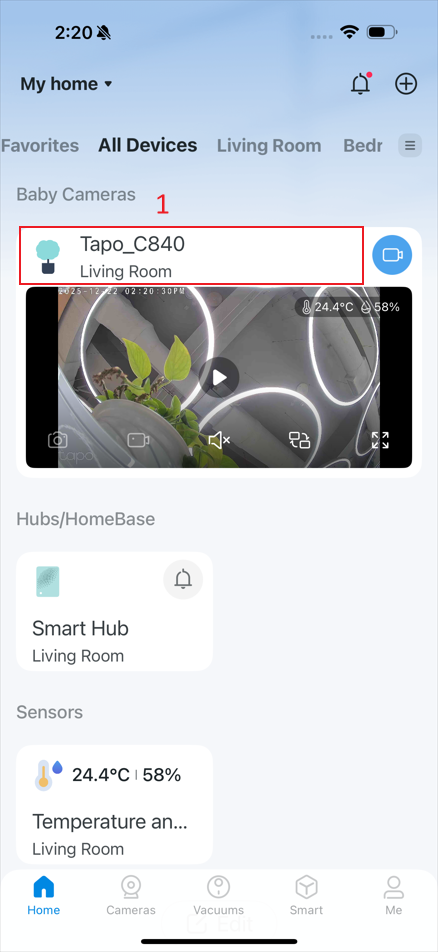
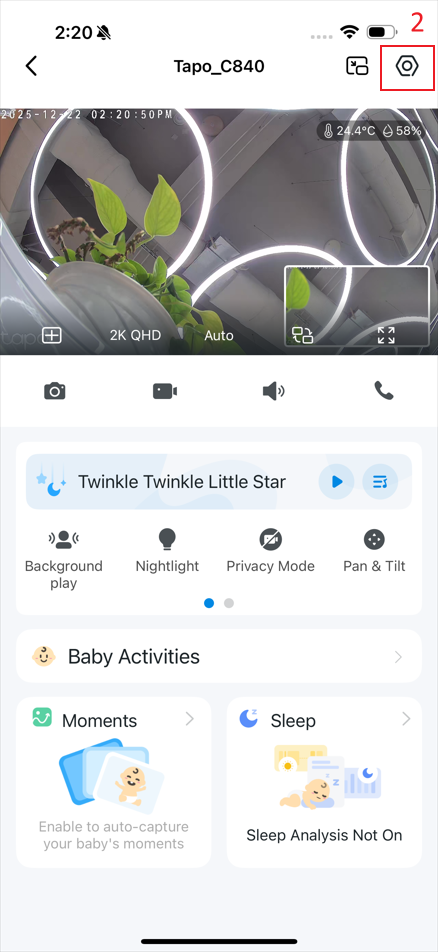
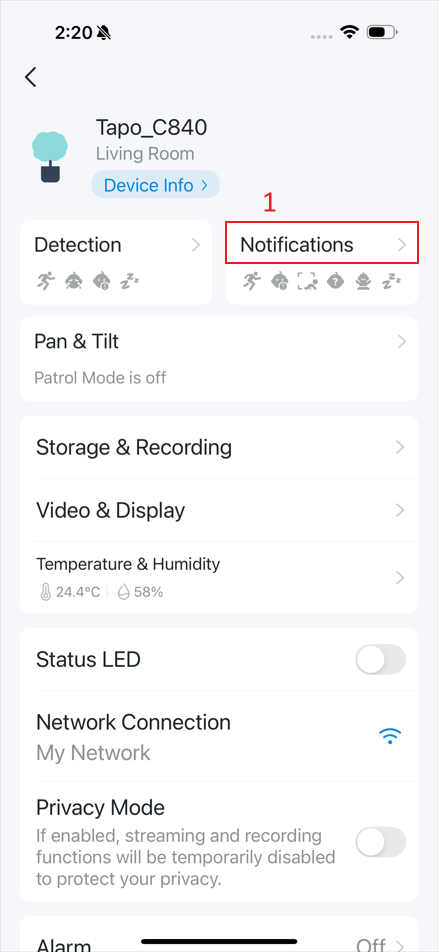
Step 2. Tap Notifications and then Activity Type.
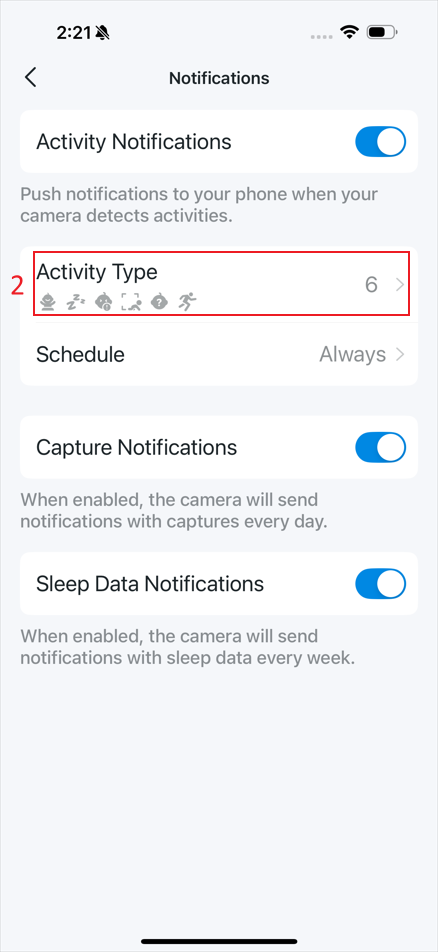
Step 3. On the Activity Type page, tap the current notification type; the type list will appear.
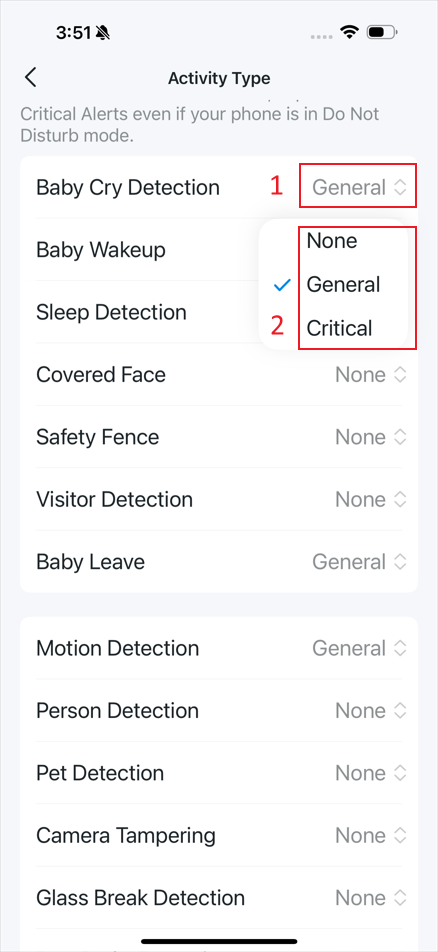
Step 4. Select Critical to display a reminder at the top of the page.
- For the iOS: Tap Go to Settings and then Notifications. Toggle to enable Critical Alerts.
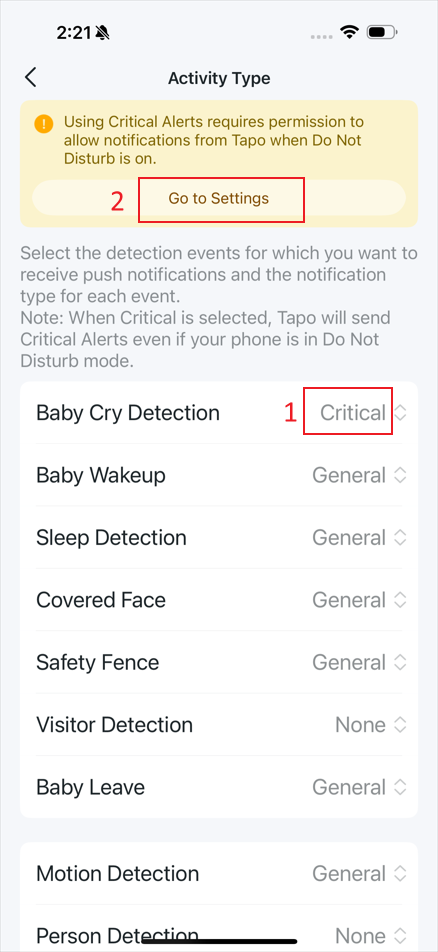
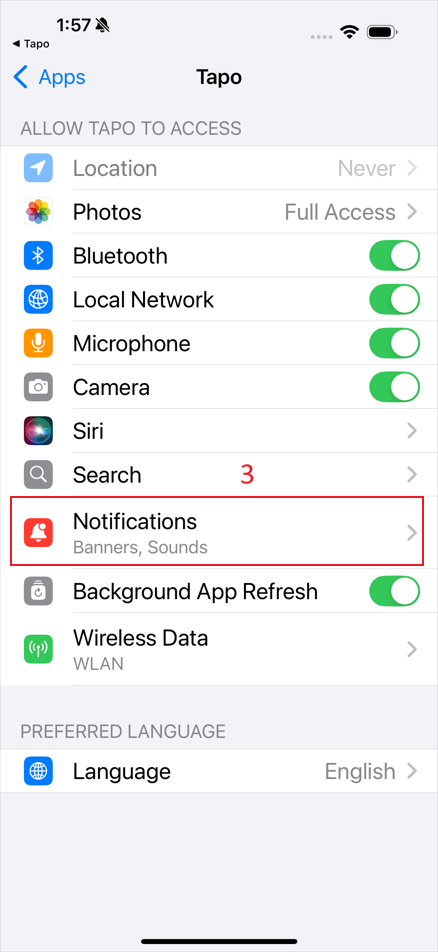
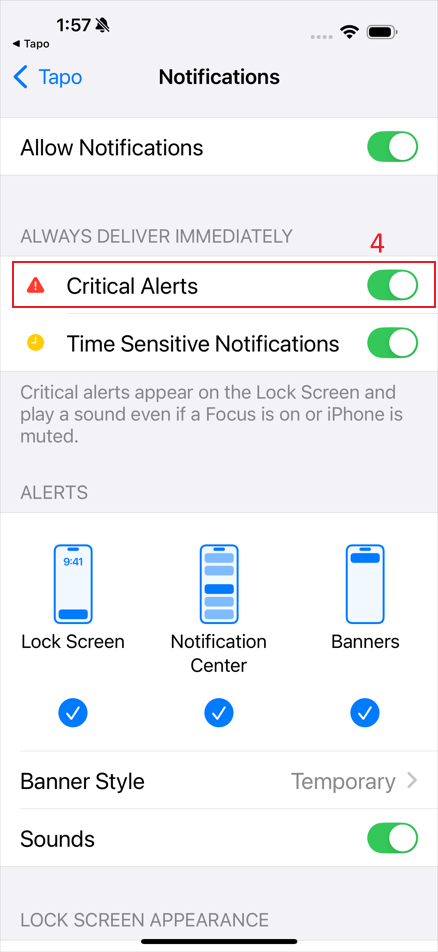
- For the Android: Tap Go to Settings and toggle to enable Allow interruptions or add the Tapo app to the allowed list on your Android phone.
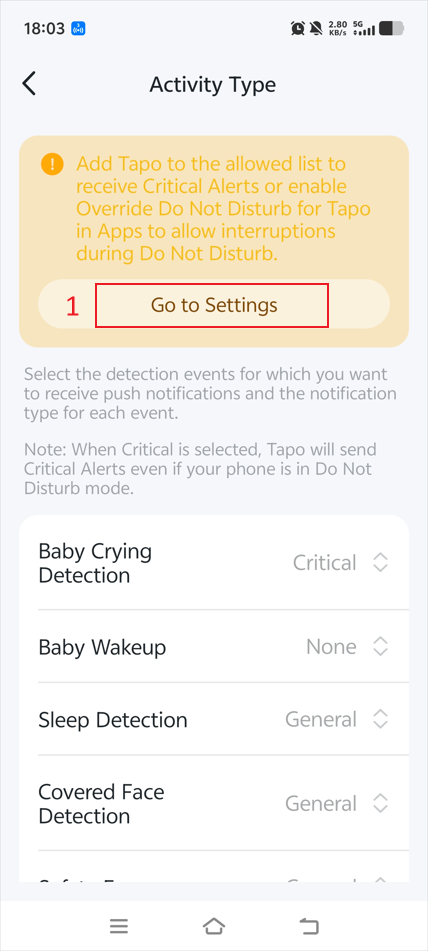
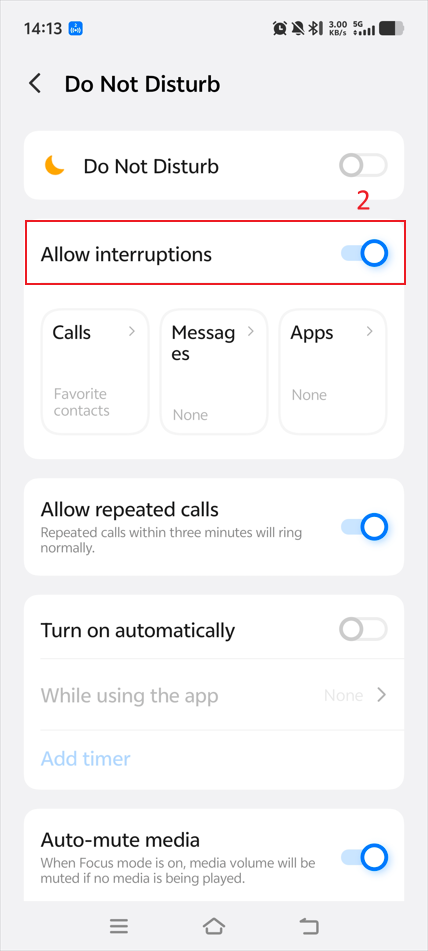
Step 5. After adding Tapo to the allowed list on your phone, you can change the notification type for more detection events directly.
Get to know more details of each function and configuration please go to Download Center to download the manual of your product.