How to receive critical alerts from Tapo app
Es posible que las actualizaciones recientes hayan ampliado el acceso a las funciones descritas en estas preguntas frecuentes. Visita la página de soporte de tu producto, selecciona la versión de hardware correcta de tu dispositivo y consulta la hoja de datos (Datasheet) o la sección de firmware para ver las últimas mejoras añadidas a tu producto. Ten en cuenta que la disponibilidad de los productos varía según la región y es posible que algunos modelos no estén disponibles en tu zona.
Introduction
Requirement
Make sure you have set up your baby camera successfully. If you haven’t, set up your Tapo camera first.
Configuration
You can follow the steps below to set Tapo’s notification type.
Step 1. In the app, tap the device card and then the gear icon to enter the settings page.
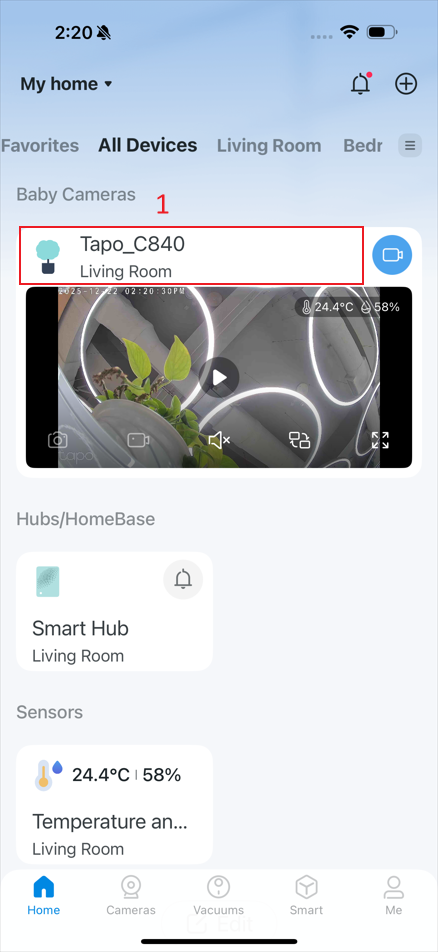
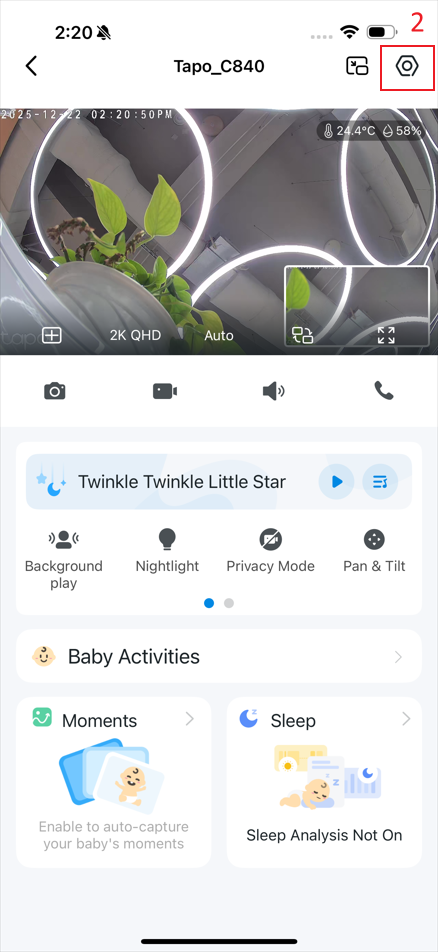
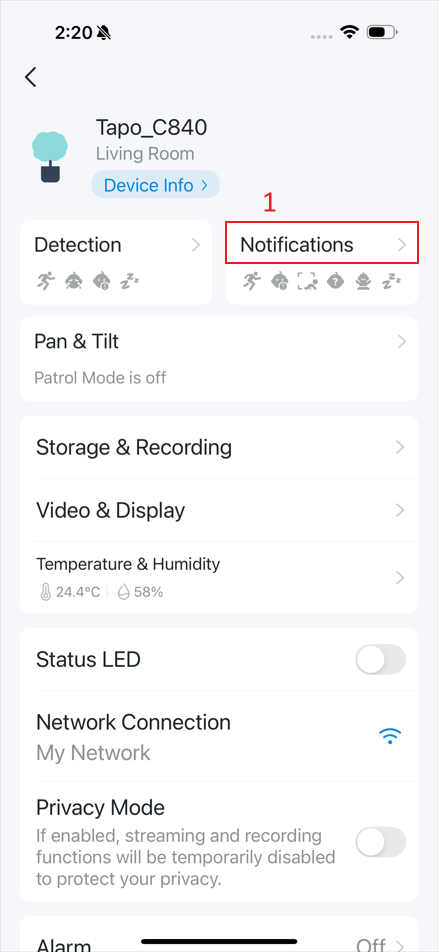
Step 2. Tap Notifications and then Activity Type.
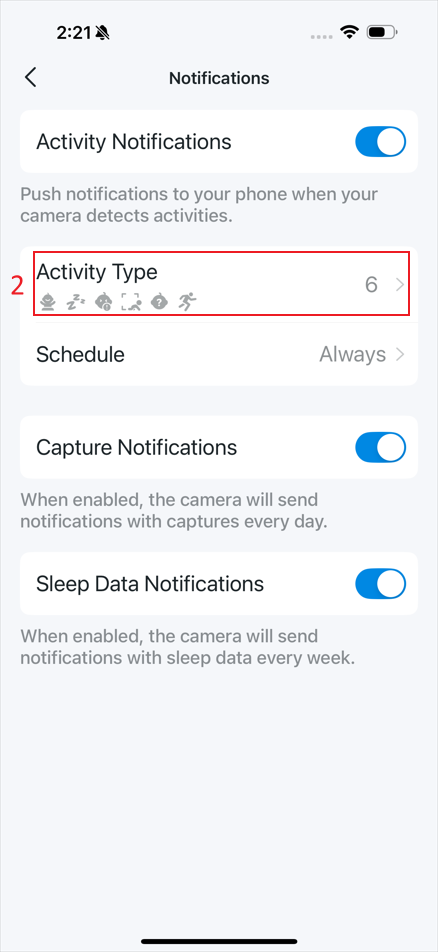
Step 3. On the Activity Type page, tap the current notification type; the type list will appear.
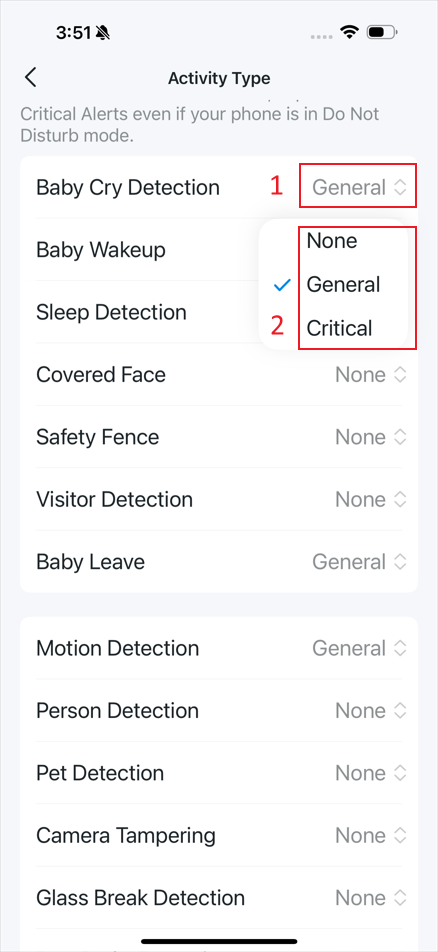
Step 4. Select Critical to display a reminder at the top of the page.
- For the iOS: Tap Go to Settings and then Notifications. Toggle to enable Critical Alerts.
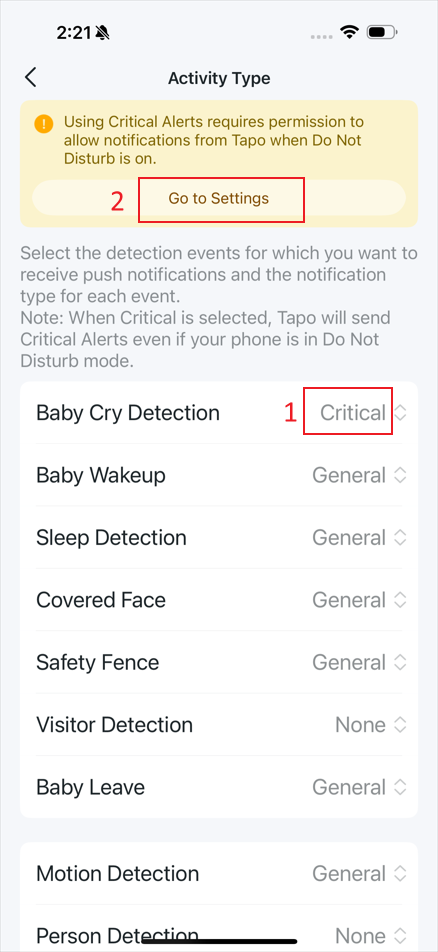
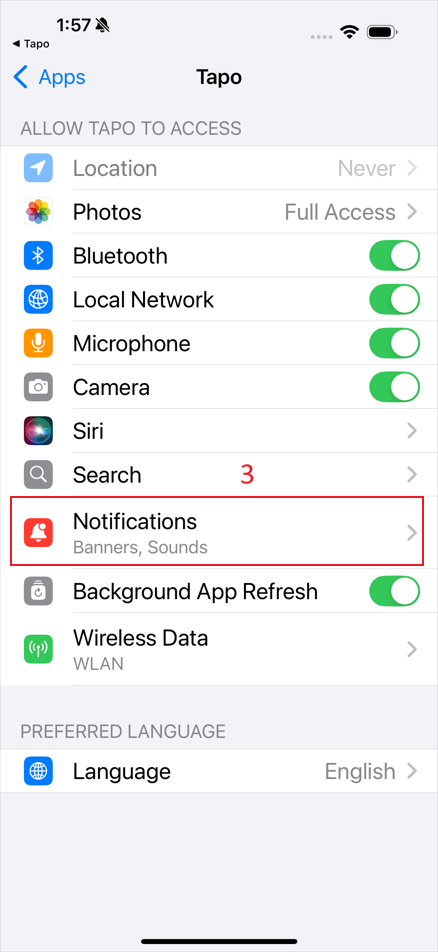
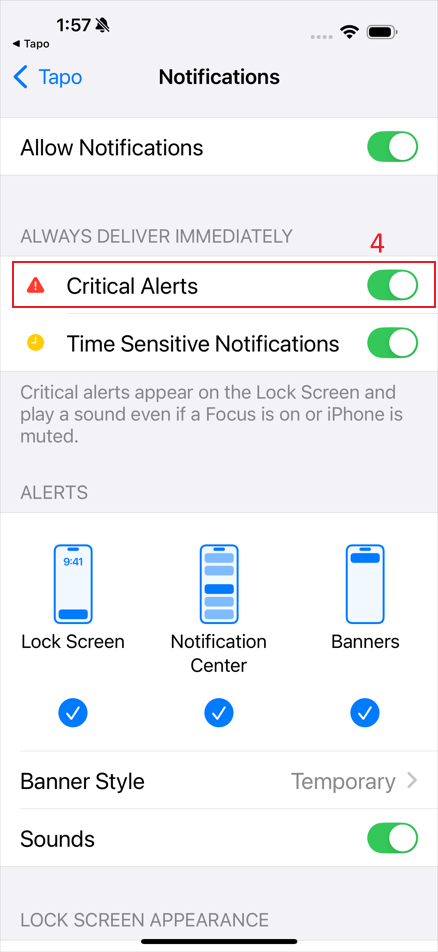
- For the Android: Tap Go to Settings and toggle to enable Allow interruptions or add the Tapo app to the allowed list on your Android phone.
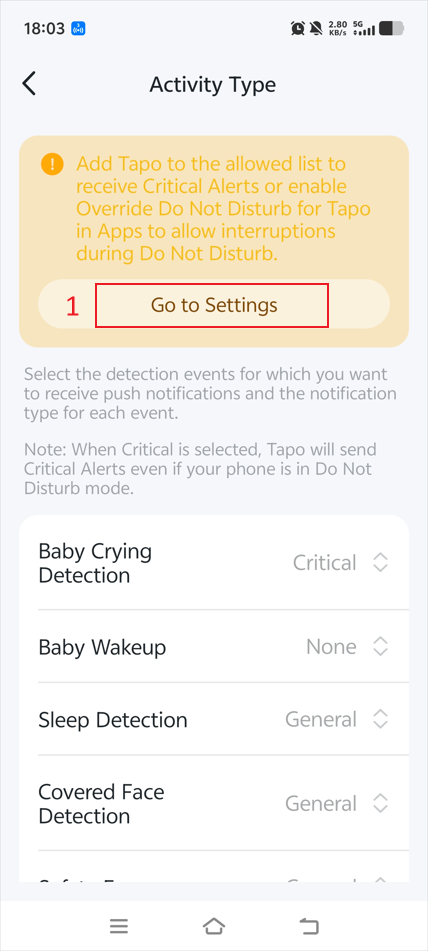
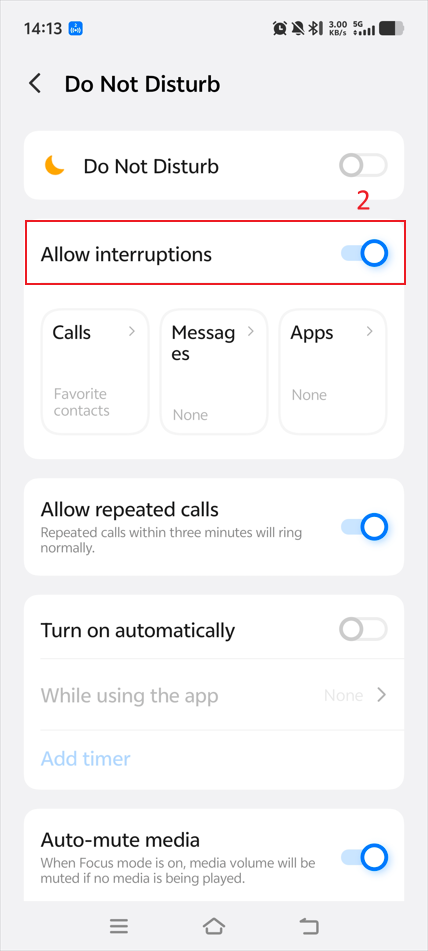
Step 5. After adding Tapo to the allowed list on your phone, you can change the notification type for more detection events directly.
Get to know more details of each function and configuration please go to Download Center to download the manual of your product.