How to Update Tapo and Kasa Device Firmware via the Tapo App
TC40, TC40GW, TC41, TC43, TC46, TC53, TC55, TC60, TC65, TC70, TC71, TC72, TC72P2, TC73, TC74, TC80, TC82, TC82 KIT, TC85, TC90G KIT, TCA41, TCA72, TCB72, TCB82, TCW61, TD20, TD23, TL13E, TL31, TL33, TL61-10, TL61-5, TL62-5, TL63-5, TP11, TP15, Tapo C100, Tapo C101, Tapo C103, Tapo C104, Tapo C110, Tapo C110P2, Tapo C110P4, Tapo C111, Tapo C113, Tapo C120, Tapo C125, Tapo C200, Tapo C200P2, Tapo C201, Tapo C202, Tapo C206, Tapo C207, Tapo C210, Tapo C210P2, Tapo C211, Tapo C212, Tapo C216, Tapo C21A, Tapo C220, Tapo C222, Tapo C225, Tapo C230, Tapo C232, Tapo C236, Tapo C310, Tapo C310P2, Tapo C320WS, Tapo C325WB, Tapo C400, Tapo C400S2, Tapo C410, Tapo C410 KIT, Tapo C411 KIT, Tapo C420, Tapo C420S1, Tapo C420S2, Tapo C420S4, Tapo C425, Tapo C460 KIT, Tapo C500, Tapo C501GW, Tapo C510W, Tapo C51A, Tapo C520WS, Tapo C52A, Tapo C530WS, Tapo C560WS, Tapo C615G KIT, Tapo C720, Tapo D130, Tapo D205, Tapo D230S1, Tapo D235, Tapo H100, Tapo H110, Tapo H200, Tapo L510B, Tapo L510E, Tapo L520E, Tapo L530B, Tapo L530BA, Tapo L530E, Tapo L530EA, Tapo L531E, Tapo L535B, Tapo L535E, Tapo L536E, Tapo L610, Tapo L630, Tapo L900-10, Tapo L900-20, Tapo L900-5, Tapo L901-6, Tapo L920-10, Tapo L920-5, Tapo L930-10, Tapo L930-5, Tapo P100, Tapo P100M, Tapo P105, Tapo P105A, Tapo P110, Tapo P110M, Tapo P115, Tapo P115M, Tapo P116M, Tapo P125, Tapo P125M, Tapo P135 KIT, Tapo P210M, Tapo P300, Tapo P306, Tapo P316M, Tapo P400M, Tapo P410M, Tapo P430M, Tapo RV10, Tapo RV10 Lite, Tapo RV10 Plus, Tapo RV20, Tapo RV20 Max, Tapo RV20 Mop, Tapo RV20 Mop Plus, Tapo RV20 Plus, Tapo RV30, Tapo RV30 Plus, Tapo RV30C, Tapo RV30C Mop, Tapo RV30C Plus, Tapo RVA102, Tapo RVA103, Tapo S200B, Tapo S200D, Tapo S210, Tapo S220, Tapo S500, Tapo S500D, Tapo S505, Tapo S505D, Tapo T100, Tapo T110, Tapo T300, Tapo T310, Tapo T315
last updated time: 01-02-2020
01-02-2020
352,412 views
352,412
การอัปเดตล่าสุดอาจมีการขยายการเข้าถึงฟีเจอร์ต่าง ๆ ที่กล่าวถึงในคำถามที่พบบ่อยนี้ โปรดไปที่หน้าการสนับสนุนผลิตภัณฑ์ของคุณ เลือกเวอร์ชันฮาร์ดแวร์ที่ถูกต้องของอุปกรณ์ และตรวจสอบเอกสารประกอบผลิตภัณฑ์หรือข้อมูลเฟิร์มแวร์เพื่อดูรายละเอียดการปรับปรุงที่เพิ่มเข้ามาในผลิตภัณฑ์
Tapo and Kasa device firmware can be updated through the Tapo app — not via a web browser or any other method. Keeping firmware up to date ensures your devices have the latest features and security improvements. This page covers two ways to update firmware: through the device settings page or via Me > Firmware Update in the Tapo app.
Key Takeaways
- Tapo and Kasa device firmware can be updated through the Tapo app. No web browser or manual update method is supported.
- There are two ways to update: via the device's settings page (tap the device card, then the settings icon, then Firmware Update) or via Me > Firmware Update in the app.
- Before updating, make sure you are logged in to your Tapo account and can control the device.
Note: Do not power off your device during the firmware update.
Method 1: Via Device Settings Page
Step 1. On the Tapo app Home page, tap your device model card to open the control panel. Then tap the gear icon in the top-right corner to enter the Device Settings page.
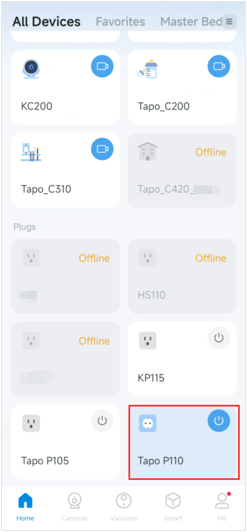
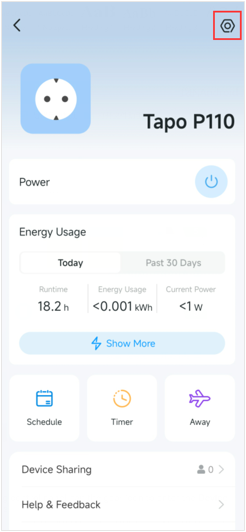
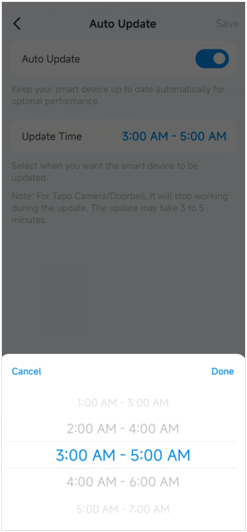
Step 2. Tap Firmware Update to check for device firmware update and set Auto Update if needed. Note that support for the Auto Update feature varies by model.
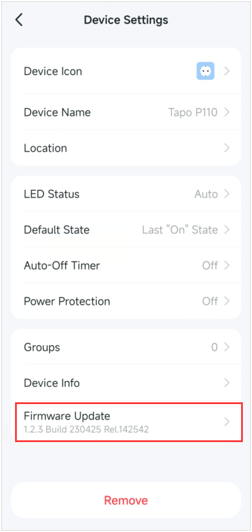
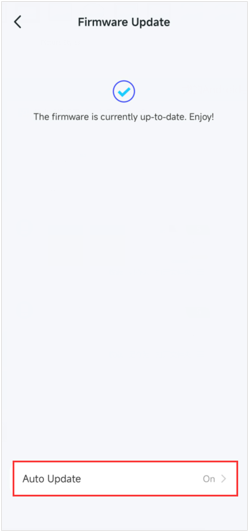
Method 2: Via App Me Page
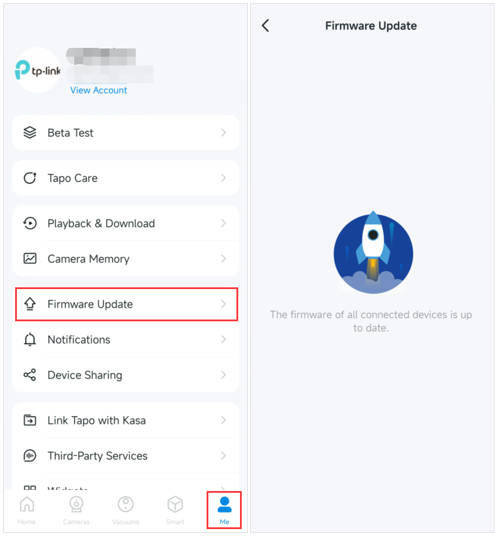
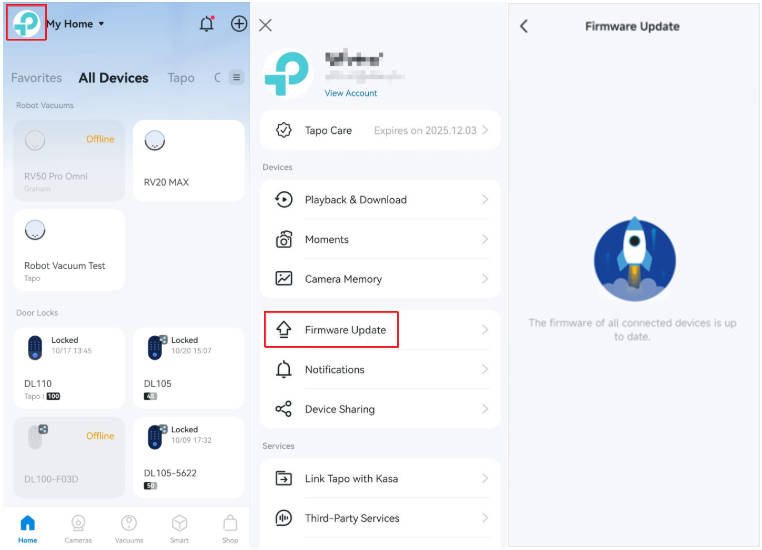
Go toTapo app Me > Firmware Update page to check for device firmware update. The location of the Me button may vary depending on the app version. It is located in either the bottom-right or top-left corner of the app.
Get to know more details of each function and configuration please go to the Download Center to download the manual of your product.