How to Factory Reset Your Tapo Hub: Two Methods
Recent updates may have expanded access to feature(s) discussed in this FAQ. Visit your product's support page, select the correct hardware version for your device, and check either the Datasheet or the firmware section for the latest improvements added to your product. Please note that product availability varies by region, and certain models may not be available in your region.
If you're troubleshooting connectivity issues, changing networks, or preparing your device for a new setup, resetting your Tapo Hub may help. This guide explains how to factory reset Tapo H100, H110, H200, and H500 hubs using either the physical reset button or the Tapo app.
Key Takeaways
- Tapo Hubs can be reset using either the physical button or the Tapo app.
- On Tapo H100 and H110, holding the SYNC button for 10 seconds performs a factory reset; holding it for 5 seconds resets only Wi-Fi settings.
- Tapo H200 and H500 require a pin to press and hold the Reset button until the LED blinks red rapidly.
- To reset through the Tapo app, the hub must be online.
Method 1: Reset Using the Physical Button
Note: Make sure the hub is powered on before resetting it.
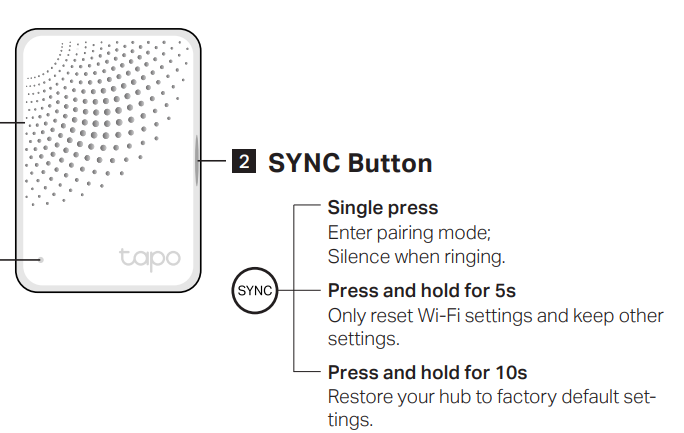
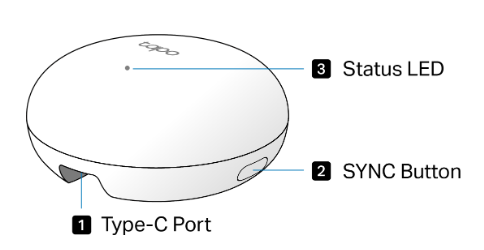
Tapo H100/Tapo H110
Press and hold the SYNC button for 10 seconds: Restore the hub to factory default settings.
Press and hold the SYNC button for 5 seconds: Only reset Wi-Fi settings and keep other settings.
Tapo H200
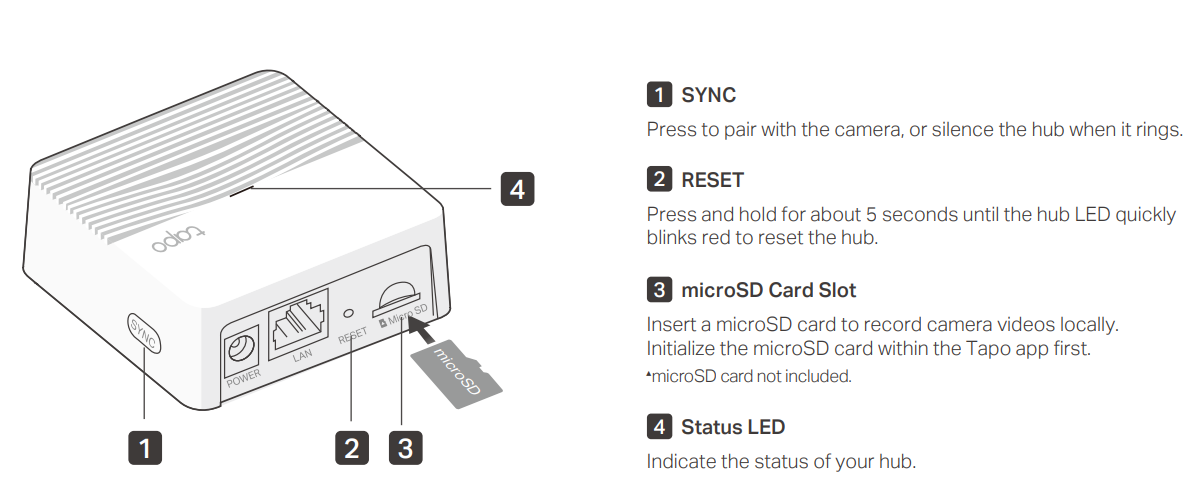
Use a pin to press and hold the Reset button for at least 5 seconds until the LED blinks red rapidly.
Tapo H500
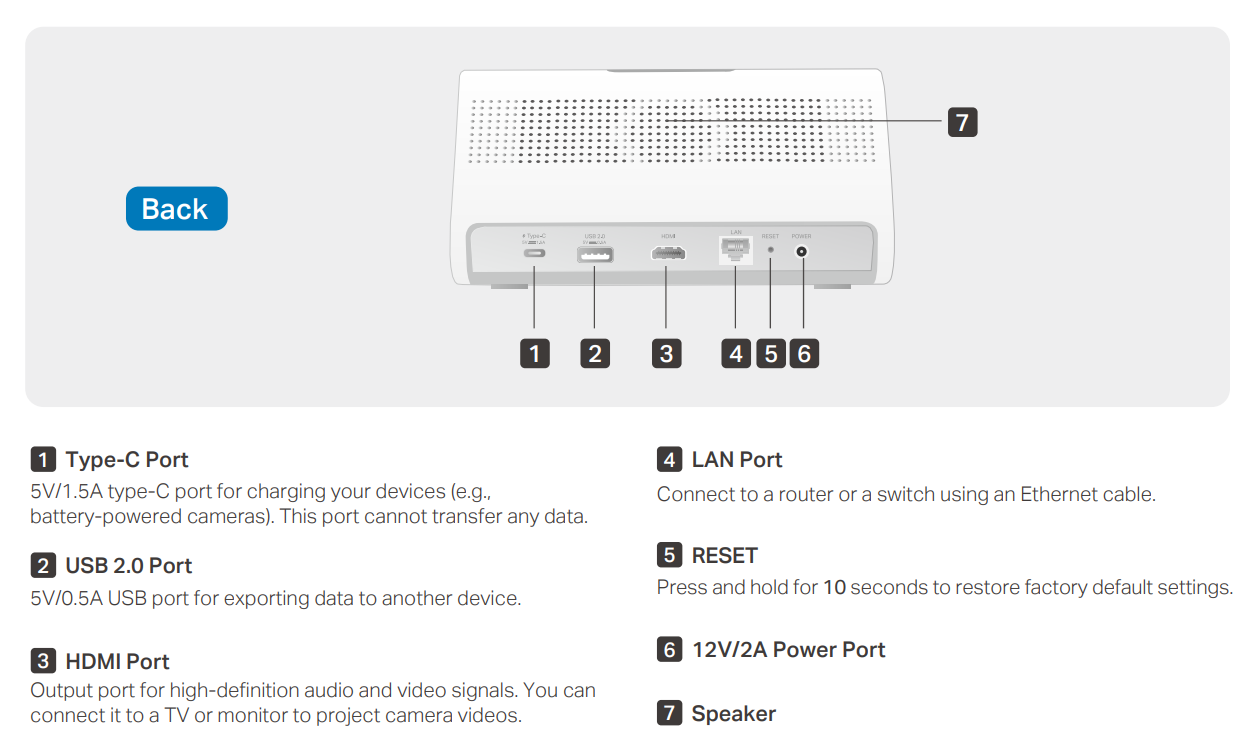
Use a pin to press and hold the Reset button on the back of the Tapo H500 for at least 10 seconds until the status LED blinks red rapidly.
Method 2: Reset Through the Tapo App
Note: The hub must be online to perform an app-based reset.
Option 1: Remove the Hub from the Home Page
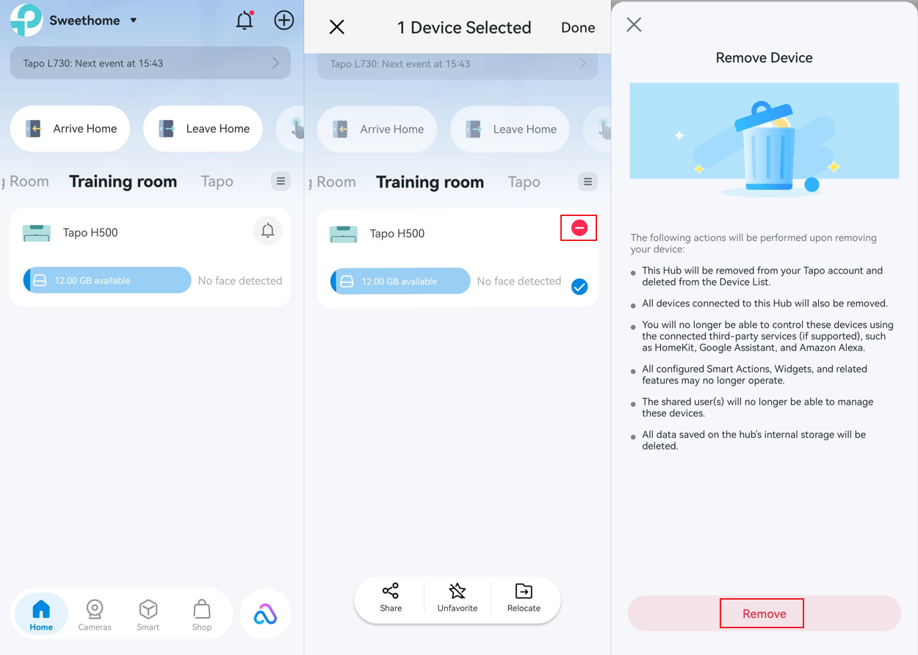
Press and hold the hub card on the Tapo app Home page. Tap the Delete icon in the upper-right corner of the device card, then tap Remove at the bottom of the screen. The hub will be removed from your TP-Link account and restored to its factory default settings.
Option 2: Remove the Hub from the Device Settings Page
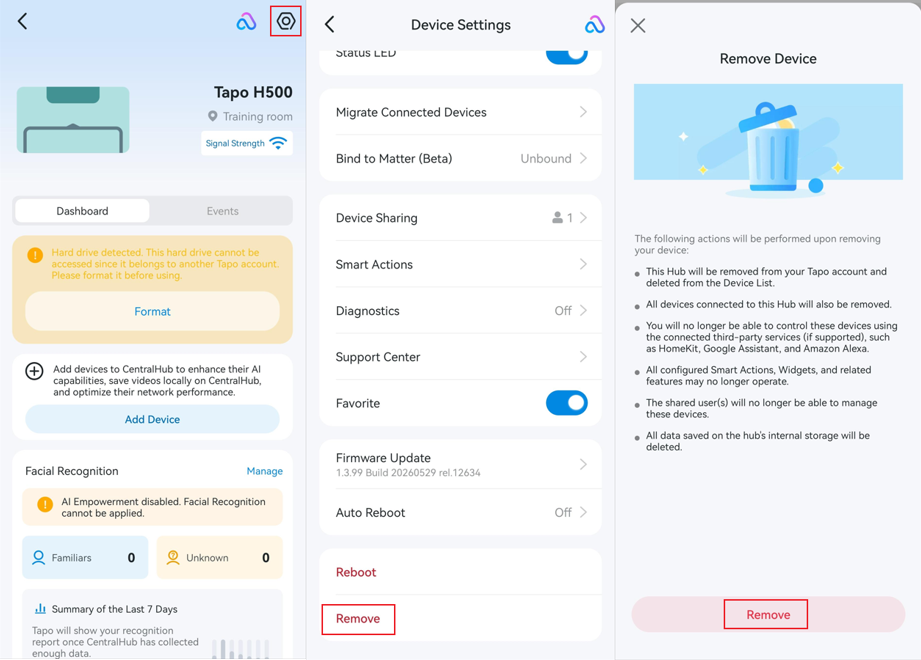
Open the Tapo app and tap the hub card. Tap the Settings (gear) icon in the top-right corner to open Device Settings. Scroll down and tap Remove. The hub will be removed from your TP-Link account and restored to its factory default settings.
To learn more about each function and configuration, please visit the Download Center to download the manual for your product.