How to Set Light Effects on Tapo Light Strip
Door recente updates is de toegang tot genoemde functie(s) in deze FAQ mogelijk uitgebreid. Ga naar de ondersteuningspagina van uw product, selecteer de juiste hardwareversie voor uw apparaat en controleer de sectie Gegevensblad of Firmware voor de laatste verbeteringen die aan uw product zijn toegevoegd. Let op: De productbeschikbaarheid verschilt per regio en sommige modellen zijn mogelijk niet beschikbaar in uw regio.
If you want the Tapo smart light strip to feature a dynamic, animated lighting pattern that lets different parts of the strip display multiple colors simultaneously, refer to the following content to set the light strip's lighting effects.
Key Takeaways
- Apply pre-made animated light effects to your configured Tapo light strip via the Recommend section in the Tapo app’s EFFECTS menu.
- Create a new custom light effect by accessing the Custom section in the effects menu, tapping the add + button, and adjusting effect settings.
- Use the Multiple Color function on compatible Tapo light strips to set up to 8 simultaneous colors for all LED beads.
- Use the Color Painting function on Tapo light strips to set individual colors for different light strip segments.
- Adjust the custom light effect speed on supported Tapo light strips by scrolling to the bottom of the new effect creation page.
Instructions to Set Light Effects
Here we take the Tapo L930 as an example.
Scenario 1: Pick Up from the “Recommend”
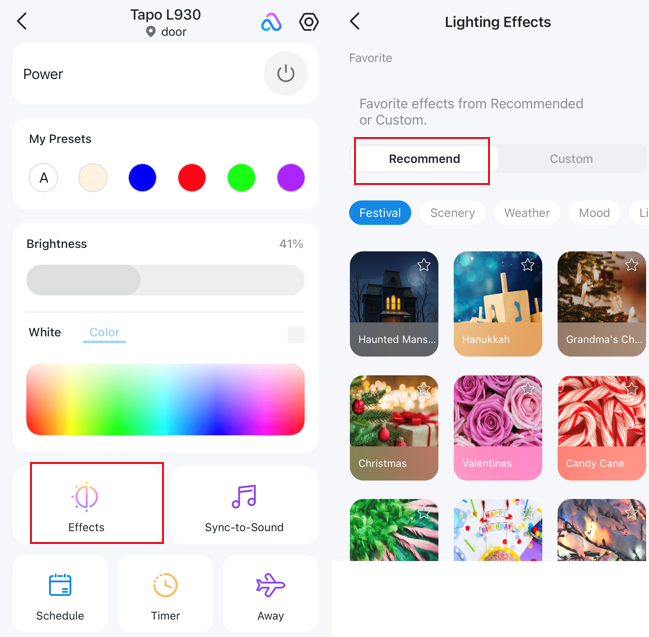
Please go to the home page and then click the ‘‘Effects’ icon on the left, then come to ‘‘Recommend’’ and pick from dozens of animated lighting effects to apply to your Smart Light Strip.
Scenario 2: Customize by Yourself
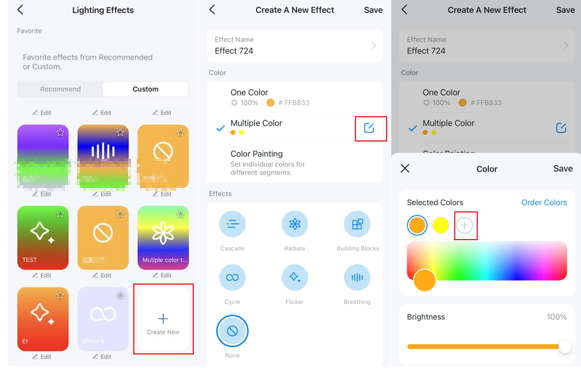
If you want to change the settings of the Recommend effects, please come to Custom. Click the add + button to create a new effect. On the Effect Settings, you could adjust the Effect name, color, Color Painting, and Speed.
Multiple Color: Models that support the Multiple Color function allow to set up to 8 colors for all LED beads simultaneously.
Color Painting: Set individual Colors for different segments
Speed: For models that support this feature, you will see the option to adjust the speed by scrolling to the bottom of the Create A new Effect page.