How to Register a TP-Link Product Using Your TP-Link ID
このFAQで説明されている機能は、アップデートにより拡張されている場合があります。製品のサポートページからお使いのデバイスに適したハードウェアバージョンを選択し、データシートやリリースノートで新たに追加・改善された点をご確認ください。なお、製品の提供状況は地域によって異なるため、ご利用の地域によっては一部モデルを使用できない場合もありますのでご注意ください。
This page walks you through how to register your TP-Link product in the TP-Link Product Registration System at myproducts.tp-link.com. Registering your product lets you manage your devices, access support, and track warranty information. Before you begin, make sure you have a TP-Link ID. You will also need either a serial number or proof of purchase with the purchase date to complete TP-Link product registration.
Key Takeaways
- You need a TP-Link ID before you can register a product in the TP-Link Product Registration System.
- Registration requires your product's serial number and place of purchase.
- If no serial number is available, you can register using proof of purchase and the purchase date instead.
- After registering, you can view your devices and warranty details on the My Products page.
Why You Should Register Your TP-Link Product
Registering your TP-Link product connects it to your TP-Link ID account so you can manage everything in one place. Here is what TP-Link warranty registration gives you access to:
- Warranty tracking: View your warranty expiration date and registration date directly from the My Products page.
- Support access: Having your product registered makes it easier to get help from TP-Link Technical Support when you need it.
- Device management: See all of your registered products, their details, and registration status from a single dashboard.
Step 1: Log In to the TP-Link Product Registration System
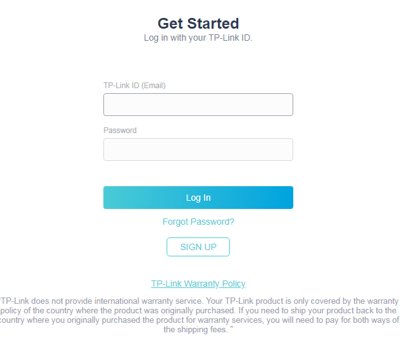
Go to https://myproducts.tp-link.com/us/login and sign in with your TP-Link ID.
If you have not created a TP-Link ID yet, learn how to create a TP-Link ID before continuing.
Step 2: Start a New Product Registration
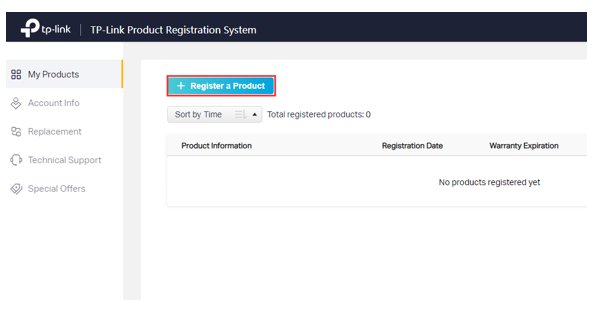
Once logged in, click Register a Product to begin. This opens the registration form, where you will enter your product details.
For help navigating the registration form fields, see how to find your TP-Link product's serial number.
Path A: Register With a Serial Number
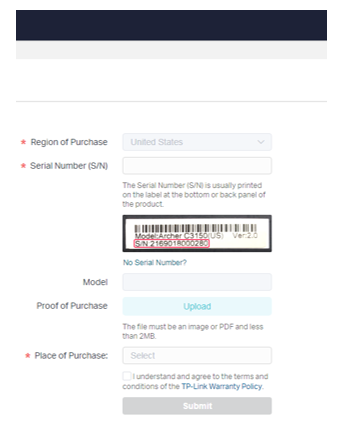
Use this path if a serial number (S/N) is printed on your product label or packaging. The serial number is usually found on the label at the bottom or back panel of the product.
Step 1. Enter the serial number and place of purchase in the registration form. The product model will populate automatically.
Step 2. If you have proof of purchase, upload it during this step. This allows you to enter a purchase date as well.
Step 3. Check the box to confirm you understand and agree to the terms and conditions of the TP-Link Warranty Policy, then click Submit.
Path B: Register Without a Serial Number
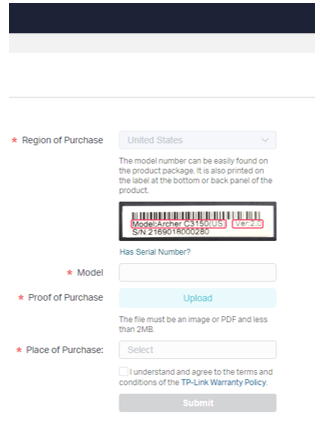
Use this path if you cannot find a serial number on your product or packaging.
Step 1. On the registration form, click No Serial Number?
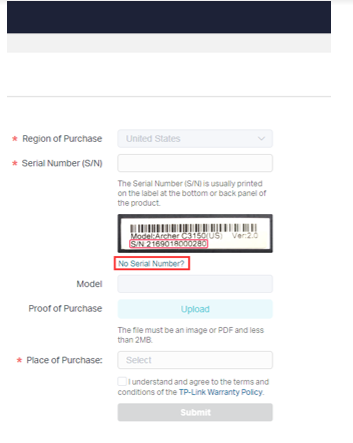
Step 2. Enter your product model, upload your proof of purchase, select your place of purchase, and enter the purchase date. Check the box to confirm you agree to the terms and conditions of the TP-Link Warranty Policy, then click Submit.
Note: Proof of purchase must be an image or PDF file smaller than 2MB.
Viewing Your Registered Products
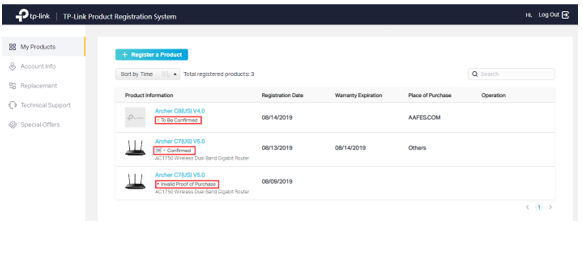
After completing registration, you can view all of your registered devices on the My Products page. The dashboard displays each product's registration date, warranty expiration date, place of purchase, and registration status.
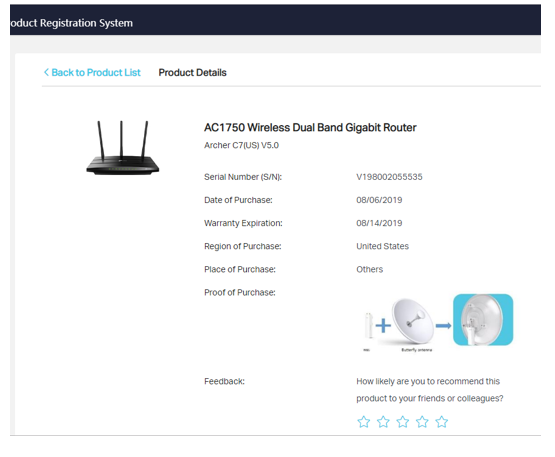
To view detailed information for a specific product, click the model number shown in blue under My Products. The Product Details page lists the serial number, purchase date, warranty expiration, region and place of purchase, and proof of purchase.