How to set Default State for Tapo smart bulb
Nedávné aktualizace mohou rozšířit přístup k funkcím popsaným v tomto FAQ. Navštivte stránku podpory vašeho produktu, vyberte správnou verzi hardwaru pro vaše zařízení a podívejte se do datasheetu nebo do sekce firmwaru, kde najdete nejnovější vylepšení přidaná do vašeho produktu. Upozorňujeme, že dostupnost produktů se liší podle regionu a některé modely nemusí být ve vašem regionu dostupné.
Introduction
The default state of smart bulb is the state when it is turned on. You can use last “On” state or custom the state as needed. Also, you can choose what state you want the bulb to be in when the power cuts off and then returns.
Configuration
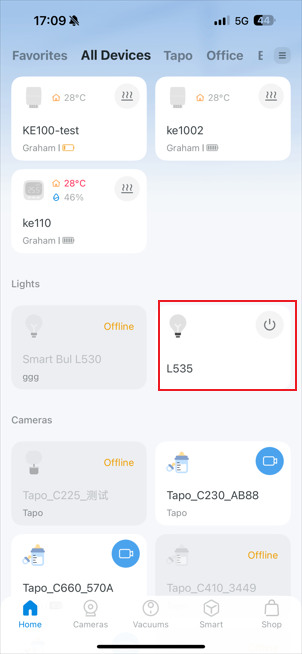
Step 1. On the home page, tap on your device card. Then tap the gear icon in the top right to open the Device Settings page.
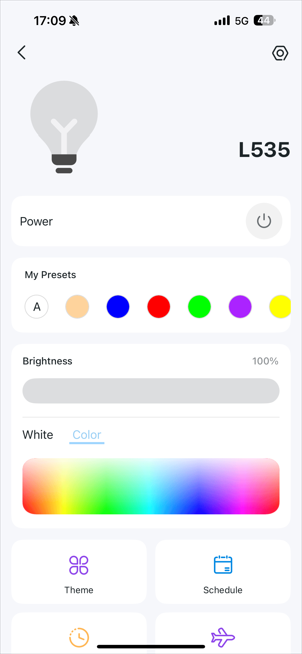
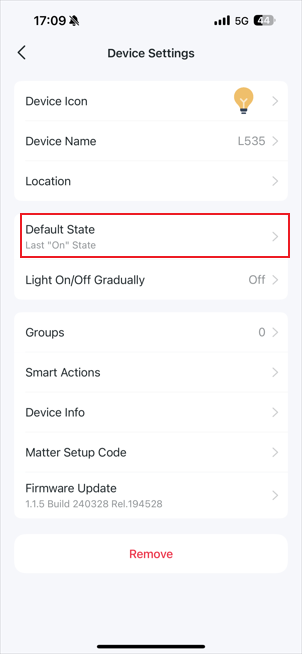
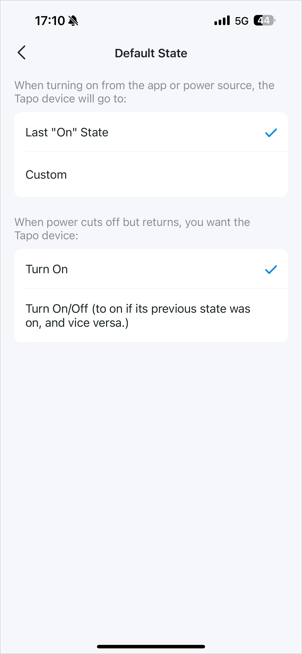
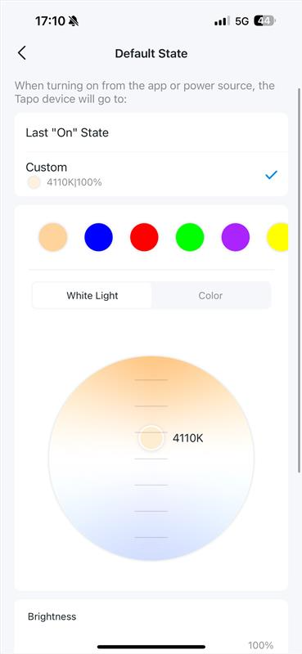
Step 2. On the Device Settings page, you can see the Default States option of this smart bulb. Select the default state, and your smart bulb will switch to that state when turned on.
- Last “ON” States: It is the state when the bulb was last on.
- Custom: Set the default brightness of the bulb when turned on.
- Turn On: When the power cuts off but returns, you want the Tapo device to turn on.
- Turn On/Off: When power cuts off but returns, you want the Tapo device to restore to its previous state.