How to Charge the Battery of Your Tapo Smart Door Lock: Charging Steps and Battery Status
Nedávné aktualizace mohou rozšířit přístup k funkcím popsaným v tomto FAQ. Navštivte stránku podpory vašeho produktu, vyberte správnou verzi hardwaru pro vaše zařízení a podívejte se do datasheetu nebo do sekce firmwaru, kde najdete nejnovější vylepšení přidaná do vašeho produktu. Upozorňujeme, že dostupnost produktů se liší podle regionu a některé modely nemusí být ve vašem regionu dostupné.
TP-Link Tapo smart door locks use a rechargeable battery charged via USB-C. Depending on the model, the battery can either be removed from the lock for charging or charged while still installed.
This guide provides the battery charging steps and explains the Battery LED indicators, so you can monitor charge status. After reinserting the battery, you may need to sync the lock's time via the Tapo app, especially if the lock is not connected to Wi-Fi. If you haven't set up your lock yet, see how to set up your Tapo Smart Door Lock first.
Key Takeaways
- Tapo smart door lock batteries are charged by connecting the included USB-C cable to a 5V USB adapter (sold separately).
- For best charging performance, a 5V/2A adapter is recommended.
- Some models support charging while in use. For in-use charging, plug the USB cable directly into the Type-C port of a battery pack with 5V/2A or higher.
- During charging, the Battery LED shows solid amber. When fully charged, it turns solid green.
- After reinserting the battery, open the Tapo app and connect to the lock to sync the time, to ensure scheduled PIN codes will take effect.
Charging a Tapo Smart Door Lock Battery
Step 1. Remove the battery cover of the interior assembly
Step 2. Take out the battery and Charge it
Plug the provided USB cable into the battery's Type-C port, then connect it to a power outlet using a USB adapter with a 5V output. If your door lock supports charging while in use, the battery does not need to be removed. Just plug the provided USB cable into the battery pack's Type-C port, then connect it to a power outlet via a USB adapter with a 5V/2A (or higher) output.
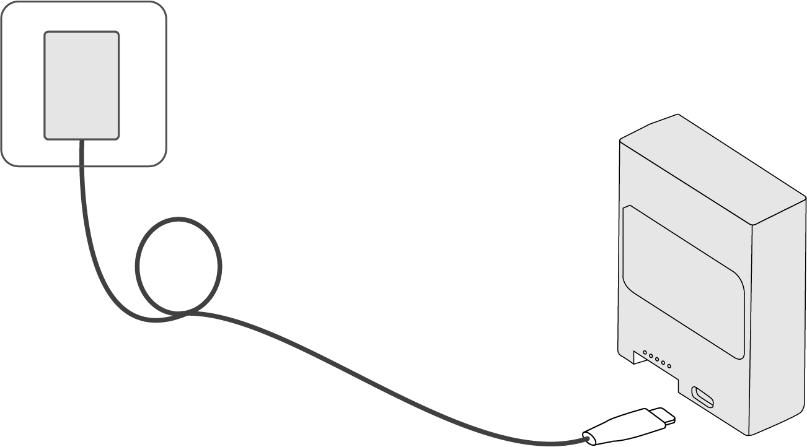
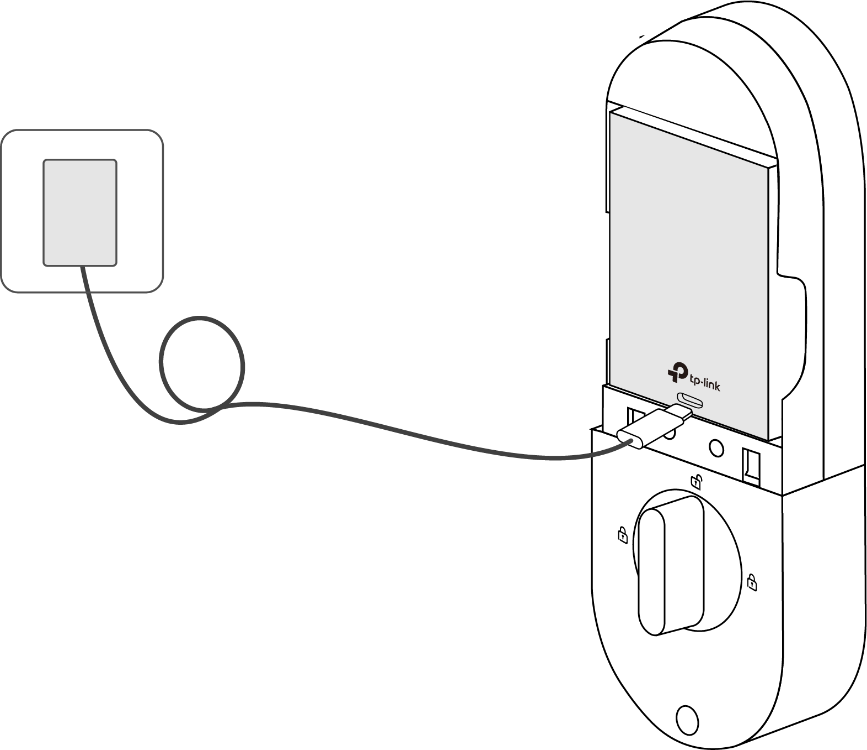
Battery LED Indication:
- Charging: Solid amber
- Fully charged: Solid green
Notes:
1. Charging will take a few hours. It is recommended to use a 5V/2A adapter for the best charging performance.
2. The USB adapter is not provided.
Step 3. Insert the Battery and Sync the Time
Insert the battery into the interior assembly after charging if you have taken it out. If the lock is not connected to a Wi-Fi network, open the Tapo app and connect your phone to the lock each time you reinsert the battery to sync the time.
Note: If the lock is not connected to a Wi-Fi network after the battery is reinstalled, the lock's local time will not sync automatically. This means scheduled PIN codes will not take effect until you open the Tapo app and connect to the lock to retrieve the correct time.
Q & A
Q1: Can I Purchase Additional Batteries for My Tapo Door Lock?
Yes, you can purchase the Tapo A110 battery separately. This battery is compatible with door locks that feature a removable battery, such as the Tapo DL110, Tapo DL105, and Tapo DL130.
Please check with your local Tapo store or other online retailers to see if this product is available.
Q2: Why Does My Tapo Smart Door Lock Battery Always Show 100% in the App?
This is an expected behavior. The smart lock has a reserve battery capacity beyond the displayed percentage. The reading will stay at 100% for a long time as this additional buffer power is depleted. Only after this reserve is used up will the displayed level begin to decrease gradually.
Q3: Will My Door Lock Stop Working If I Remove the Main Battery for Charging?
It depends on whether your Door Lock has a backup battery. If it does, the backup battery will keep the Door Lock powered and operational. Otherwise, it will stop working.
Currently, only the Tapo DL130 includes a backup battery.
Q4: How Do I Charge the Backup Battery?
The backup battery is charged by the main battery. It cannot be removed or charged independently.
Q5: How to Set Notifications When the Battery Is Low
The Door Lock automatically sends notifications when the battery level drops to a certain threshold.
Q6: How to Extend the Battery Life?
If you want a better battery life for the Door Locks, power-saving settings can help.
These settings can set a Wi-Fi schedule for the door lock. The door lock will disable the Wi-Fi outside the schedule for longer battery life.
Go to the Tapo app > Tap your Door Lock > Tap the Settings icon (top right corner) > Power-saving Settings.
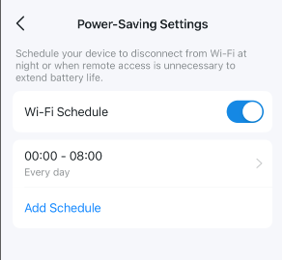
Get to know more details of each function and configuration please go to the Download Center to download the manual of your product.