FAQs
How to connect a USB Device to your Tapo Smart CentralHub (Tapo H500)
Tapo H500
05-27-2024
42,155
Recent updates may have expanded access to feature(s) discussed in this FAQ. Visit your product's support page, select the correct hardware version for your device, and check either the Datasheet or the firmware section for the latest improvements added to your product. Please note that product availability varies by region, and certain models may not be available in your region.
Tapo Smart CentralHub employs secure encryption technology to store all captured videos. You can easily back up or share recorded videos by connecting a USB storage device to the CentralHub. Here’s how:
- Locate the USB 2.0 port at the back panel of the CentralHub.
- Connect your USB device to the USB 2.0 port of the CentralHub.

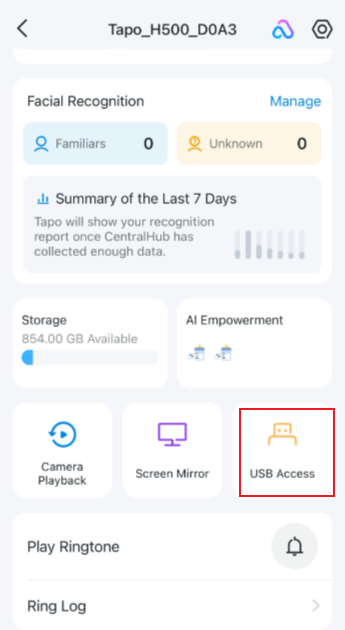
- Open the Tapo app and go to the Status page of your CentralHub. Tap USB Access and check whether your USB device is identified.