How to Enable and Use Voice Masking on Tapo Doorbells
Recent updates may have expanded access to feature(s) discussed in this FAQ. Visit your product's support page, select the correct hardware version for your device, and check either the Datasheet or the firmware section for the latest improvements added to your product. Please note that product availability varies by region, and certain models may not be available in your region.
Voice Masking helps protect your privacy by modifying how your voice sounds during doorbell ring calls and two-way audio conversations. This guide explains how to enable Voice Masking on Tapo doorbells and use it during incoming doorbell ring calls or live two-way communication.
Note: Voice Masking is currently only available on Tapo D260.
Key Takeaways
- Voice Masking is available during both doorbell ring calls and two-way audio conversations.
- Enable Doorbell Video Call in the Tapo app to receive incoming calls when a visitor presses the doorbell.
- Grant all required app permissions to ensure doorbell calls are received properly.
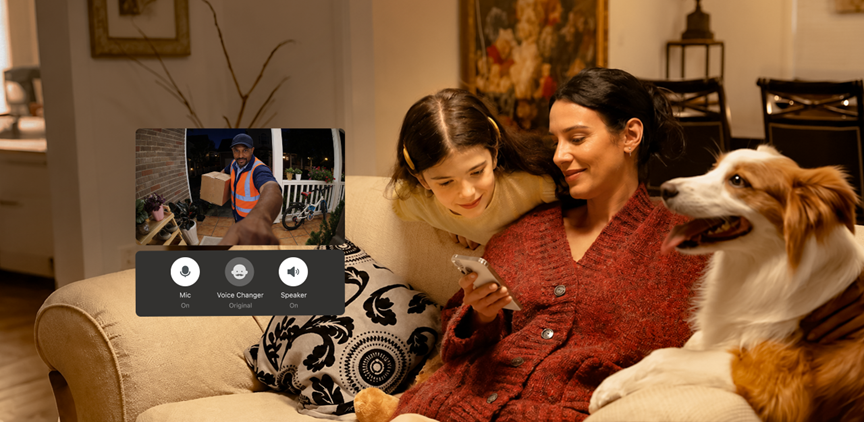
- Tap the Voice Mask icon during a ring call or two-way audio talks to change your voice.
- Choose the Adult Male voice option to enhance privacy during interactions.
Use Voice Masking During Doorbell Ring Call
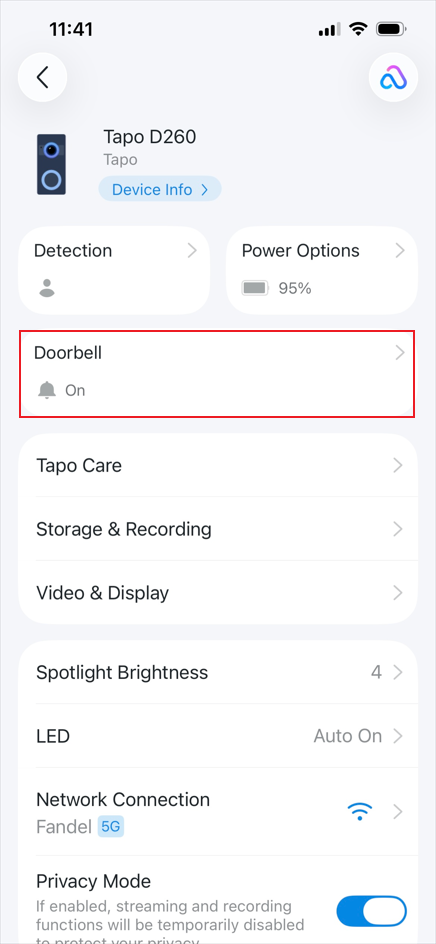
Step 1. Open the Tapo app Home page, tap the doorbell device card to enter Live View. Tap the gear icon in the top right corner to enter Device Settings.
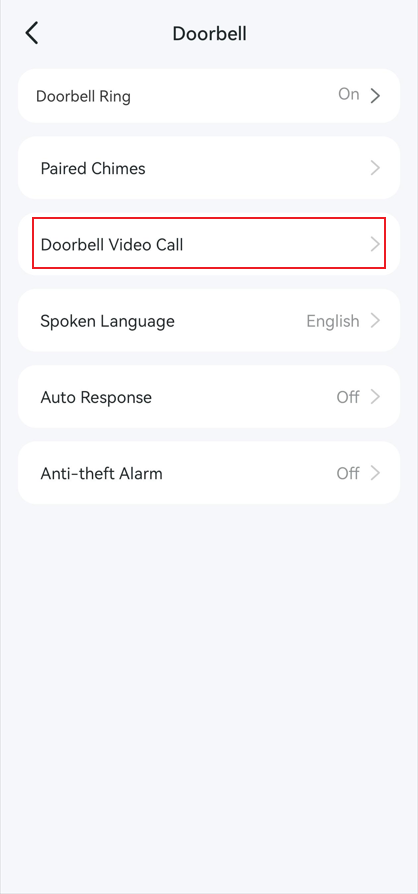
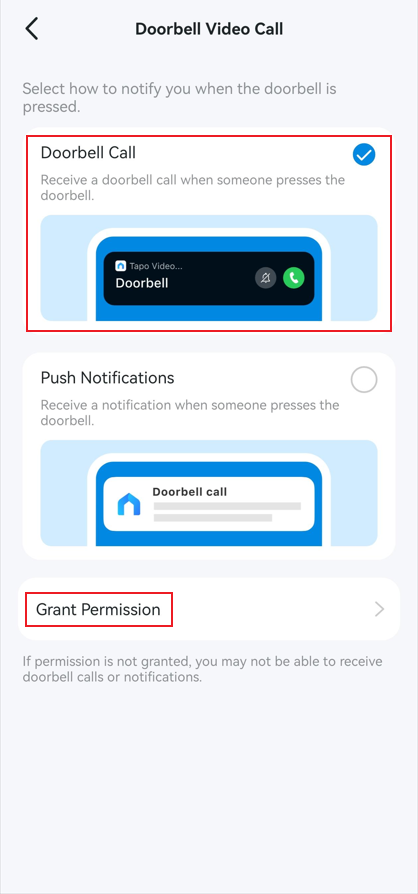
Step 2. Go to Doorbell > Doorbell Video Call and enable Doorbell Call so you can receive calls when someone presses the doorbell. Tap Grant Permission and allow all required permissions to ensure calls are received properly.
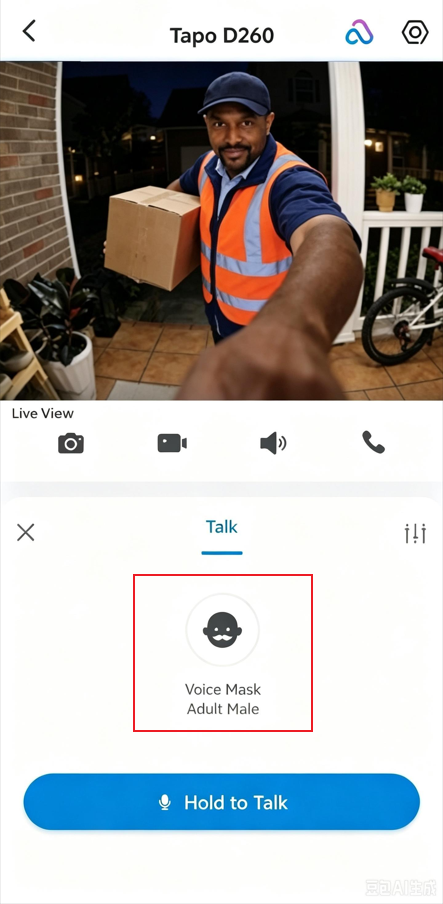
Step 3. When someone presses the doorbell, answer the incoming call. Tap Voice Mask and choose Adult Male to modify your voice and enhance privacy.
Use Voice Masking During Two-way Audio Talk
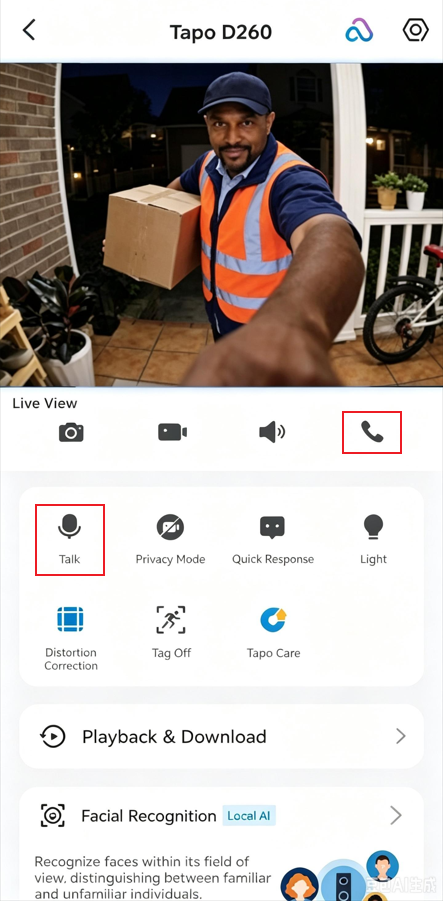
Step 1. Open the Tapo app Home page, tap the doorbell device card to enter Live View.
Step 2. Tap the Talk or Voice Call icon, then tap the Voice Mask icon. Select Adult Male to change your voice and protect your privacy.
Step 3. Tap Hold to Talk to speak, or tap Tap to Call to start a voice call.
To learn more about each function and configuration, please visit the Download Center to download the manual for your product.