


Tapo Care offers flexible subscription plans including Cloud, Cloud Advanced, and Cloud Advanced AI, with monthly or annual billing. If you want to switch to a different plan, this guide walks you through the upgrade and downgrade process for each supported payment method.
Key Takeaways
- You must use the same payment method as your original subscription to change your plan. Check your billing statements to confirm which method you used.
- For Apple App Store billing, upgrades take effect immediately with a prorated refund, while downgrades take effect at your next billing cycle.
- For Google Play billing, change your plan through the Tapo app. Google Play automatically converts the unused days from your previous plan into days under your new plan at no extra cost.
- For PayPal or credit/debit card billing, upgrade or downgrade your plan on the Tapo web portal. The change takes effect immediately, and the unused portion of your previous plan is credited toward the new plan.
Before You Change Your Plan
You must upgrade or downgrade your plan using the same payment method used for your original subscription. Review your billing statements or receipts to confirm which payment method you originally used.
Currently supported platforms:
- Android App: Subscription payments are processed through the Tapo app via Google Pay.
- iOS App: Subscription payments are typically processed through the Tapo app via the Apple App Store. In select regions, PayPal or Credit/Debit Card payments are also supported.
- Tapo Care Website: On the Tapo web portal, you can complete subscription payments using PayPal or a Credit/Debit Card.
How to Change Your Plan When Billing via Apple or Google Subscription
Step 1: Access Subscriptions via the Tapo App
1. Open the Tapo app and go to the Me page by tapping Me in the bottom-right corner or your profile picture in the top-left corner.
2. Tap Tapo Care. By default, the page displays your currently active subscription.
Step 2: Compare Available Plans
Tap Compare Plans to view all plan types side by side.

Step 3: Select and Change Your Plan
1. At the top of the screen, select from the three plan types: Cloud, Cloud Advanced, or Cloud Advanced AI.
2. At the bottom, choose your preferred billing frequency: monthly or yearly. For Cloud plans, select 1-device or 2-device coverage.
3. Tap Change Plan and follow the prompts to confirm the change through the Apple App Store or Google Play Store.

For Google Play:
- Your plan change takes effect immediately, and you will not incur any additional charges during the process.
- Google Play automatically converts the unused days from your previous plan into an equivalent number of days under your new plan at no extra cost.
- Your next renewal date will be adjusted based on the remaining value of your old plan.
For Apple:
Apple handles upgrades and downgrades differently. Tapo Care plans are ranked from highest to lowest as Cloud Advanced AI > Cloud Advanced > Cloud / 2 Devices > Cloud / 1 Device.
- Upgrade: Takes effect immediately. Apple charges the full price of the new plan and refunds the prorated value of the unused portion of your old plan.
- Downgrade: Does not take effect immediately. It will become active at the start of your next billing cycle. You retain access to your current higher-tier plan until the end of your current billing period. You can view the scheduled change in your Apple subscription settings.
- Cross-grade (for example, switching only the billing cycle from monthly to annual without changing plan type): The change takes effect at your next renewal date, and no refund is issued.
How to Change Your Plan When Billing via PayPal or Credit/Debit Card
Step 1: Log In to the Tapo Care Website
Visit the Tapo web portal and log in using the same account credentials you use for the Tapo app. For the best experience, we recommend accessing the portal from a desktop computer.
Step 2: Access Your Current Subscription
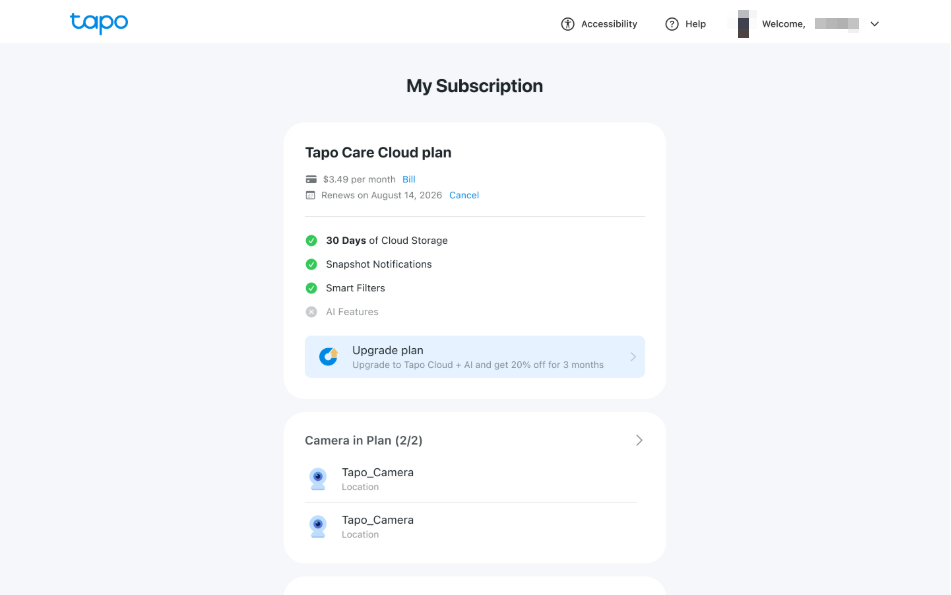
1. Click on your current plan to go to the My Subscription page, where you can view your active subscription.
2. Click Upgrade Plan or View All Plans to proceed to the plan selection page.
Step 3: Select and Change Your Plan
1. Choose the plan you would like to switch to. At the top of the page, select your preferred billing cycle — monthly or annual — and then choose from the available plans. For Cloud plans, be sure to select either 1-device or 2-device coverage.
2. Click Change Plan on the corresponding plan card and follow the prompts to confirm and complete payment.
Your plan change takes effect immediately. The renewal date and billing cycle for your new plan will be updated based on the time of your modification. The system automatically calculates the remaining value of your unused subscription period and applies it as a credit toward the cost of your new plan. Depending on the price difference, you may need to pay the balance or receive a refund for the difference.
Troubleshooting
Why Have the Remaining Days of My Tapo Care Subscription Decreased?
Check whether you upgraded your subscription through the Android app. When upgrading via Google Pay, Google Play automatically converts the unused days from your previous plan into a corresponding number of days under your new plan — at no extra cost.
For example, if your old plan costs $3.49/month with 25 days remaining, the unused value is about $2.90. At the new plan's daily rate of about $0.329/day, those 25 days are converted to approximately 9 days on your new plan, and your next renewal date is postponed by 9 days.
Why Have I Not Received My Refund from Apple After Upgrading?
Apple typically takes several days to process refunds. According to Apple's policy, refunds to credit/debit cards, Apple Pay, Apple Cash, and other payment methods may take up to 30 days to appear on your statement.
You can check the status of your refund for apps or content purchased from Apple. Note that TP-Link cannot intervene in Apple's billing or refund process. If you need further assistance, please contact Apple Support directly.
What Happens If I Change My Plan During the Free Trial?
Changing your plan during the trial period will terminate your current trial immediately, and you will typically be charged right away for the new plan.
For Apple subscriptions, downgrades or cross-grade changes (for example, switching only the billing cycle) take effect at your next renewal date, so they will not end your trial immediately or trigger an immediate charge.
Get to know more details of each function and configuration. Please go to the Download Center to download the manual of your product.