What to Do When You Can't Find Your Tapo Camera on the Tapo App
Recent updates may have expanded access to feature(s) discussed in this FAQ. Visit your product's support page, select the correct hardware version for your device, and check either the Datasheet or the firmware section for the latest improvements added to your product. Please note that product availability varies by region, and certain models may not be available in your region.
If your Tapo camera is not showing on the app after setup, the cause is usually a Wi-Fi connection issue, a DHCP or DNS configuration problem, or a cloud connectivity issue. It is also possible that the camera is listed under a different Home or Room in the Tapo app. This guide walks through several troubleshooting steps to help identify and resolve the issue, including a mobile hotspot test to isolate whether the problem is with the camera or the router's Wi-Fi network.
Key Takeaways
- If the Tapo camera's LED light blinks red slowly, it has not connected to Wi-Fi. Resetting the camera to factory defaults and reconfiguring it is the recommended first step.
- The router's DHCP server must be enabled for the camera to obtain an IP address. If the camera is connected to Wi-Fi but not visible in the app, checking the router's DHCP client list can confirm whether the camera has been assigned an IP.
- If the camera appears in the app only when the phone is on the same Wi-Fi network, the camera may be unable to reach the cloud server. Checking for firewalls or security software blocking the connection is recommended.
- Changing the router's DNS server to a public DNS (such as 8.8.8.8) can resolve cloud connectivity issues in some cases.
- Using a mobile hotspot to configure the camera is a useful diagnostic step. If the camera works with a hotspot but not the router's Wi-Fi, the issue lies with the router's network settings.
Getting Your Tapo Camera to Show Up on the Tapo App
If your Tapo camera does not appear in the Tapo app after setup, try the following troubleshooting steps.
Step 1: Check the Camera's Wi-Fi Connection
If you configured your camera over Wi-Fi, check whether it has successfully connected to the router. Check the System light on your camera to verify the Wi-Fi connection status. For most Tapo cameras, a slowly blinking red LED indicates the camera has not connected to Wi-Fi. For HomeKit-compatible cameras, a slowly blinking blue LED indicates the same issue. If the camera cannot connect properly, we recommend resetting it to factory default settings as per the User Guide, then reconfiguring it.
Step 2: Check Your Router's DHCP Settings
Check that the DHCP server on your router is enabled. If the camera has already connected to the router properly, you will see the device in your router's client list. If you are unsure how to do this, contact your router manufacturer's support.
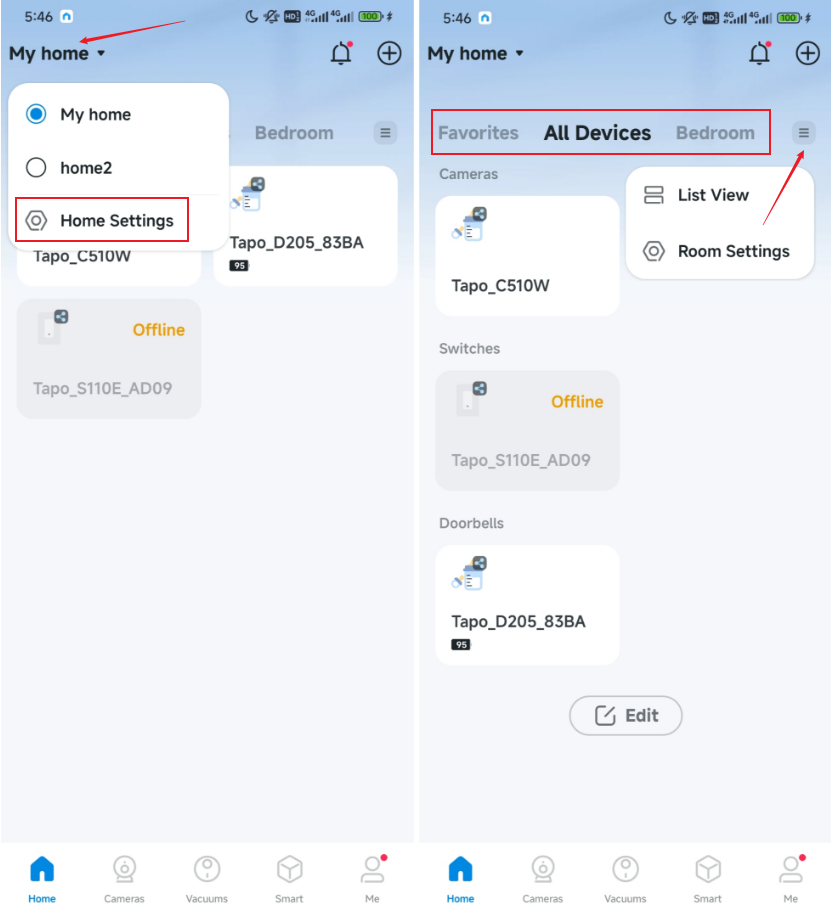
Step 3: Check Your Homes and Rooms in the Tapo App
Check whether you have created multiple Homes or Rooms in the Tapo app. Switch to the correct Home and look for your camera under All Devices.
Step 4: Check for Firewall or Security Software Blocking the Connection
Connect your smartphone to the same Wi-Fi network as your camera, then check whether you can see it in the Tapo app. If you can see it, that means the camera fails to connect to the cloud for unknown reasons, and you cannot access it remotely. In this case, verify if any firewall or security settings are blocking the connection to the Cloud Server. Temporarily disable any antivirus, firewall, or security software to check if it is blocking the connection.
Step 5: Try Changing the Router's DNS Server
Using a public DNS server may improve the connection. Try changing your router's DNS server to 8.8.8.8. If you don't know how to do this, please contact your router's customer support.
Step 6: Test Your Tapo Camera Using a Mobile Hotspot
To rule out issues with the router's Wi-Fi network, use a mobile hotspot to configure and test the camera. Here are the steps for using a mobile hotspot to test the Camera's configuration:
Have two phones available. Use Phone A to create a hotspot, and use Phone B to download the Tapo app and complete the setup.
- On Phone A, disable Wi-Fi and enable only mobile data.
- On Phone A, navigate to phone settings and access the "Personal Hotspot" or "Mobile Hotspot" option, ensuring that the "Mobile Hotspot" feature is activated. Please make sure the created hotspot operates on a 2.4GHz network.
- Set a unique name and password for the hotspot — different from your router's Wi-Fi — to avoid any confusion during setup.
- On Phone B, download the Tapo app. Follow the app's instructions to add the device and complete the remaining setup steps.
Still Can't Find Your Tapo Camera? Contact TP-Link Support
If the issue persists after completing all of the above steps, contact TP-Link technical support with the following information.