

The Tapo D315 KIT provides multiple ways to manage access to your property. You can unlock a door or open a gate using a PIN code, NFC card, the Tapo H600W touchscreen, or the Tapo app, making it easy to grant access to residents and visitors. This guide explains each method and how to set it up.
Note: The Unlock and Open Gate features are available only after the door or gate lock has been properly hardwired to the Tapo D315 outdoor panel and Tapo H600W.
Key Takeaways
- The Tapo D315 KIT supports four access methods: PIN codes, NFC cards, touchscreen controls, and remote app unlocking.
- NFC cards and PIN codes can be managed through Lock Management in the Tapo app.
- Visitors can be granted access directly from the Tapo H600W touchscreen using the Unlock or Open Gate options.
- Residents can remotely control access from anywhere using the Tapo app.
- Smartphones and other NFC-enabled devices cannot be used as NFC credentials; only official Tapo NFC cards are supported.
Four Ways to Unlock the Door or Open the Gate
Method 1: PIN Code
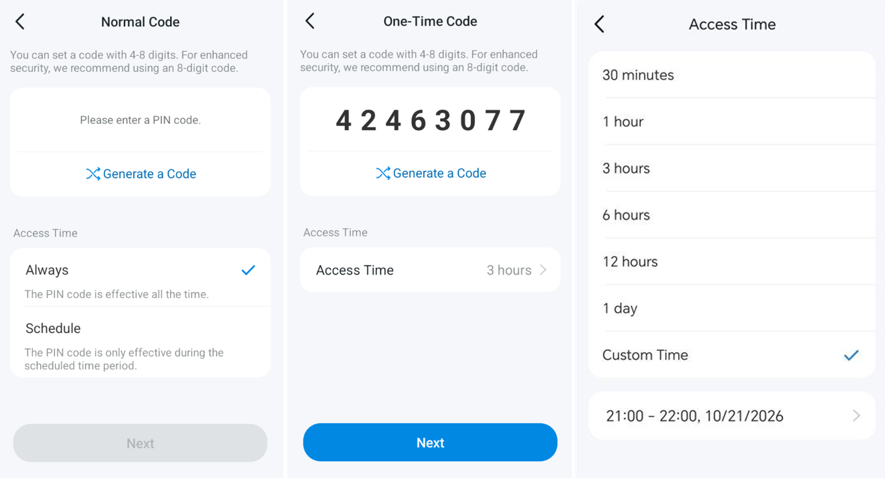
You can unlock the door or open the gate by entering a PIN code on the Tapo D315 outdoor panel keypad. To create a PIN Code:
- Open the Tapo app and go to Tapo D315 doorbell Device Settings > Lock Management.
- Select Normal PIN Code or One-Time PIN Code, then click the plus button in the top right corner.
- Create your own code or generate one automatically.
- Set the access time for the code as needed.
Notes:
1. The maximum number of Normal Codes and One-time Codes is 200 in total.
2. For security reasons, the code will not be displayed again after it is created. Please store it in a secure location. If you want to modify an existing PIN code, simply create a new code and then delete the old one.
Method 2: NFC Card
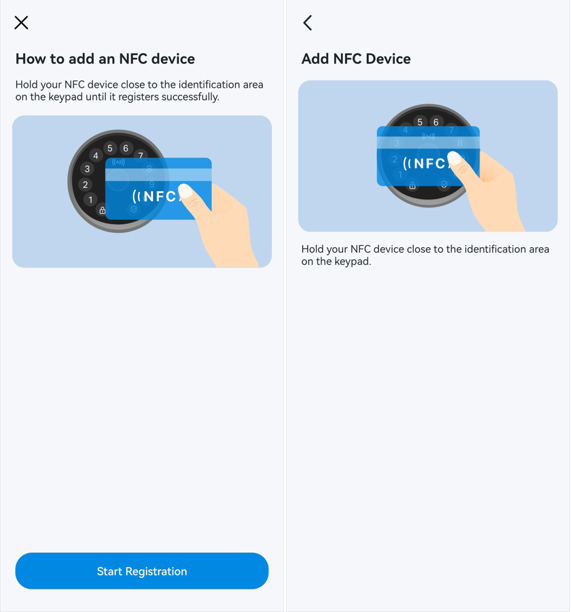
Authorized users can unlock the door or open the gate by tapping an NFC card on the NFC reading area of the Tapo D315 outdoor panel.
The Tapo D315 KIT includes three NFC cards, and additional cards can be added through the Tapo app. To add an NFC Card:
- Open the Tapo app and go to Tapo D315 doorbell Device Settings > Lock Management.
- Tap NFC Cards, then click the plus button in the top right corner.
- Follow the on-screen instructions to register the card.
Method 3: On-Screen Unlock
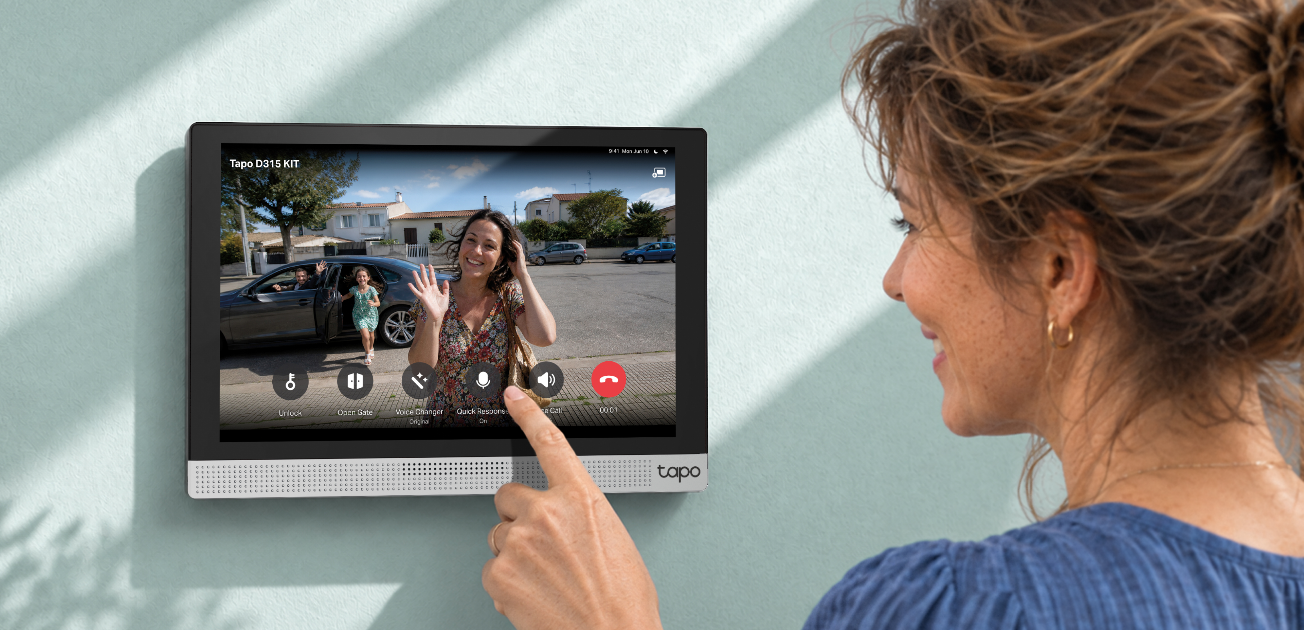
When a visitor rings the doorbell, the Tapo H600W touchscreen displays Unlock and Open Gate options. You can grant access directly from the screen without going to the entrance.
Method 4: Remote Unlock via the Tapo App
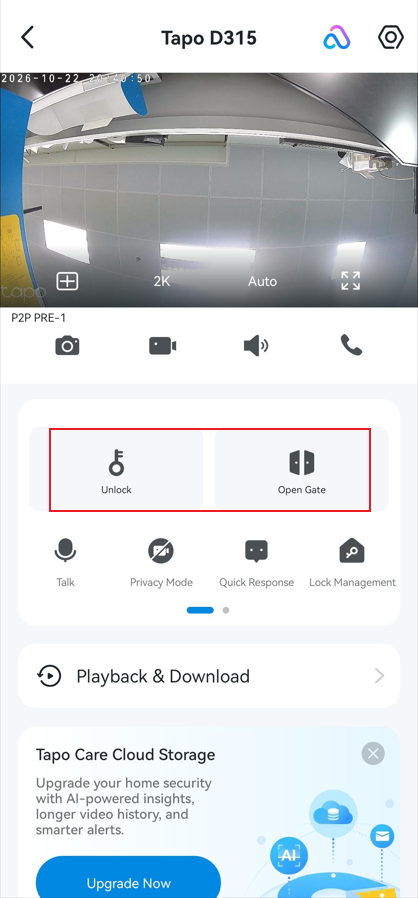
You can also unlock the door or open the gate remotely through the Tapo D315 Live View page. This is useful when you are away from home and need to grant access to family members, friends, guests, or service providers.
Q&A
Q1: What Happens After Multiple Incorrect PIN Attempts?
Repeated incorrect PIN entries will trigger a security alert and create an activity log record.
Q2: Can Shared Users Unlock Remotely?
Yes, if the owner has shared the device and granted the required permission, the device is online.
Q3: Can I Use Third-Party Proximity Cards with Tapo D315 KIT? How About My Phone?
The Tapo D315 KIT is designed to work with the included NFC cards and compatible cards supported by the Tapo app. Compatibility with third-party cards is not guaranteed.
The kit includes three RFID/NFC cards for unlocking. Some third-party M1-type cards may be added if supported. However, encrypted access cards, bank cards, ID cards, proprietary cards, and many third-party access-control cards are not supported.
The supplied NFC cards are designed for enhanced security and may not be copyable.
Some smartphones can emulate a compatible NFC card, while others do not support this function.
If a card cannot be added or fails to unlock the door, try using an original Tapo NFC card first. Also check whether the card has already been added, verify the unlock schedule, and ensure that the D315 KIT is running the latest firmware version.
Q4: What Types of Door Locks Are Supported When Connecting a Hardwired Lock to The Tapo D315 KIT?
For requirements for the supported door locks and gate openers, please refer to the product installation documentation.