

The Tapo H600W Smart Screen enhances your Tapo D315 experience by providing video intercom, smart home control, local storage, security notifications, and Sub-G gateway capabilities. This guide introduces its key features, configuration options, and supported device compatibility to help you get the most out of your smart home system.
Key Takeaways
- Answer doorbell calls, talk to visitors, and control connected locks or gates directly from the Tapo H600W screen.
- Monitor and manage compatible Tapo cameras and smart devices from a centralized control panel.
- Connect supported Tapo Sub-G sensors and switches to Tapo H600W.
- Store Tapo D315 recordings, snapshots, and manual recordings locally on an SD card.
- Receive doorbell and security event notifications on the screen and customize display, brightness, audio, and Auto Screen on/off settings through the Tapo app.
Smart Screen Features
Video Intercom
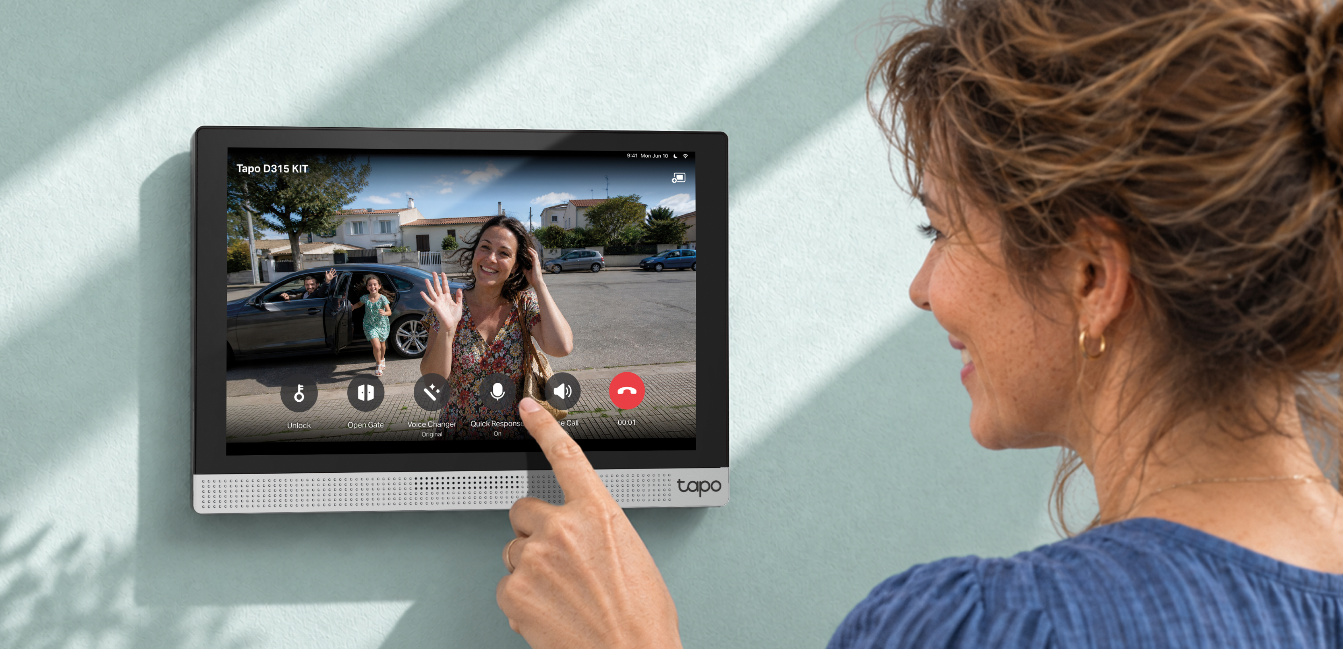
The Tapo H600W allows you to see, hear, and speak with visitors without opening the door. When someone presses the Tapo D315 doorbell, a live video feed appears on the screen, enabling you to:
- Answer doorbell calls
- Start two-way audio communication
- Unlock a connected smart lock
- Open a connected gate
CCTV Monitoring & Smart Home Control
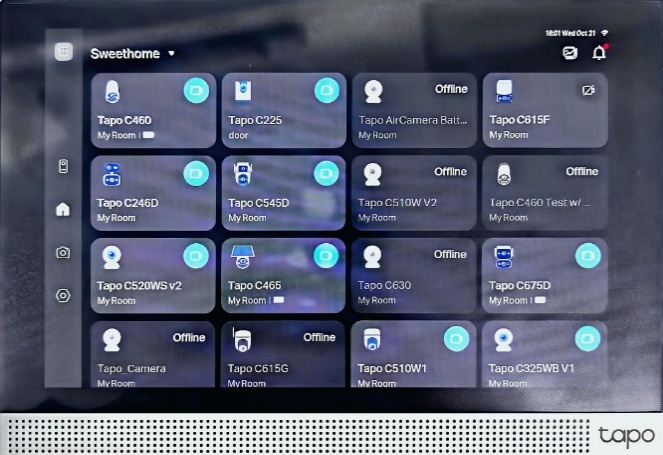
The Tapo H600W serves as a centralized smart home control panel, allowing you to monitor and manage compatible Tapo devices under the same account.
Manage Devices Shown on the Screen
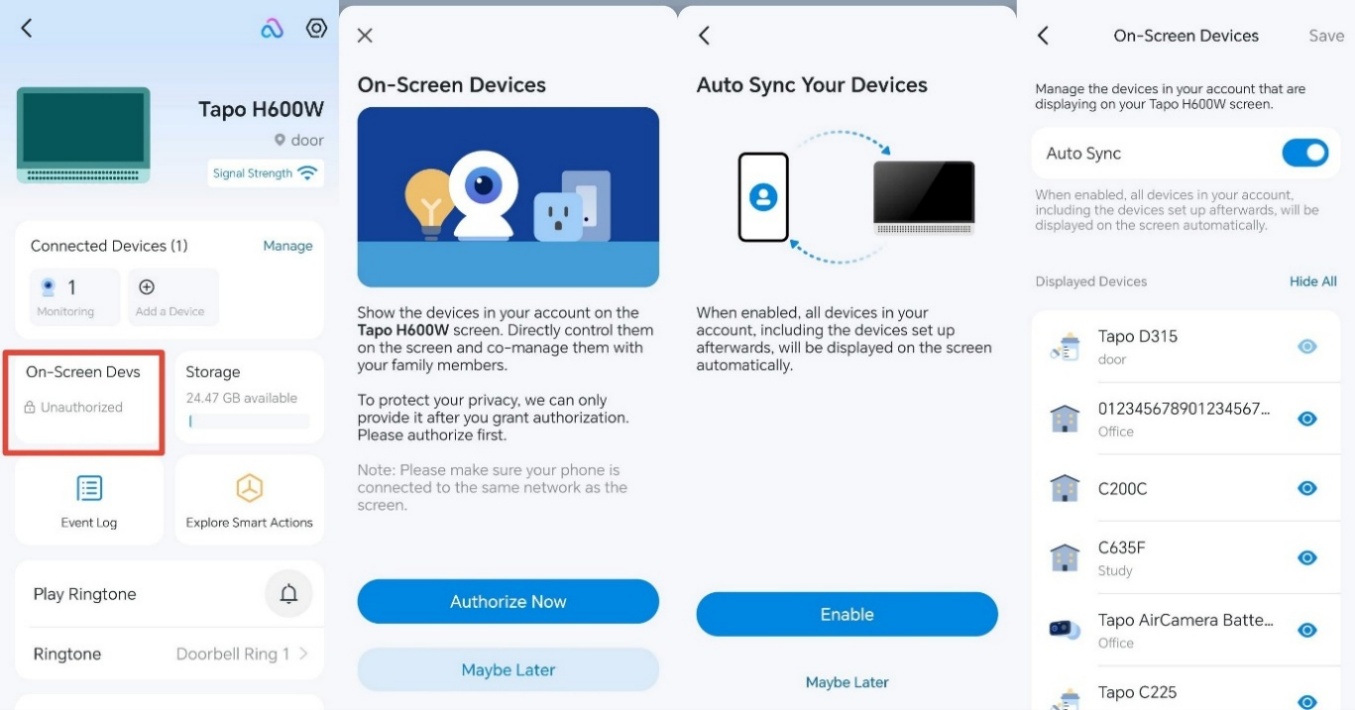
To select which devices appear on the Tapo H600W screen, open the Tapo app, select your Tapo H600W, then tap On-Screen Devs. You can:
- Enable Auto Sync to automatically display all existing and newly added compatible devices.
- Tap Display All or Hide All to quickly manage device visibility.
- Tap the Eye icon next to a device to individually show or hide it on the H600W screen.
Supported Controls
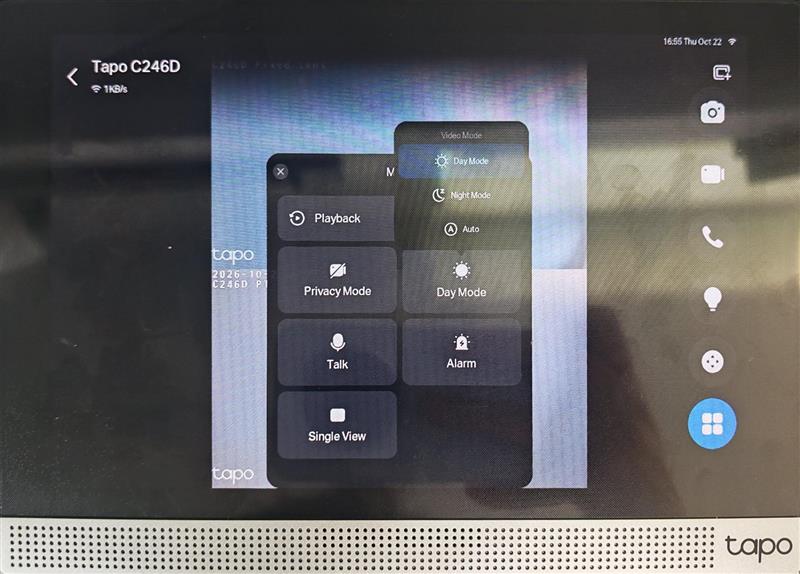
On the Tapo H600W screen, you can:
- View camera/doorbell live view
- Access video playback
- Enable or disable Privacy Mode
- Start two-way audio talk
- Take snapshots or manually record videos
- Control spotlights
- Adjust pan-and-tilt positions
Note: Available features may vary by device model and compatibility.
IOT Gateway
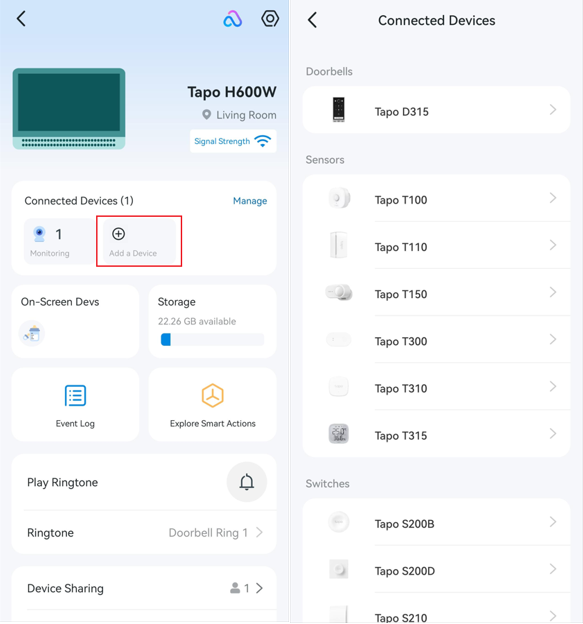
In addition to supporting the Tapo D315, the Tapo H600W can act as a Sub-G gateway for compatible Tapo Sub-G sensors and switches.
To connect a Sub-G device to Tapo H600W, open the Tapo app, select your Tapo H600W, tap Add a Device, then follow the on-screen instructions to complete setup.
Note: Sub-G cameras and doorbells are currently not supported for pairing with the Tapo H600W.
Local Storage Hub
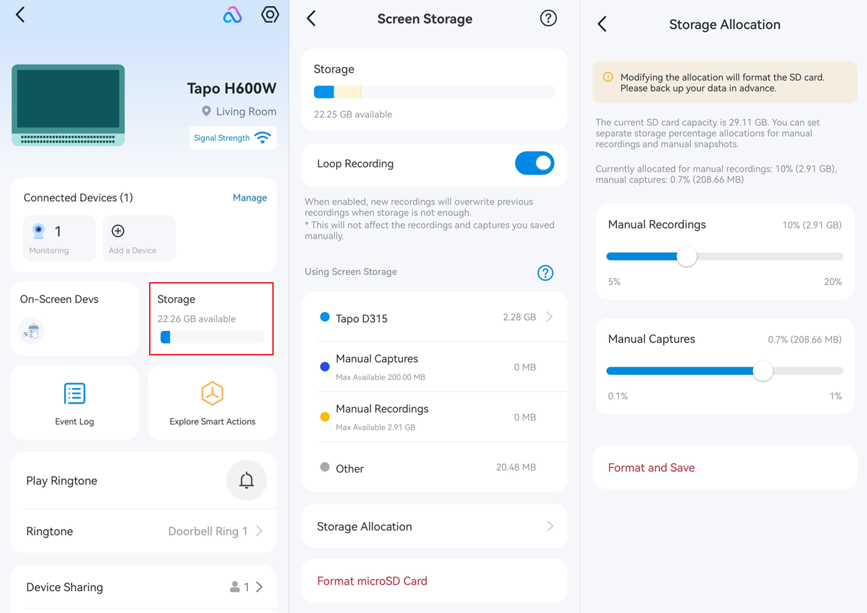
The Tapo H600W also functions as a centralized storage hub. It can store:
- Recordings from the Tapo D315
- Snapshots and manual recordings captured through the Tapo H600W screen
To configure storage allocation, open the Tapo app, select your Tapo H600W, and tap Storage > Storage Allocation. You can reserve a portion of the storage space specifically for manual snapshots and recordings.
Note: Modifying the allocation will format the SD Card. Please back up your data in advance.
Security Notifications
The Tapo H600W serves as a home security notification center. The screen can display doorbell calls and supported detection events, helping you stay informed even when your phone is not nearby.
Smart Screen Usage and Configuration
When idle, the Tapo H600W screen can display useful information such as Time, Date and Weather.
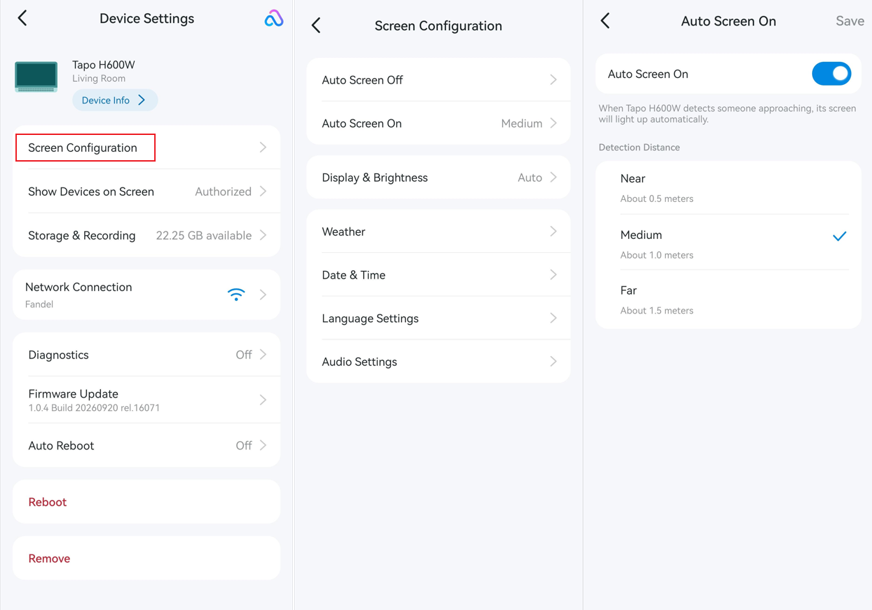
The built-in presence sensor can automatically wake the screen when someone approaches, allowing quick access to the entrance view without touching the display. You can adjust the wake-up distance based on your environment and personal preference. To reduce power consumption, you can also configure the screen to turn off automatically after a period of inactivity.
To customize screen settings, open the Tapo app, select your Tapo H600W, and navigate to Device Settings > Screen Configuration. Available settings include: Auto Screen Off, Auto Screen On, Display & Brightness, Weather, Date & Time, Language and Audio Settings.
Q&A
Q1: Why Isn't My Device Appearing on the Tapo H600W Screen?
The H600W supports displaying most compatible devices under the same Tapo account. However, the following devices are currently not supported:
- Unsupported Models: Tapo D235 V1, Tapo C100, Tapo C110, Tapo C200, Tapo C210, Tapo C310, Tapo C320WS v1, Tapo C825, Tapo C840, and Kasa devices
- Unsupported Device Categories: Tapo Chimes, Matter devices, Smart IR Remotes and Smart Door Locks
Q2: Can D315 Be Used as a Standalone Doorbell?
No. The Tapo D315 KIT is designed to operate as a complete system consisting of the D315 Outdoor Intercom Panel, the H600W Smart Screen, and the Tapo app. The D315 relies on the H600W for power supply and external wireless communication. As a result, the D315 cannot be used independently and must be paired with the H600W.