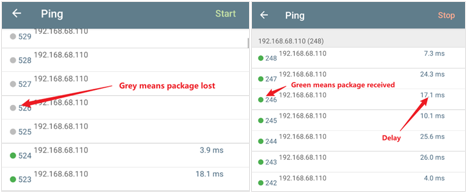
Network latency and packet loss can affect your Tapo device's responsiveness, live view performance, and connection stability. This guide shows how to use the Network Analyzer app to run a Ping test, measure network delay, and identify potential connection issues between your phone and Tapo device.
Key Takeaways
- Use the Network Analyzer app to measure network delay between your phone and Tapo device.
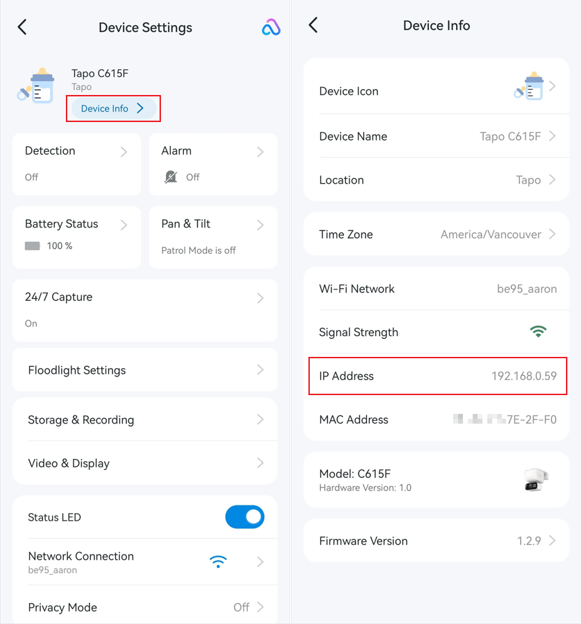
- You can find the device's IP address under Device Settings > Device Info in the Tapo app.
- A Ping test helps identify latency and packet loss issues on your local network.
- Frequent packet loss may indicate an unstable Wi‑Fi connection and can cause disconnections or poor performance.
- Average latency above 100ms may result in slower device responses, delayed status updates, and longer live view loading times.
Test the Connection Delay
Step 1. Install the Network Analyzer App
Install Network Analyzer on your mobile device:
- Android: https://play.google.com/store/apps/details?id=net.techet.netanalyzerlite.an
- iOS: https://apps.apple.com/app/network-analyzer/id562315041
Step 2. Find the Tapo Device's IP Address
Open the Tapo app and tap the device card. Tap the gear icon in the top right corner to open Device Settings. Select Device Info and locate the device's IP Address.
Step 3. Run a Ping Test
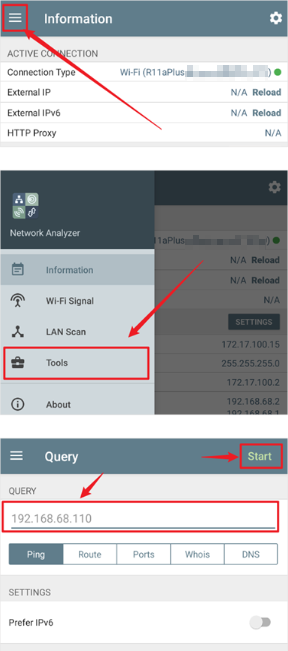
Open Network Analyzer app on your mobile device and navigate to Tools > Ping. Enter the Tapo device's IP Address and start the test.
Note: For battery-powered cameras and doorbells, make sure the device remains awake during the test (for example, by viewing the live stream). Otherwise, the device may enter sleep mode and not respond to Ping requests.
Step 4. Review the Results
Frequent packet loss may indicate an unstable network connection, which can lead to intermittent disconnections or degraded performance.
An average delay greater than 100ms may result in slower device responsiveness, delayed status updates, and longer live view loading times.