

Most Tapo battery-powered cameras and doorbells conserve power by entering sleep mode when idle, which means they cannot continuously monitor motion like wired cameras. Motion events can only be detected when the camera or doorbell wakes up.
If motion occurs in front of the camera/doorbell but you don't receive notifications or recordings, or if detection works only while viewing the live stream, the issue may be related to camera/doorbell placement, wake-up sensitivity, PIR detection conditions, recording settings, or firmware. Follow the steps below to improve motion detection performance.
Key Takeaways
- Install the camera at the recommended height and angle to maximize PIR detection performance.
- Adjust Wake-up Sensitivity and verify the camera's effective detection range.
- Enable 24/7 Capture on supported models to extend detection coverage and capture more events.
- Optimize the environment by avoiding glass barriers, improper mounting angles, and sensor obstructions.
- Update firmware and fine-tune clip settings to improve motion detection reliability and event recording.
Troubleshooting
Step 1. Verify the Installation Position and Detection Range
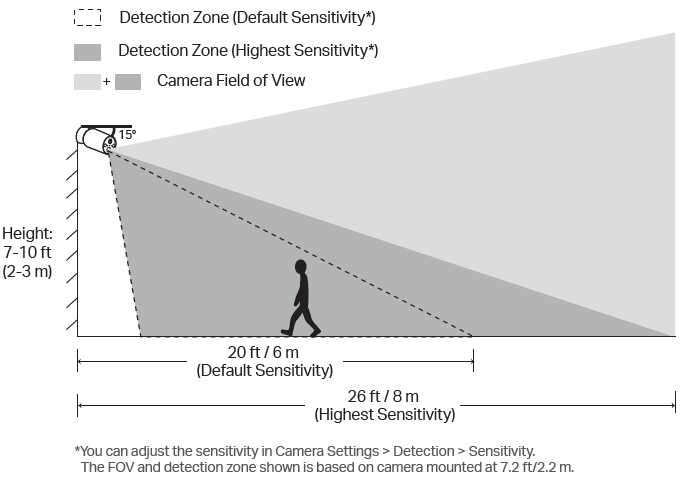
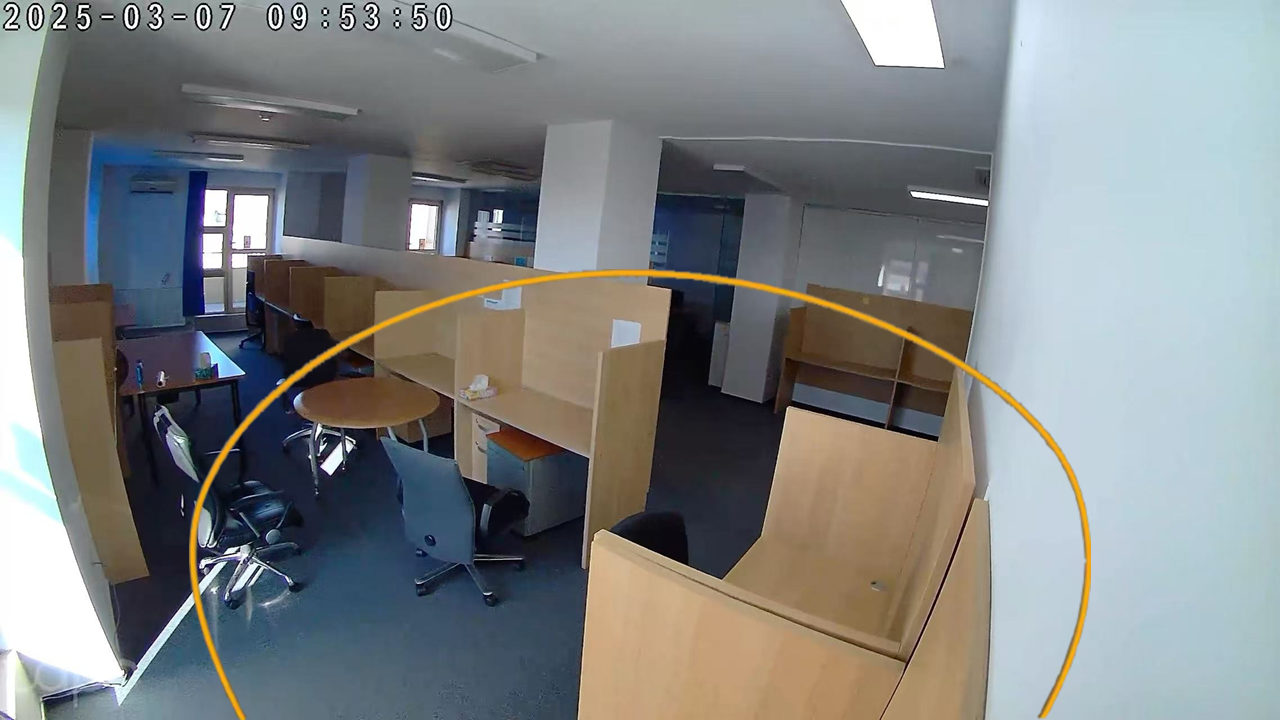
PIR detection performance depends heavily on the camera's installation height, angle, and mounting location. Check the recommended installation guidelines in the Tapo app > camera Device Settings > User Guide > Mounting Guide, or refer to the device's Quick Installation Guide (QIG).
For example, for Tapo C425/TC85:
- Recommended mounting height: 2-3 m (6.5-10 ft)
- Recommended tilt angle: 10°-15°
- Maximum detection distance: approximately 8 m (26 ft) at Wake-up Sensitivity Level 10
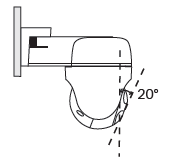
For Tapo battery Pan & Tilt cameras, the PIR sensor moves together with the camera. To maintain optimal detection performance:
- Keep the PIR sensor level.
- Tilt the camera lens downward by approximately 20°.
Step 2. Adjust the Wake-up Sensitivity
Open the Tapo app, go to camera/doorbell Device Settings > Detection > Wake-up Sensitivity, and increase the sensitivity level as needed.
You can also use Detection Range Test to verify whether motion can wake up the camera. Movement outside the tested detection range will not trigger detection. During the test, move throughout the detection area and watch for the camera's light or sound response. A response indicates that motion in that area is sufficient to wake the camera.
If your camera does not support Detection Range Test, follow the steps below to manually test it:
- Go to Camera Device Settings > Alarm, turn on Detection Alarm, and choose Sound as Alarm Type.
- Exit Live View and wait for the camera to enter sleep mode. Then slowly approach the camera from a distance.
- When the alarm sounds, you have reached the maximum wake-up distance. Motion beyond this range will not trigger detection.
Step 3. Enable 24/7 Capture (On Supported Models)
24/7 Capture is a feature that continuously takes snapshots at a set interval within a defined schedule. When motion or an event is detected, it switches to normal frame-rate recording. This feature extends detection range and provides results similar to continuous recording, but with lower power consumption—helping ensure more critical moments are captured.
If your camera is connected to a solar panel, enabling 24/7 Capture under camera Device Settings > 24/7 Capture may improve detection performance.
If motion detection problems occur after enabling 24/7 Capture, refer to: Detection is not working on Tapo/Kasa Camera
Note: If your camera does not support 24/7 Capture, continue with the following optimization steps.
Step 4. Optimize the PIR Detection Environment
Avoid Installing the Camera Behind Glass
Glass can block or reduce PIR sensor effectiveness, preventing the camera from detecting motion outside.
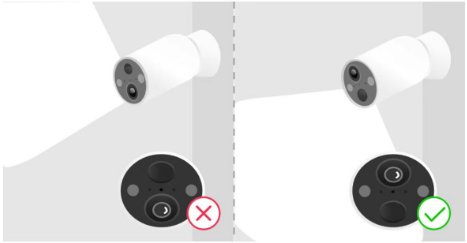
Keep Motion Sensor Lens Level
Ensure the camera lens is horizontal. Excessive upward or downward tilt may reduce the PIR detection range.
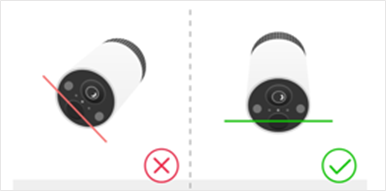
Avoid Mounting the Camera Upside Down
Ensure the camera is oriented correctly to maintain proper functionality.
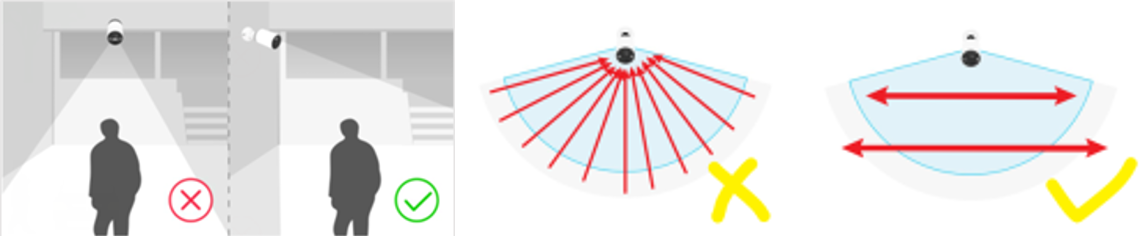
Mount the Camera to the Side
Whenever possible, mount the camera to the side of the monitored area rather than directly facing approaching subjects.
PIR sensors detect changes in infrared heat and are generally more sensitive to movement across their field of view than movement directly toward or away from the camera.
Note: Small animals may be harder to detect because they generate less heat than humans and may not reliably trigger the sensor.
Step 5. Optimize Clip Settings
Navigate to camera or doorbell Device Settings > Storage & Recording > Clip Settings, reduce the Retrigger Time, increase the Record Buffer, and extend the Maximum Clip Length. These adjustments can help capture more motion events and reduce missed recordings.
Step 6. Update the Firmware
Ensure the camera or doorbell is running the latest firmware version under Device Settings > Firmware Update. Firmware updates may include Motion detection improvements, Performance optimizations, and Bug fixes.
Step 7. Check for Sensor Obstructions
Check that no decorations, stickers, protective covers, skins, or accessories are blocking the motion sensors.
For example, on models such as Tapo D260, the sensors are located on the upper front area of the doorbell. If they are partially or fully obstructed, the device may not wake up or detect motion correctly.
Remove any obstruction and test motion detection again.