How to Export Temperature & Humidity History Data from Tapo Sensor
Последните актуализации може да са разширили достъпа до функциите, обсъдени в Често Задавани Въпроси. Посетете страницата за поддръжка на вашия продукт, изберете правилната версия на хардуера за вашето устройство и проверете информационния лист или секцията за фърмуер за най-новите подобрения, добавени към вашия продукт. Моля, обърнете внимание, че наличността на продукта варира в зависимост от региона и някои модели може да не са налични във вашия регион.
Tapo temperature and humidity sensors not only provide visual data records with the Tapo App but also support history data export, allowing users to further data analysis or local data storage.
Export Temperature & Humidity History Data
The following steps will guide you step by step on how to export the sensor's historical data.
On Tapo Temperature & Tumidity sensor
- Open Tapo App and go to Tapo temperature & humidity sensor’s device page.
- On the History section, click “View All” -> click the download button in the upper right corner.
- Enter the email address where you want to receive the data.
- Select the time interval and range.
- Click Export.

Notes:
1. The data is stored for up to 2 calendar years.
2. Export interval:
- In minutes: 1, 15, 30 minutes
- In hours: 1, 6, 12 hours
- In days: 1 day
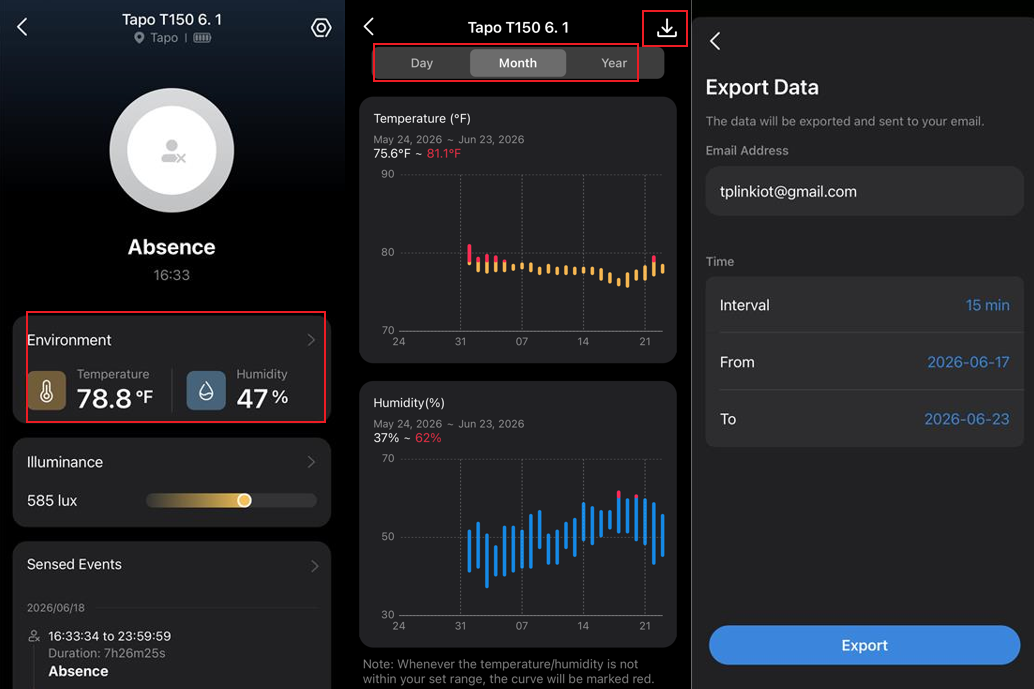
On Tapo Smart Human Presence Sensor
1. Open the Tapo app and go to the sensor's Device Page.
2. Go to the Environment Section.
3. Select the Day/Month/Year and click the download button in the upper right corner.
4. Enter the email address where you want to receive the data, select the time interval and range, then click Export.
5. Done. Now check your inbox to find the exported data!
Can’t receive the exported data email?
- Double-check the email address.
- Check if it is in the spam mailbox.
- Check the network quality of your device (for receiving emails), try switching networks and reload the inbox.